
1. What MoQ MS/OB Does
MoQ MS/OB is an indicator: a tool you add to a price chart on TradingView. It does not place trades for you. It draws the things many traders otherwise mark by hand, so the important areas are already on your chart when you open it.
It draws three kinds of things:
- Zones: colored boxes around a price area where something important happened, such as the turning point before a strong move. A zone keeps stretching to the right with each new candle until price breaks through it or fills it.
- Levels: horizontal lines at important prices, such as yesterday's high.
- Labels: small tags such as "BOS↑" that mark an event on a specific candle.
The ideas behind these drawings come from a popular style of chart reading called Smart Money Concepts (SMC). SMC assumes that big players, such as banks and funds, leave footprints on the chart, and it tries to spot them. You don't need to know SMC to use this manual: every term is explained below.
What this means for you: you spend less time marking up your chart. Deciding what to do with what you see is still up to you.
Labels and alerts mark chart events, such as a break of structure. They are not buy or sell recommendations.
2. Words You Will See
If you are new to trading, read this list once. The rest of the manual uses these words.
- Candle: one bar on the chart. It shows where price opened, closed, and how high and low it went during one period (for example, one hour).
- Body and wick: the thick part of a candle is the body (from open to close). The thin lines above and below are the wicks, which show the highest and lowest prices reached.
- Bullish / bearish: bullish means going up, bearish means going down. A bullish candle closed higher than it opened; a bearish candle closed lower.
- Timeframe: how much time each candle covers. On a 15-minute chart, each candle is 15 minutes. "Bigger timeframe" means bigger candles, such as 1 hour, 4 hours or 1 day.
- Swing high / swing low: a peak with lower candles on both sides, or a dip with higher candles on both sides.
- Confirmed: a swing only counts once a few more candles have printed after it. That is why many drawings appear a few candles after the candle they belong to.
- Support / resistance: support is a price area where falling prices have tended to stop. Resistance is the same idea above price, where rising prices have tended to stall.
- Demand / supply: demand means buyers, supply means sellers. A demand zone is where buyers stepped in before; a supply zone is where sellers did.
- Mitigated: a zone price has broken through or filled. It is used up.
- Break of structure (BOS): a candle closes beyond the last swing high or swing low.
- Liquidity: a cluster of waiting orders. Many traders place orders just above old highs and just below old lows, so those prices tend to attract price.
- Sweep: price pokes past an old high or low with a wick, triggers the orders waiting there, and closes back on the other side.
- Confluence: when two or more tools point at the same price area. Traders watch those areas more closely than an area only one tool marks.
3. Getting Started
Get Access and Add It to Your Chart
MoQ MS/OB is an invite-only script, which means TradingView only shows it to accounts that have been given access. Access comes with your MomentumQ trial or subscription.
- Give us your public TradingView username when you sign up. Access is usually granted within 24 hours.
- Open any chart on TradingView and click Indicators at the top.
- Choose the Invite-Only Scripts tab and click MoQ MS/OB. It now appears on your chart.
It works on any market and any timeframe. Some features need volume data (section 4); on charts without volume they simply switch themselves off.
Chart Theme
Under General Settings, set Chart Theme to Dark Mode or Light Mode to match your TradingView background. It sets the text color of timeframe labels, sweep marks and boundary lines: white for dark charts, black for light ones. The default is Light Mode, so change it first if your chart is dark.
Use MomentumQ Defaults
Use MomentumQ Defaults is on when you add the indicator. While it is on, the detection settings are locked to MomentumQ's values, and changing them in the settings has no effect:
- Supply and demand pivots: 3 bars on each side
- Order block pivot range: 3, validation lookback: 10
- FVG lookback: 2
- Fibonacci swing detection: 10 bars
- Mitigation delay: 3 bars
Colors and on/off switches are not locked. Leave it on to start. Switch it off only when you want to change one of the numbers above.
What Is On When You Start
- On: supply and demand zones, order blocks, fair value gaps, price gaps, break of structure labels and Premium Reversal labels.
- Off: zones from bigger timeframes, key levels, Fibonacci, sweep marks, the liquidity heatmap, premium/discount zones and equal highs/lows.
If the chart feels busy, switch a few things off and add them back one at a time. A calm first setup is order blocks plus previous day high and low (section 11).
4. How to Read the Chart
Colors
- Green: anything bullish: demand zones, bullish order blocks, bullish FVGs, BOS↑ labels.
- Red: anything bearish: supply zones, bearish order blocks, bearish FVGs, BOS↓ labels.
- Yellow: price gaps.
- Grey: a zone that has just been mitigated. It disappears a few candles later.
You can change the green and red under Colors & Appearance (Bullish Color and Bearish Color), along with how see-through the boxes are and whether they have borders. Borders are off by default.
Stronger and Weaker Zones
With Enable Volume-Weighted Zones on (the default), a zone's color depends on how much trading happened when it formed. Volume is the number of shares or contracts traded. A zone that formed on above-average volume is drawn more solid; one that formed on below-average volume is drawn paler. This only works on charts that have volume data.
What this means for you: a solid-looking box formed when a lot of trading was going on. A faint one formed on a quiet candle.
The Life of a Box
- It appears once the indicator has confirmed what it found, usually a few candles after the candle it belongs to.
- It keeps stretching right with each new candle while it is still active. A box reaching the right edge of your chart is live.
- It turns grey when price breaks through it or fills it.
- It is removed three candles later, so your chart only shows what is still live.
If you would rather keep used-up zones on the chart, switch off Remove Mitigated Zones under Performance & Resources. Zones then stop stretching but stay where they are, in their normal color.
5. Order Blocks
What Is an Order Block?
An order block is the candle at a turning point, just before price moves away from it. The idea is that large buyers or sellers were active there, and price may react if it comes back.
- Bullish order block (green): a bearish (down) candle that forms a swing low. Price turned up from there.
- Bearish order block (red): a bullish (up) candle that forms a swing high. Price turned down from there.
To count, the swing needs 3 candles on each side and has to be lower (or higher) than the 10 candles before it. That is why the box appears 3 candles after the order block candle itself.
Example: price drifts down and the last candle of the drop is red. Then price climbs for three candles. That red candle is now a confirmed swing low, so MoQ MS/OB draws a green box over it. If price later falls back into that box, it has returned to where buyers took over last time.
What this means for you: green boxes below price are areas where price found buyers before (possible support). Red boxes above price are areas where it found sellers before (possible resistance). They are places to watch, not guarantees that price will turn.
The Settings
- Show Bullish Order Blocks and Show Bearish Order Blocks (both on): switch each side on or off.
- Use Candle Body (vs Wick) (on): the main box covers the candle's body. Switch it off and the main box covers the whole candle, wicks included.
- Show Full Candle Range (on): adds a second, paler box around the whole candle, so you see both the tight body area and the full range.
- Render as Lines (off): draws only the top and bottom edge as lines instead of filled boxes. Choose this if colored boxes cover too much of your chart.
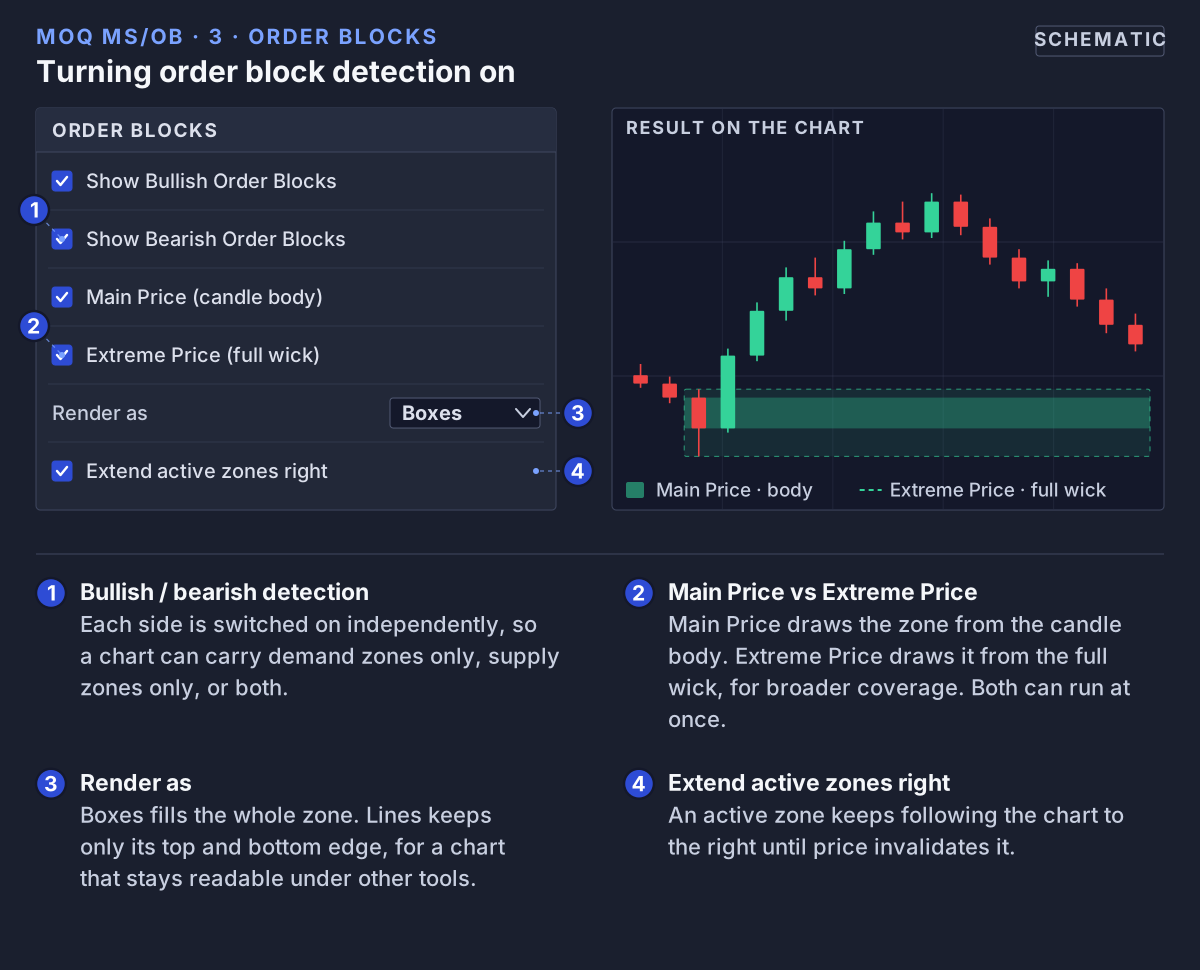 Order block detection: what each toggle switches on, and how it changes the zone drawn on the chart.
When Does an Order Block Stop?
- A green (bullish) box is mitigated when a candle closes below its bottom.
- A red (bearish) box is mitigated when a candle closes above its top.
Only the close counts. If a wick pokes through but the candle closes back inside, the box stays active. Once mitigated, it turns grey and is removed three candles later (section 4).
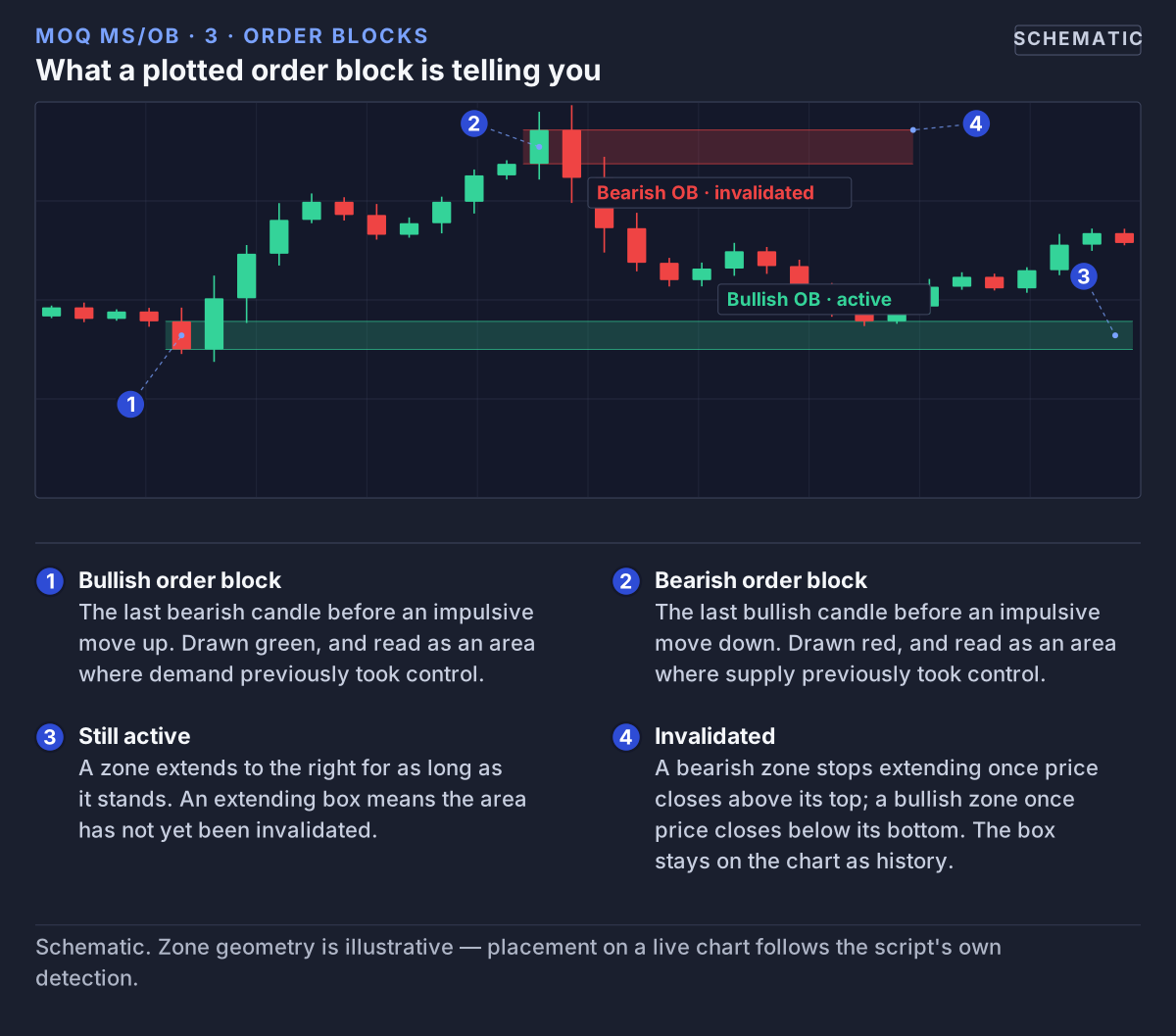 A bullish and a bearish order block, from the candle that forms them to the close that stops one extending.
Boundary Lines
Under Order Block Boundaries you can draw lines from an order block's top or bottom edge that run all the way to the right of the chart. Switch on Enable Boundary Lines, then pick which edges you want: Bullish Upper, Bullish Lower, Bearish Upper or Bearish Lower. All are off by default.
These lines are deleted automatically after Boundary Line Expiry (Months): 1 month by default, adjustable from 1 to 12.
Volume Filter
Under Order Block — Volume Filter, Volume-Weight Filter (off by default) keeps only order blocks whose candle traded more volume than usual. Min Volume Z-Score sets how much more: 0 means at least average, and the default 0.5 means clearly above average. Turn it on if you see too many small order blocks.
6. Supply and Demand Zones
Sometimes price turns at the same price more than once. MoQ MS/OB watches for that: when a new swing low forms at about the same price as the swing low before it, it draws a green demand zone covering both. More swings at that price widen the same zone. A red supply zone works the same way with swing highs.
Example: price dips to about 100 and bounces. A few days later it dips to about 100 again and bounces again. Two swing lows at the same price, so a demand zone appears around 100.
A demand zone is mitigated when a candle closes below its bottom; a supply zone when a candle closes above its top. Wide Zone Clustering (off) makes the zones wider so they cover every swing in the group; off keeps them tight.
What this means for you: supply and demand zones use the same green and red as order blocks, but they mark a price that was defended more than once. Where a demand zone and a bullish order block overlap, two tools agree.
7. Zones From Bigger Timeframes
An order block on a 4-hour chart is built from much bigger candles than one on a 15-minute chart, so it often marks a more important area. Normally you would have to switch charts to see it. MoQ MS/OB can bring it to the chart you are using.
There are three slots for order blocks (Multi-Timeframe Order Blocks) and three for FVGs (Multi-Timeframe FVGs). All are off by default. Each slot has its own on/off switch and timeframe: 15, 30, 45 or 60 minutes, 240 (4 hours), 1D, 1W or 1M. The suggested timeframes are 240, 60 and 1D.
- Each slot shows the most recent order block or FVG from its timeframe, and replaces it when a newer one forms.
- The box carries its timeframe as a label, for example "240" for a 4-hour order block or "240 FVG" for a 4-hour FVG. Switch off Show Timeframe Labels to hide it.
- A slot does nothing if your chart is already on that timeframe. Pick timeframes bigger than your chart.
Example: you trade on a 15-minute chart and switch on order block slots set to 60 and 240. Your 15-minute boxes now sit next to the latest 1-hour and 4-hour ones.
What this means for you: when a 15-minute box sits inside a 1-hour or 4-hour box, several timeframes agree on the same area. That is confluence.
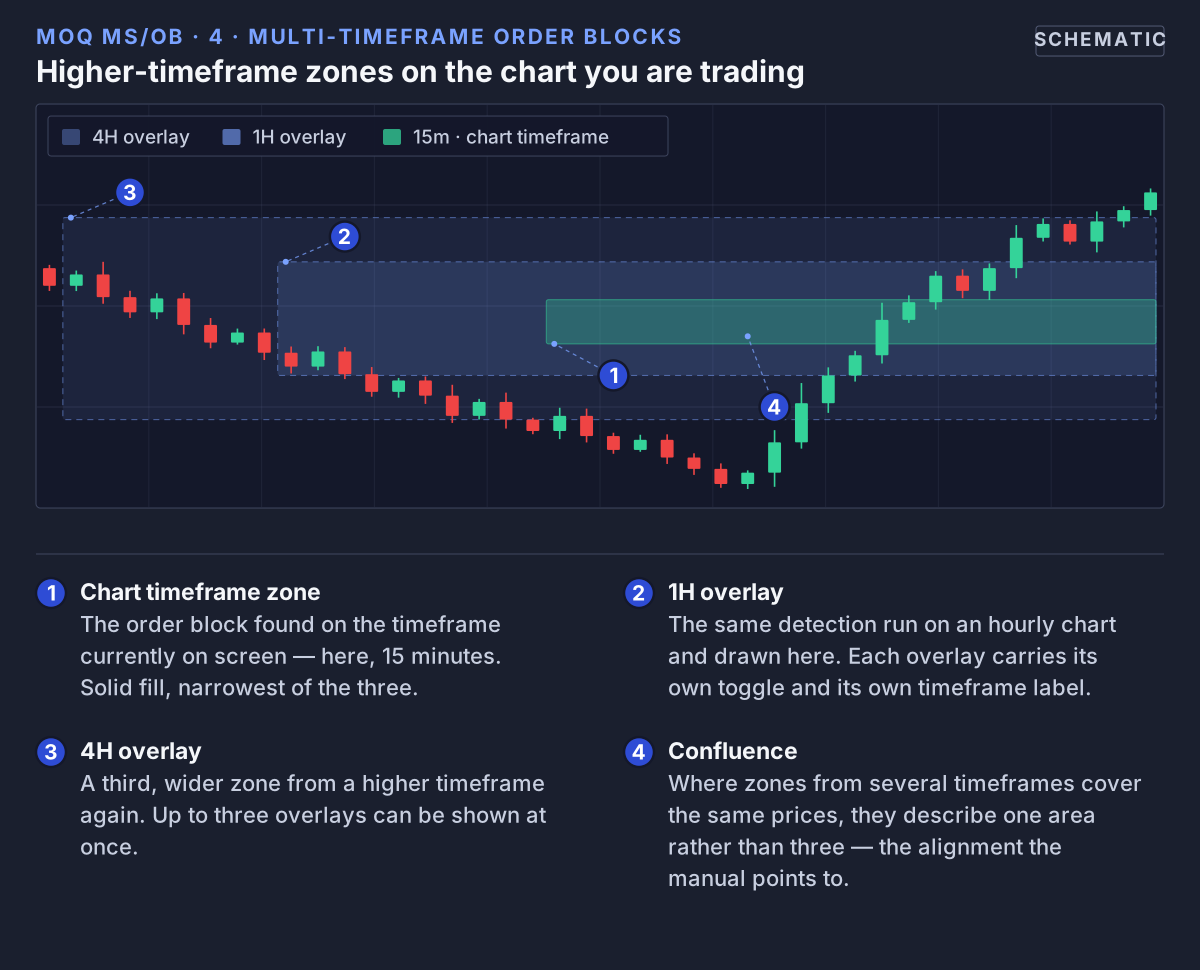 Up to three higher-timeframe zones can sit on the current chart. Where they overlap is the confluence the manual describes.
8. Fair Value Gaps (FVGs)
What Is a Fair Value Gap?
Sometimes price moves so fast that it skips over a range of prices. That skipped area is a fair value gap, or FVG. MoQ MS/OB uses the standard three-candle check:
- Bullish FVG (green): the low of the newest candle is above the high of the candle two bars earlier. The space between them is the gap.
- Bearish FVG (red): the high of the newest candle is below the low of the candle two bars earlier.
Example (illustrative prices): candle 1 has a high of 103. Candle 2 shoots up. Candle 3 has a low of 105. Nothing on candles 1 and 3 traded between 103 and 105, so MoQ MS/OB shades 103–105 as a bullish FVG.
When Is an FVG Filled?
With Extend Unfilled FVGs on (the default), an open gap stretches to the right edge of the chart. It counts as filled when price comes all the way back to its far side: down to the bottom of a bullish FVG, or up to the top of a bearish one. In the example, that is when price drops back to 103. The box then turns grey and is removed three candles later.
What this means for you: open FVGs show areas price skipped. Price often comes back to them, either as a pullback area or as a target.
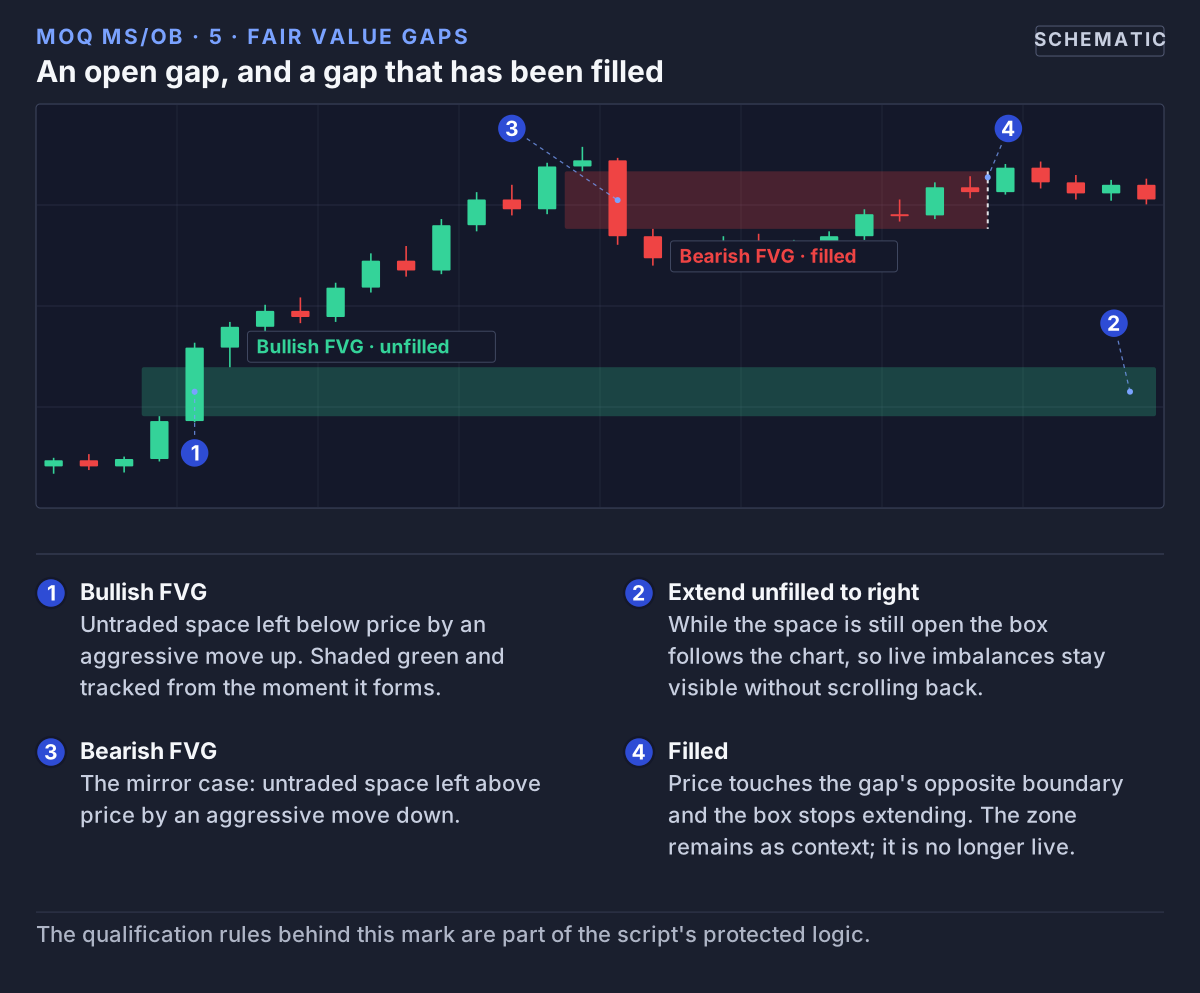 A fair value gap marks untraded space left by a fast move. It extends right while it is open and stops when price fills it.
Filter FVGs at True Gaps (off) hides FVGs that form on the same candles as a price gap (section 9), so the same jump is not marked twice.
9. Price Gaps
What Is a Price Gap?
A price gap is a jump between two candles, often after a weekend or a news release. MoQ MS/OB draws it as a yellow box.
- Gap up: the new candle opens above the previous candle's high, and its low stays above that high too. The whole candle sits above the previous one.
- Gap down: the mirror case, with the whole new candle below the previous candle's low.
This rule is Strict Gap Detection, which is on by default.
Example (illustrative prices): on Friday the last candle's high is 100. On Monday the first candle opens at 103 and its low is 102. MoQ MS/OB draws a yellow box from 100 to 102.
With Extend Unfilled Gaps on, the box stretches right until the gap is fully closed: price trades all the way back to the previous candle's high (100 in the example). It then turns grey and is removed three candles later.
What this means for you: open gaps are "unfinished business" that price often returns to, so they are useful to keep in view.
Price Gap or FVG?
A price gap is a jump between two neighbouring candles. An FVG is measured across three candles, so it can appear even when every candle opened inside the previous one. You can switch each one on or off separately.
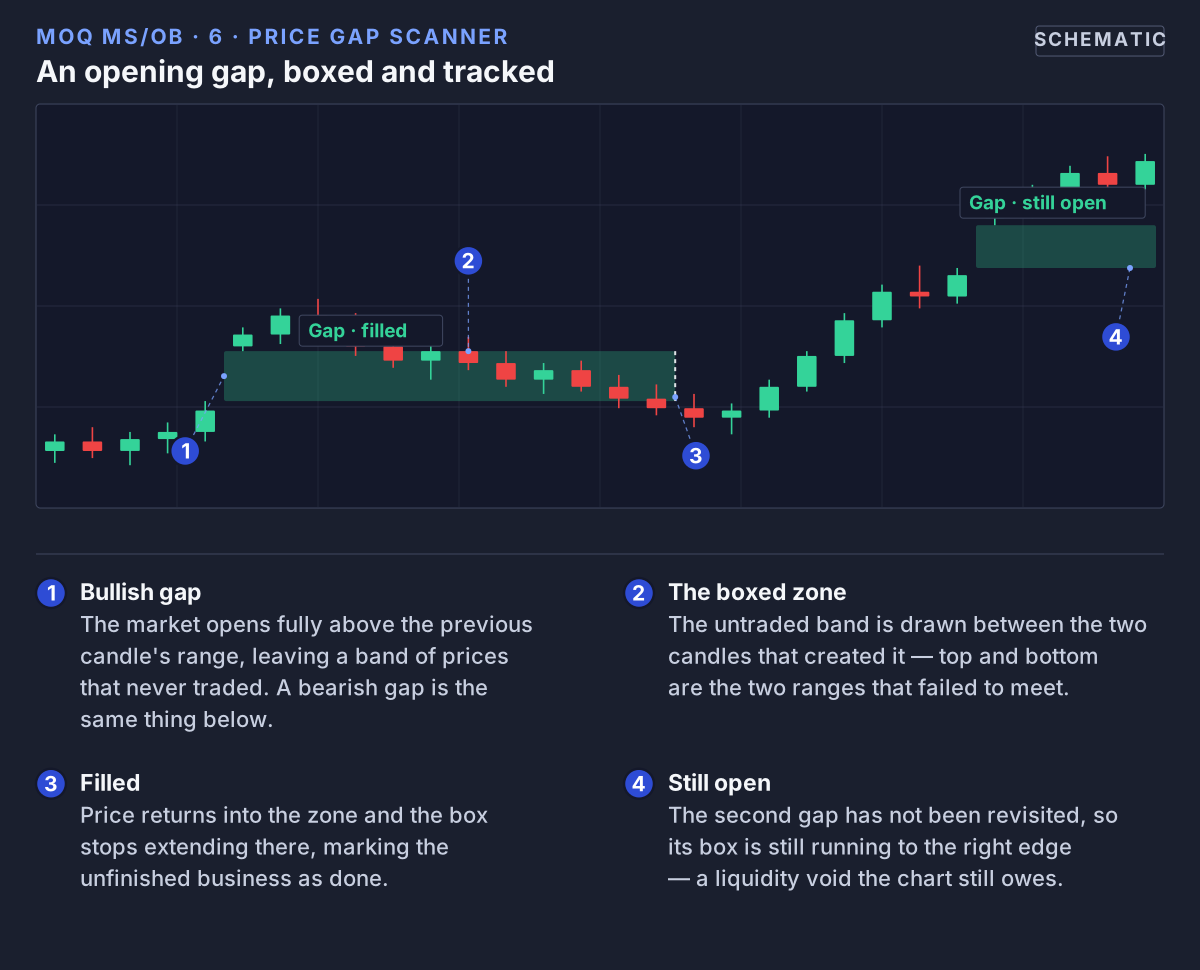 The gap scanner boxes an opening gap between consecutive candles and tracks it until price returns.
10. Break of Structure, Sweeps and Premium Reversals
These tools label events on single candles. They use swings with 5 candles on each side (BOS Pivot Length), so they look at bigger swings than the order blocks do.
Break of Structure (BOS)
When a candle closes above the most recent swing high, the indicator prints a green BOS↑ label above it. When a candle closes below the most recent swing low, it prints a red BOS↓ below it. Each swing can only be broken once.
What this means for you: a series of BOS↑ labels means price keeps making higher highs, the textbook picture of an uptrend. BOS↓ labels in a row describe a downtrend.
A small table in the bottom-left corner counts the streak: how many breaks in a row went the same way. A count turns green or red once it reaches 2.
Liquidity Sweeps
A sweep is when a candle's wick goes past the last swing high (or low) but the candle closes back on the other side. Price grabbed the orders waiting there and turned back. Switch on Show Liquidity Sweep Marks (off by default) to see them as SWP↑ (above a high) and SWP↓ (below a low).
Premium Reversals
A Premium Reversal combines the two: a sweep, followed within 10 candles by a break of structure the other way (Premium Reversal Lookback).
- PREMIUM ▲ (green): price swept below a swing low, then closed above a swing high.
- PREMIUM ▼ (red): price swept above a swing high, then closed below a swing low.
Example: price dips just under last week's low, snaps back, and a few candles later closes above the most recent swing high. The dip grabbed the orders under the low, and the break shows buyers took control. That is a PREMIUM ▲.
Choosing What You See
SMC Filter Mode decides which of these labels appear: All (default), BOS only, Sweep only or Premium Reversal only. You can also switch off Show BOS Labels or Show Premium Reversal Labels on their own, or the whole engine with Enable BOS Detection.
11. Key Levels
Key levels are horizontal lines at the previous day's, week's and month's highest and lowest price. Each pair has its own switch under Key Price Levels, and all are off by default.
- Previous Day High/Low: thin lines, red for the high and green for the low. The most useful for day trading.
- Previous Week High/Low: medium lines, orange for the high and teal for the low.
- Previous Month High/Low: thick lines, pink for the high and blue for the low.
New lines are drawn when a new day, week or month starts. Level History (Days) (10 by default) sets how long old daily lines stay; weekly and monthly lines are kept 7 and 30 times as long.
Example: yesterday's high was 100. Today price rises to 100.20, then quickly falls back below 100. Price swept yesterday's high.
What this means for you: these lines show where many traders have orders waiting. Watch them for sweeps, for the edges of a range, and for areas where price may turn.
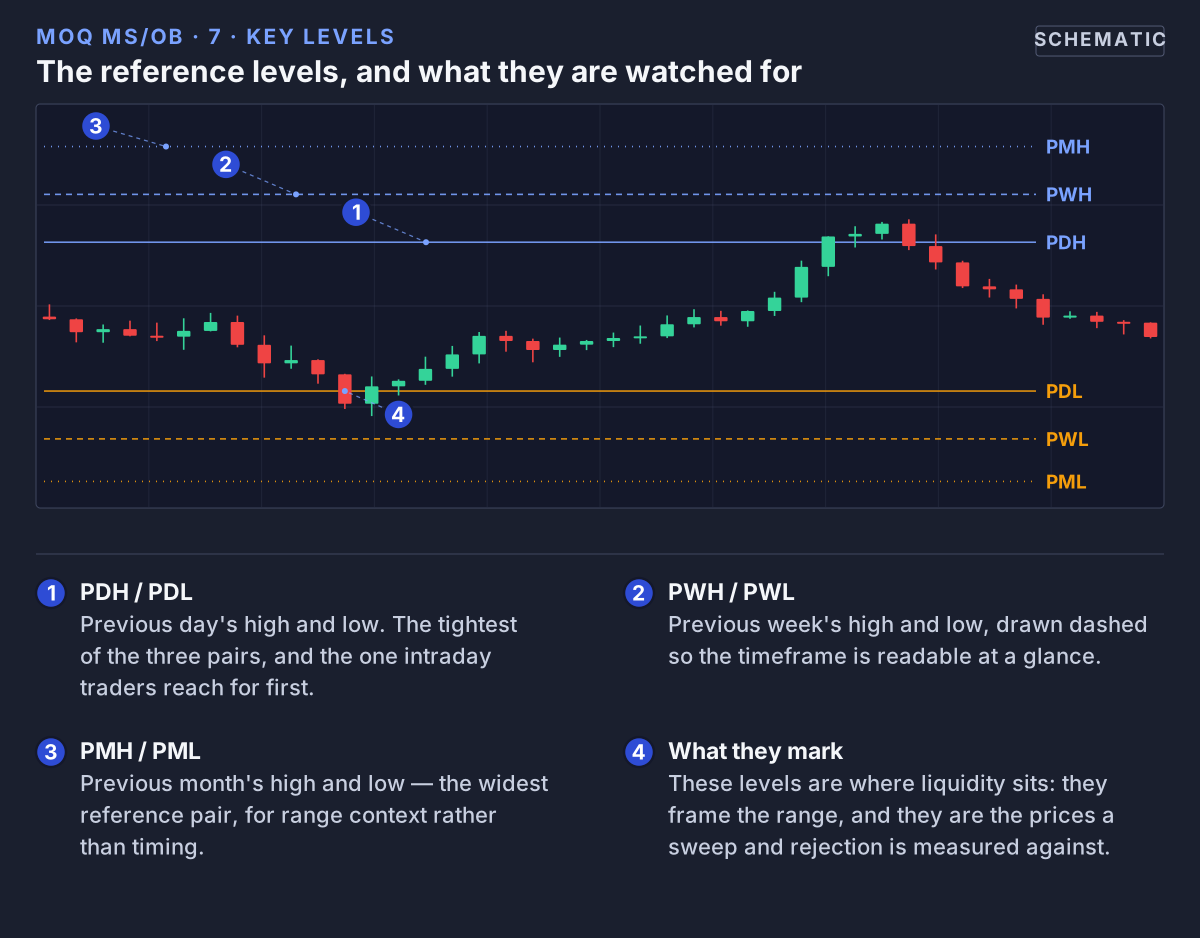 Previous day, week and month highs and lows, each individually toggleable, drawn as reference levels.
12. Auto Fibonacci Levels
What Are Fibonacci Levels?
Fibonacci levels are lines drawn at fixed fractions of a price move. Traders use them to measure how far a pullback has gone and how far a move might stretch.
What the Indicator Draws
Switch on Enable Fibonacci (off by default). MoQ MS/OB takes the most recent confirmed swing high and swing low (10 candles on each side) and draws:
- 0 at the swing low and 1.0 at the swing high, with 0.236, 0.382, 0.5, 0.618 and 0.786 in between, as solid teal lines.
- With Include Extensions on (the default): 1.272, 1.618 and 2.0 above the swing high, as dotted purple lines.
- A label with each ratio (Show Level Labels, on). Show Price on Labels (off) adds the price.
When a newer swing is confirmed, the levels are redrawn. Current Swing Only (on) removes the old set, so the chart only shows the latest one.
Example (illustrative prices): the swing low is 100 and the swing high is 200. The 0.5 line sits at 150, halfway. The 0.618 line sits at 161.8 and the 0.786 line at 178.6. The extensions sit at 227.2 (1.272), 261.8 (1.618) and 300 (2.0).
What this means for you: because 0 is always the swing low, the levels read like a ruler from bottom to top. A pullback from the high to 0.5 has given back half the move.
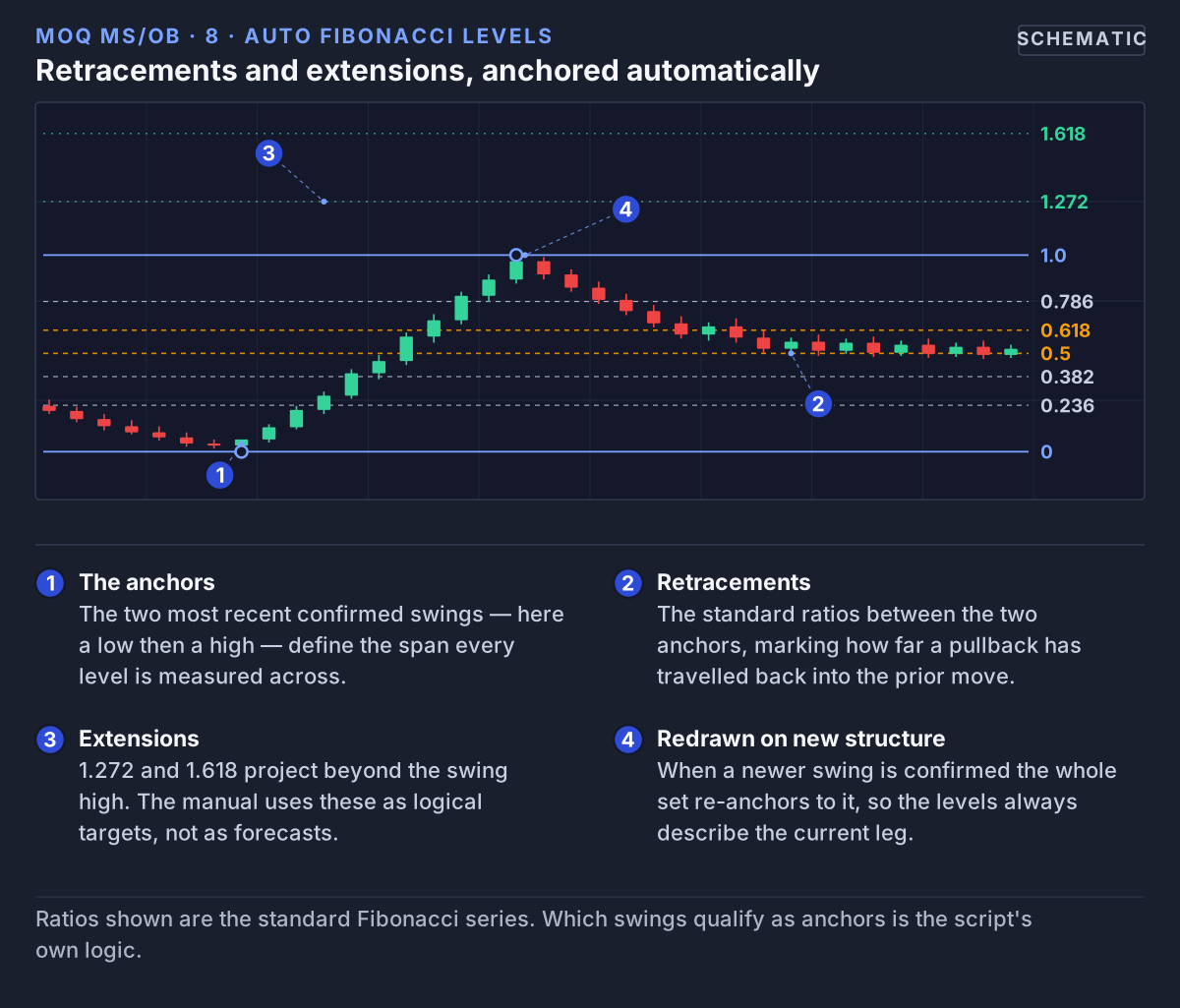 Retracements are anchored to the two most recent confirmed swings and redrawn whenever new structure forms.
13. Extra Liquidity Tools
Three more tools are off by default. Try them once you are comfortable with the basics.
Liquidity Heatmap
Show Liquidity Heatmap draws a faint line at each recent swing high (red) and swing low (green). When later swings land within 0.2% of an existing line, they count as extra touches on it instead of adding a new line. The more touches a line has, the brighter and thicker it gets. Up to 20 lines are kept.
What this means for you: bright, thick lines mark prices the market has turned at again and again, which is where waiting orders tend to pile up.
Premium and Discount Zones
Show Premium / Discount Zones takes the highest and lowest price of the last 50 candles and splits that range in half with a dashed grey line. The top half is shaded red (premium: price is relatively expensive) and the bottom half green (discount: relatively cheap). Show OTE Bands adds orange lines at 61.8% and 78.6% of the range and aqua lines at 38.2% and 21.4%. OTE stands for "optimal trade entry", a name SMC traders use for these levels.
Equal Highs and Lows
Show EQH/EQL Markers labels swing highs and lows that line up with earlier ones. When a new swing high lands within 0.10% of earlier swing highs, it gets a label such as EQH ×3: three swing highs at about the same price. EQL is the same for lows.
What this means for you: equal highs or lows are a classic place for waiting orders to build up, so they are often the target of a sweep.
14. Alerts
MoQ MS/OB can notify you instead of you watching the chart. In TradingView, click Alert, choose MoQ MS/OB as the condition, and pick one of these:
- Bull BOS / Bear BOS: a break of structure up or down.
- Bullish Liquidity Sweep / Bearish Liquidity Sweep: a sweep below a swing low or above a swing high. These fire even when sweep marks are hidden on the chart.
- Premium Bull Reversal / Premium Bear Reversal: a Premium Reversal (section 10).
- Strong EQH / Strong EQL: three or more equal highs or lows. These only work while Show EQH/EQL Markers is on.
The BOS, sweep and Premium alerts need Enable BOS Detection on. For alerts that only fire on finished candles, choose "Once Per Bar Close" in the alert window.
15. Keeping the Chart Fast
TradingView allows each indicator about 500 boxes and 500 lines. The Performance & Resources settings keep MoQ MS/OB inside that limit, and the defaults suit most charts:
- Auto-Cleanup Drawing Limits (on): deletes the oldest drawings once there are more than 400 boxes or 400 lines (Max Boxes / Max Lines Before Cleanup).
- Limit Memory Usage (on): tracks at most 150 zones of each kind (Max Tracked Elements).
- Remove Mitigated Zones (on) and Mitigation Delay (Bars) (3): how long a grey zone stays before it is removed.
- Show Drawing Usage Stats (off): shows a small table in the bottom-right corner with how many boxes and lines are in use.
16. Putting It Together
Here is one simple way to use the tools together. It is a way to organize what you look at, not a trading system.
- Look at the big picture
Switch on bigger-timeframe order blocks and FVGs. Are the important boxes mostly below price (green) or above it (red)? Check the BOS streak in the bottom-left corner too. - Mark the obvious levels
Switch on previous day, week and month highs and lows. Watch whether price sweeps them and turns back. - Wait for price to reach a zone
Let price come to an active order block, supply or demand zone, FVG or gap. Then watch how it behaves there, for example whether a sweep or a BOS label appears. - Know where price might go next
Open FVGs, open gaps and Fibonacci extensions show areas price may head toward.
This is a way to organize your analysis. It is not a trading signal and not financial advice.
17. Tips and Common Questions
Suggested Setups
- Day trading (short trades within a day): switch on bigger-timeframe order blocks at 60 and 240, and previous day levels.
- Swing trading on bigger charts: switch on weekly and monthly levels, and switch off price gaps if they add clutter.
Common Questions
- I can't find MoQ MS/OB under Invite-Only Scripts. Access is usually granted within 24 hours. If it has been longer, check that the TradingView username you gave us is your exact public username.
- New settings are missing after an update. Remove the indicator from the chart and add it again, so the chart loads the new settings.
- The labels are hard to read. Set Chart Theme to match your background. The default is Light Mode.
- I changed a number and nothing happened. Switch off Use MomentumQ Defaults, which locks the detection settings (section 3).
- A box disappeared. It was mitigated: price closed through it or filled it. Switch off Remove Mitigated Zones to keep such boxes on the chart.
- Boxes appear a few candles late. That is by design: a swing only counts once a few candles have printed after it, so zones appear once they are confirmed.
- My chart is too crowded. Switch off supply and demand zones or price gaps, draw order blocks as lines, or switch off Show Full Candle Range.
- A bigger-timeframe slot shows nothing. Check that the slot is switched on and that your chart is not already on that slot's timeframe.
- The boxes all look equally strong. Your chart may have no volume data, so volume-weighted zones are switched off automatically.
18. Legal Disclaimer
This indicator and its associated documentation are provided for educational and informational purposes only. It does not constitute financial advice, trading recommendations, or an offer to buy or sell any financial instrument.
All trading involves risk. You are solely responsible for your investment decisions and should consult a licensed financial advisor before acting on any analysis.
The MomentumQ MS/OB script and all related materials are proprietary to MomentumQ GmbH and provided for personal, non-transferable use under the MomentumQ Terms of Service; redistribution, modification, and source extraction are prohibited.
© MomentumQ GmbH. All rights reserved.