
The MomentumQ Oscillator (MoQ Osci) is a tool you add to a TradingView chart. It draws a separate panel underneath the price chart, and that panel answers four simple questions: is the market pushing up or down, has that push gone further than usual, has the market gone unusually quiet, and is a stretched move starting to turn?
This guide assumes no trading background. Every term is explained the first time it appears, and the main sections end with what they mean for you in practice.
MoQ Osci helps you read the market; it does not make decisions for you. It does not tell you when to buy or sell, how much to risk, or where to get out. Those decisions stay yours.
1. The Basic Ideas in Two Minutes
You only need a handful of words to use this tool. Here they are in plain language:
- Price chart: The main picture in TradingView, showing how a market's price has moved over time.
- Bar (or candle): One slice of time on the chart. On a 1-hour chart, each bar shows one hour of trading.
- Timeframe: How much time each bar covers, for example 5 minutes, 1 hour or 1 day.
- Momentum: How strongly price is moving in one direction. Think of a ball rolling: momentum is how hard it is rolling, not where it is.
- Bullish / bearish: Bullish means the push is upward. Bearish means the push is downward.
- Moving average: The average price over the last few bars. It smooths out the wiggles and shows the general direction.
- Oscillator: A line that swings up and down around a middle level (here, zero), a bit like a pendulum. Above zero means upward momentum; below zero means downward momentum.
- MACD: A classic momentum measure that compares a fast moving average of price with a slow one. MoQ Osci is built on it, so you will see the name in the settings. You do not need to understand it to use the tool.
- Overbought / oversold: Overbought means price has risen fast and far, so buyers may be getting tired. Oversold means price has fallen fast and far, so sellers may be getting tired. Neither means price must turn.
- Reversal: When price changes direction, for example from falling to rising.
- Trend: A market that keeps moving mostly in one direction for a while.
- Volatility: How jumpy the market is. High volatility means big, fast swings; low volatility means small, calm ones.
What this means for you: If you remember only one thing, remember this. MoQ Osci measures how hard the market is pushing, shows when that push is unusually strong or unusually quiet, and marks when a stretched move starts to come back.
2. Quick Start
- Open any chart in TradingView.
- Click Indicators at the top of the chart, then open Invite-Only Scripts and choose MomentumQ Oscillator. (It only appears there once your access is active; see section 16.)
- A new panel appears below the price chart. That panel is the oscillator.
- Open the settings (the gear icon next to the indicator's name) and set Color Theme to match your chart: Dark Mode or Light Mode.
- Leave every other setting at its default for now. The defaults are a sensible starting point.
- Spend a few sessions just watching: where the line is, and which shapes appear (section 3 explains them). Do not trade off it yet.
- Once the shapes make sense to you, set up alerts so TradingView notifies you instead of you staring at the screen (section 12).
3. Reading the Panel
Here is what you see with the default settings:
- Main line: The oscillator itself. It is green (teal) while it is above zero and red (coral) while it is below zero, so you can see the direction of the push at a glance.
- Signal line: The thin blue line, a slower copy of the main line. The space between the two is shaded green when the main line is on top and red when it is underneath.
- Histogram: The vertical bars around zero. They show the gap between the main line and the signal line. Brighter, growing bars mean the push is speeding up; paler, shrinking bars mean it is slowing down. They turn orange during a squeeze (section 6).
- Volatility band: A grey channel with a dashed centre line around the main line. When the line touches its top or bottom edge, momentum is stronger than usual (section 5).
- Dynamic levels: A red line above zero and a green line below, with light shading down to zero. They show where this market's recent big swings typically peaked (section 7).
- Markers: Circles and triangles on rows above and below the band. Circles warn that price is stretching; triangles mean a signal has fired (section 8). Larger triangles sitting right on the band are reversion triangles (section 9).
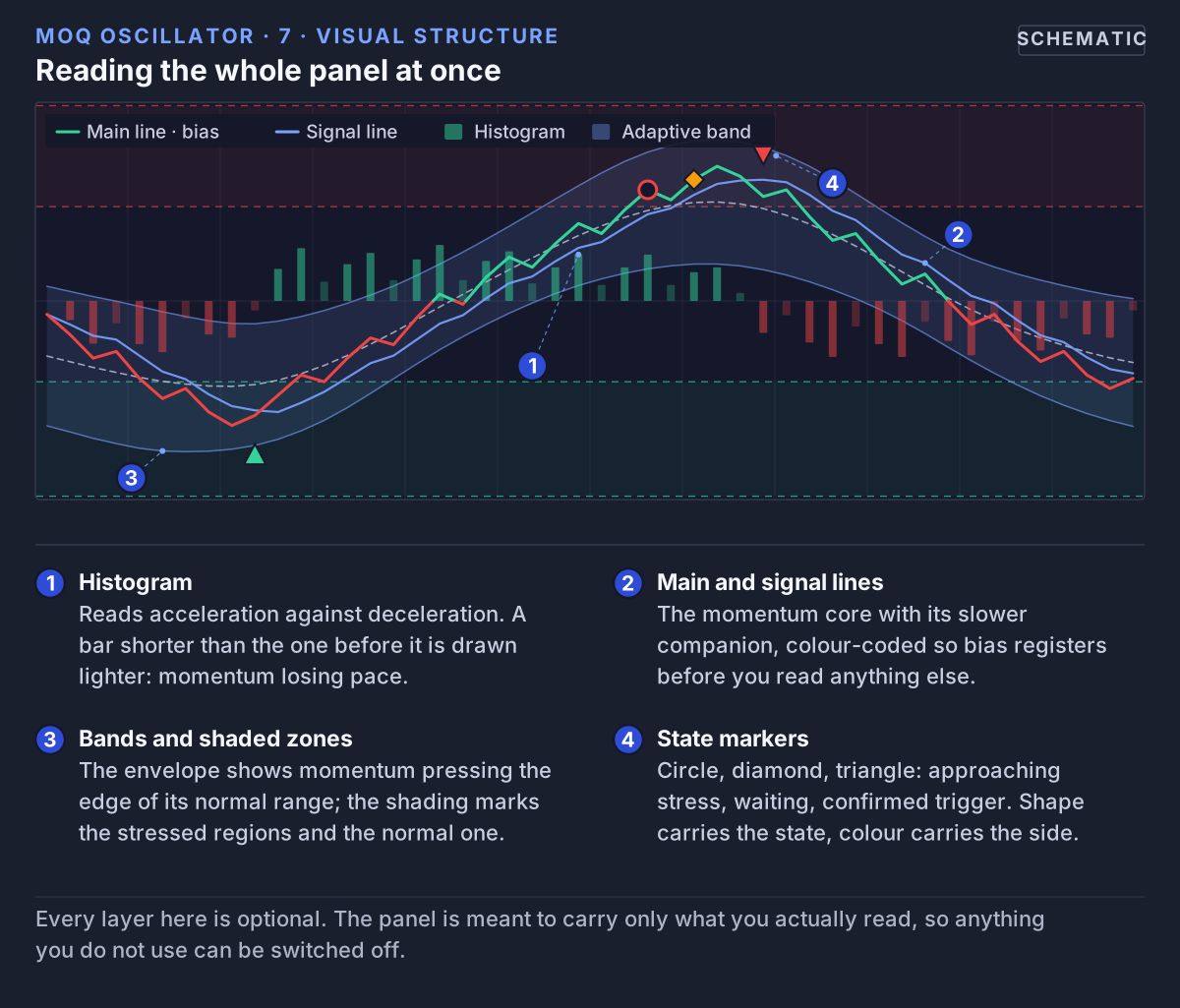 The main layers in one frame: histogram, main and signal lines, volatility band, dynamic levels, and the marker rows.
The Markers, Explained
- Faint circle — "getting close": Price is getting close to the edge of its normal stretch. Pay attention, but do nothing yet.
- Stronger circle — "stretched": Price has stretched past that edge. Still nothing has fired.
- Small triangle on the marker row — "trigger": The stretched move has started to come back. An up triangle at the bottom is a Buy Trigger (a possible turn up); a down triangle at the top is a Sell Trigger (a possible turn down).
- Solid circle — "wait": Right after a trigger, price stretched again. The move is not finished yet.
- Larger triangle on the band — "reversion": The main line has come back inside its band after poking out.
Circles above the panel are red and relate to a possible turn down; circles below are green and relate to a possible turn up.
What this means for you: Read the panel in three steps. First, is the line above or below zero, and is it pressing the band or a level? Second, which circles have appeared? Third, has a triangle actually printed? Only a triangle means the tool's conditions are met, and even then the decision is still yours.
4. Why the Numbers Mean the Same on Every Chart
Ordinary momentum tools give very different numbers on different markets. A reading that is huge on one market can be tiny on another, which makes them hard to learn.
MoQ Osci fixes this by rescaling (normalizing) its readings. It compares today's push with how this particular market has behaved recently, and puts the result on the same scale every time. So "near the top of the panel" means "an unusually strong upward push for this market", whether you are looking at a stock, a currency or a crypto coin, and whether each bar is 5 minutes or a day.
This is switched on by default (Enable Adaptive Scaling). Very strong moves can still go beyond the usual range.
What this means for you: Once you learn to read the panel on one chart, the same reading skills work on every other chart.
5. The Volatility Bands
The volatility band is a channel around the main line. It works like the well-known Bollinger Bands, but on the oscillator instead of on price. The dashed centre line is an average of the oscillator; the band is drawn a set distance above and below it, and that distance grows when the oscillator is jumpy and shrinks when it is calm.
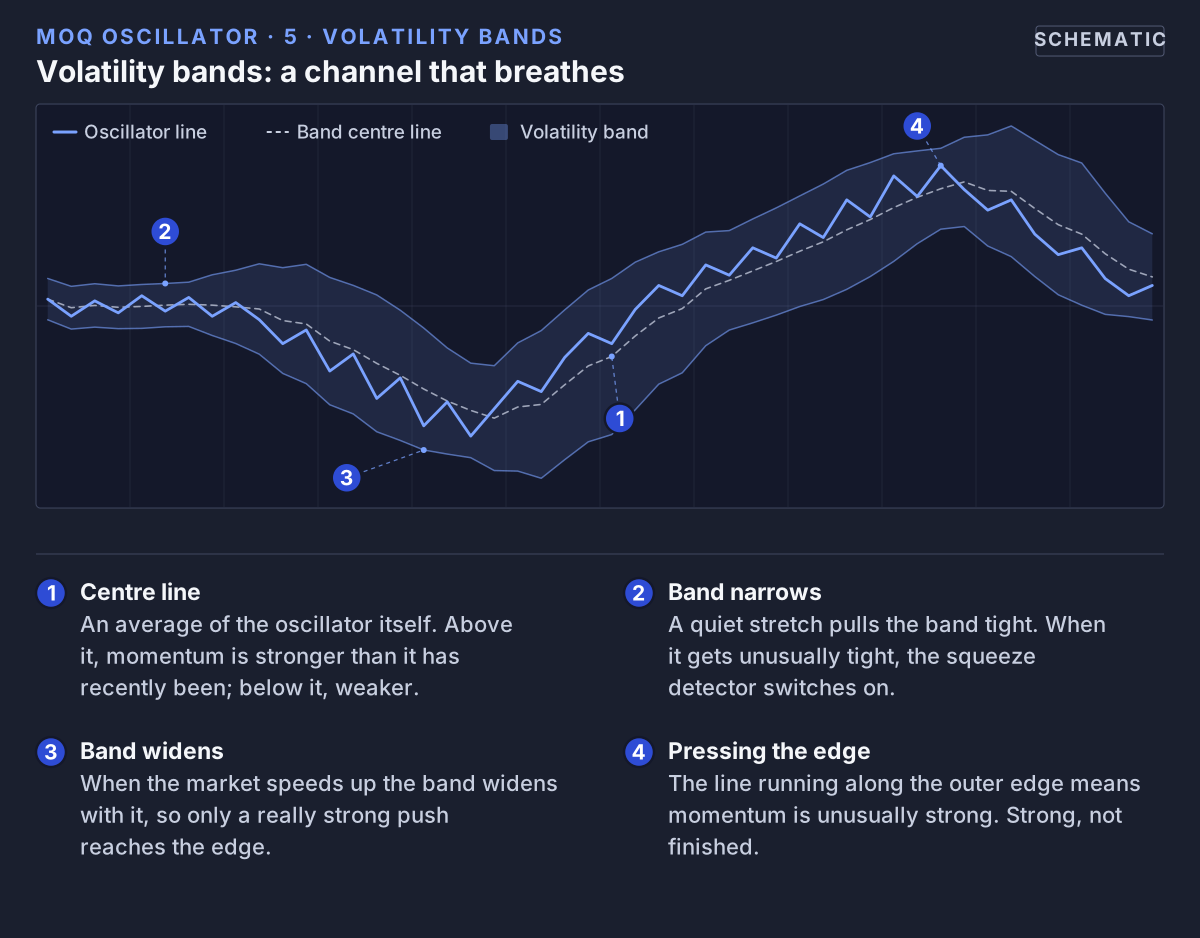 The band is measured out from a centre line that follows the oscillator, and it widens and narrows with the market's pace.
- Line above the centre line: Momentum is stronger than it has recently been.
- Line pressing the top or bottom edge: Momentum is unusually strong in that direction. Often this is where a push starts to tire, but strong trends can ride the edge for a long time.
- Narrow band: The market is calm. If it gets unusually narrow, that is a squeeze (next section).
- Wide band: The market is moving fast.
Price-Extreme Tint
The inside of the band changes color when price itself is unusually far from its recent average. A red tint means price is far above its average (statistically overbought); a green tint means it is far below (statistically oversold). No tint means price is in its normal range. This is on by default (Enable Price Extreme Detection).
What this means for you: When the line presses a band edge, ask "is this push getting tired?" If the band is also tinted, price itself is stretched too. Neither one means the move must end.
6. Squeezes: When the Market Goes Quiet
A squeeze is when the volatility band becomes much narrower than it usually is. It means momentum has gone unusually quiet, like a spring being pressed together. Quiet periods often end with a bigger move, but the squeeze does not tell you which direction that move will go, or even that it will come.
While a squeeze is active (default view):
- the histogram bars turn orange,
- orange dots run along both dynamic level lines,
- a small square marks the bar where the squeeze started,
- a small diamond marks the bar where it released (the band started widening again).
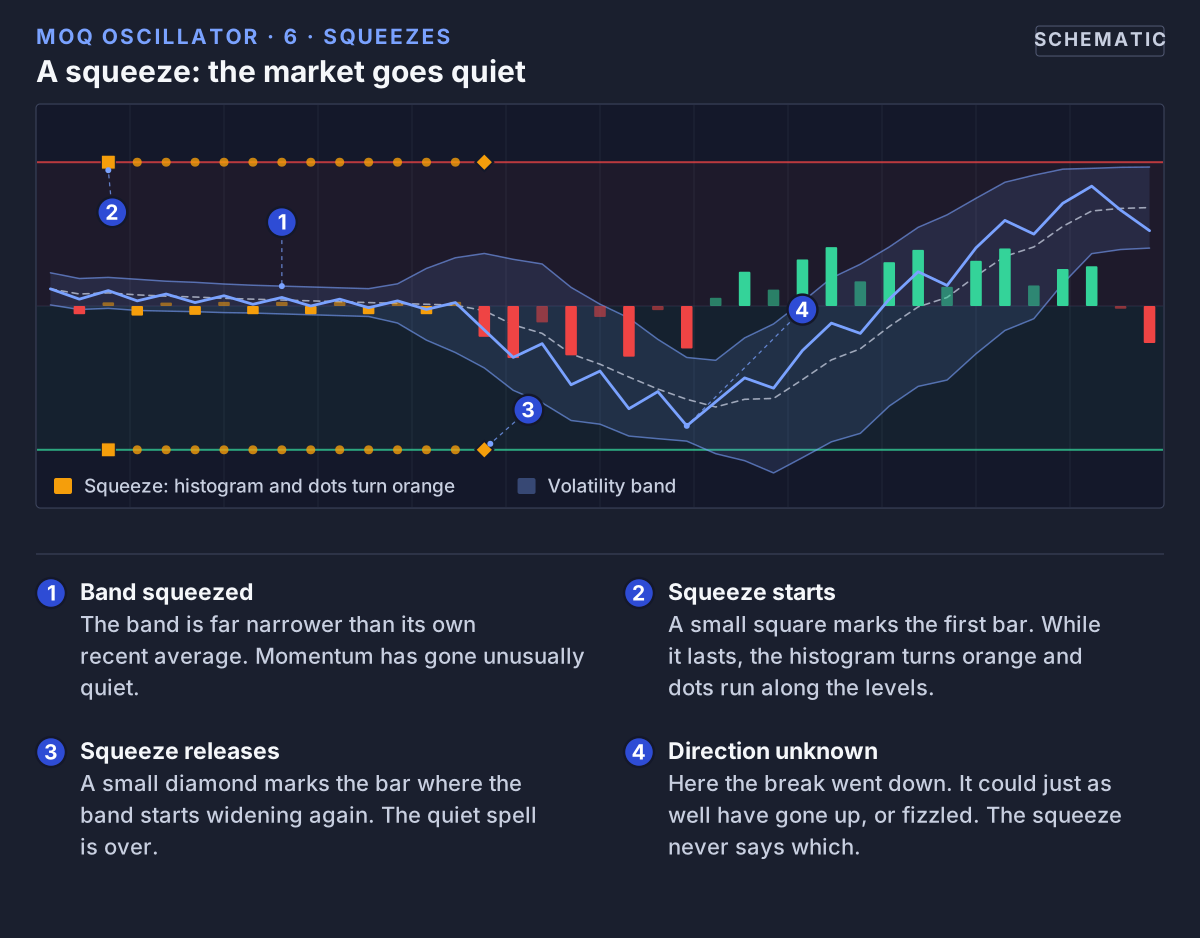 A squeeze is the band at its tightest. It tells you the market has gone quiet, not which way it will move next.
Under Squeeze Visualization Style you can switch the dots for an orange background tint, show both, or hide the visuals and use only the alerts.
What this means for you: A squeeze is a "get ready" sign, not a direction. When it releases, look at which way the line and the histogram break before forming any view.
7. The Dynamic Levels
Many traditional tools use fixed lines, such as "above 70 is overbought, below 30 is oversold". The problem is that every market behaves differently. Some reach those levels all the time; others almost never do.
MoQ Osci draws its levels from each market's own history instead. It takes the oscillator's recent major peaks and averages them into an upper level (the red line), and does the same with its major troughs for a lower level (the green line). The area between zero and each level is lightly shaded.
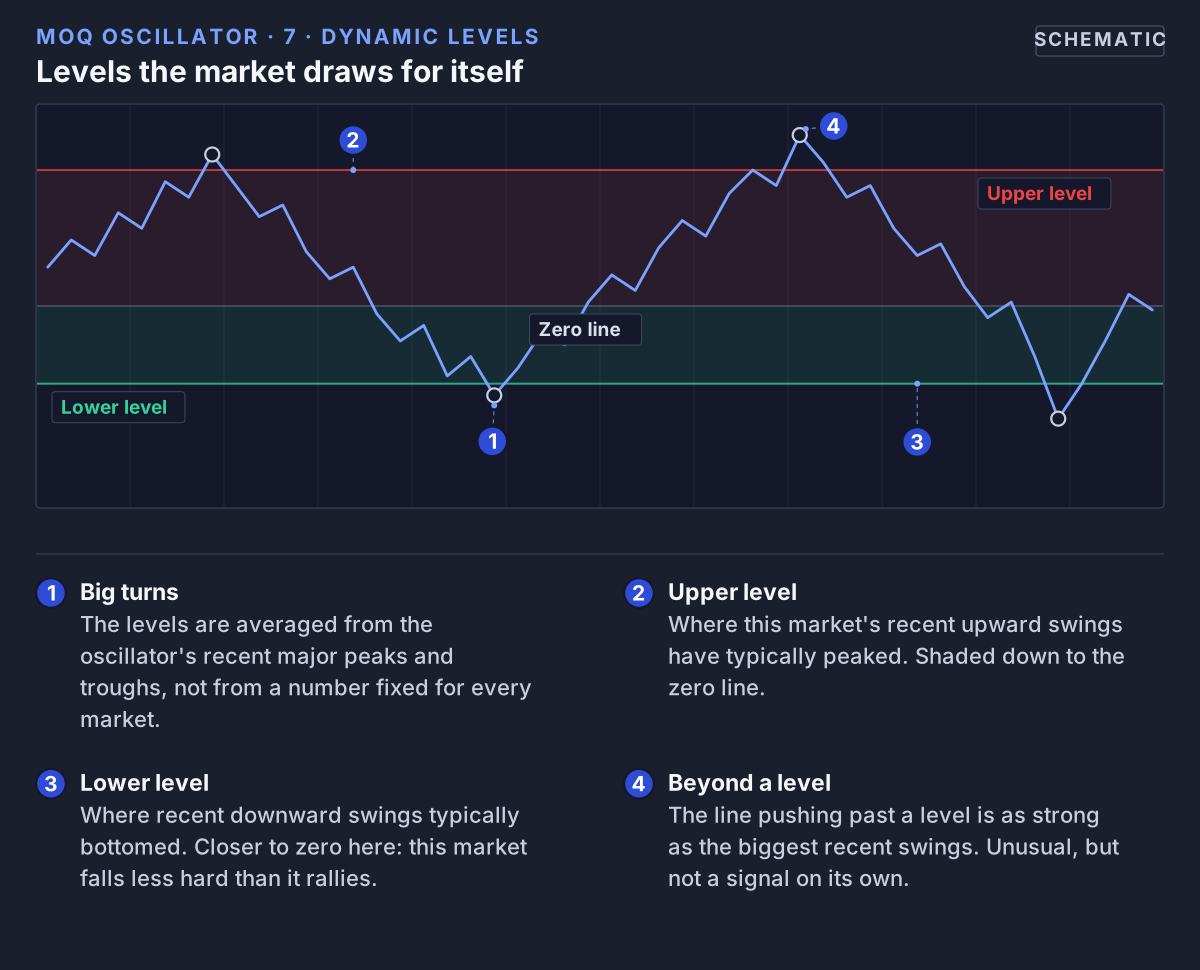 The levels are averages of this market's own recent big turns, which is why the upper and lower ones are rarely the same distance from zero.
- Between zero and a level: Normal momentum for this market.
- Beyond a level: Momentum is as strong as the biggest recent swings. Unusual, worth watching, but not a signal on its own.
- Uneven levels: The upper and lower levels are often different distances from zero. That is normal: many markets push harder in one direction than the other.
What this means for you: The levels tell you what "a big move" looks like on this particular chart. Because a peak only counts once enough bars have passed after it, the levels update slowly and take time to catch up when a market suddenly changes character.
8. The Signals Step by Step
The main signals come from a separate engine that watches price. It tracks an adaptive moving average of price (called KAMA in the settings: it moves quickly when the market trends cleanly and slowly when it chops sideways) and measures how far price has stretched away from it. The markers report that stretch in stages.
Step 1: Faint Circle (Approaching)
Price is getting close to the edge of its normal stretch. Red circles at the top mean it is stretching upward; green circles at the bottom mean downward. It is a heads-up, not a promise.
Step 2: Stronger Circle (Beyond)
Price has stretched past the edge. This is what the Pre-Buy Awareness and Pre-Sell Awareness alerts report. Nothing has fired yet, and often nothing does.
Step 3: Triangle (Buy or Sell Trigger)
The stretch has started to shrink: price is coming back toward its average, like a rubber band that has been pulled and is beginning to return.
- Buy Trigger: An up triangle on the bottom row. Price had stretched far below its average and has started to come back up. A possible turn up.
- Sell Trigger: A down triangle on the top row. Price had stretched far above its average and has started to come back down. A possible turn down.
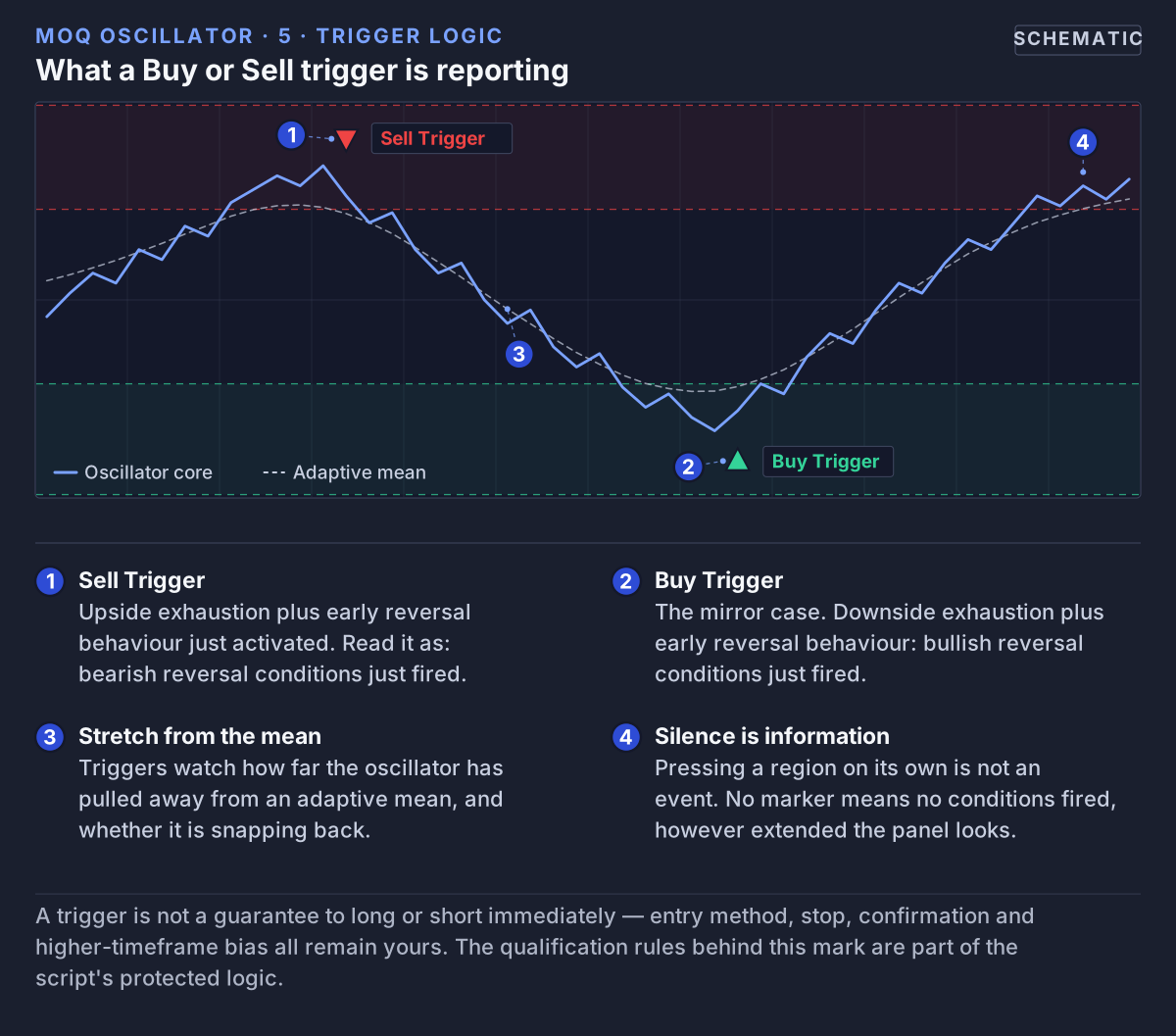 Triggers print on rows beyond the bands. Where nothing prints, nothing has fired, however stretched the line looks.
Because triggers watch price, they print on their own rows and can disagree with how the main line looks. A stretched line with no triangle has no trigger.
Step 4: Solid Circle (Wait)
Within a few bars after a trigger, price stretched past the edge again. The move the trigger was reacting to is not finished. A wait circle says: "the first turn did not hold yet, do not rush."
The Whole Sequence
Possible turn down: faint red circle, stronger red circle, Sell Trigger, and a solid red circle if price stretches up again straight after.
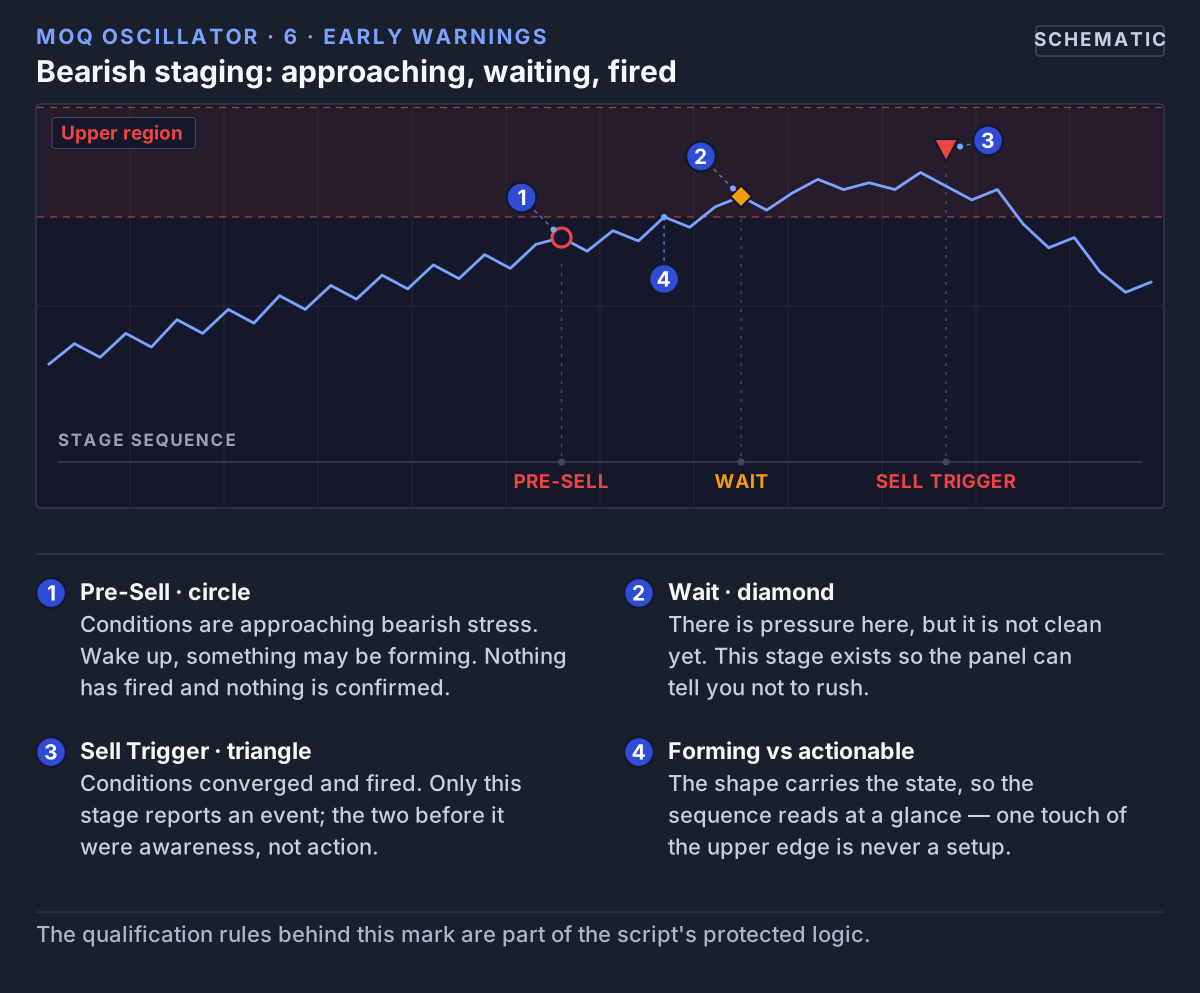 The bearish sequence: a faint circle, a stronger circle, the Sell Trigger, and a solid Wait circle if price stretches again straight after.
Possible turn up: the same sequence in green along the bottom row.
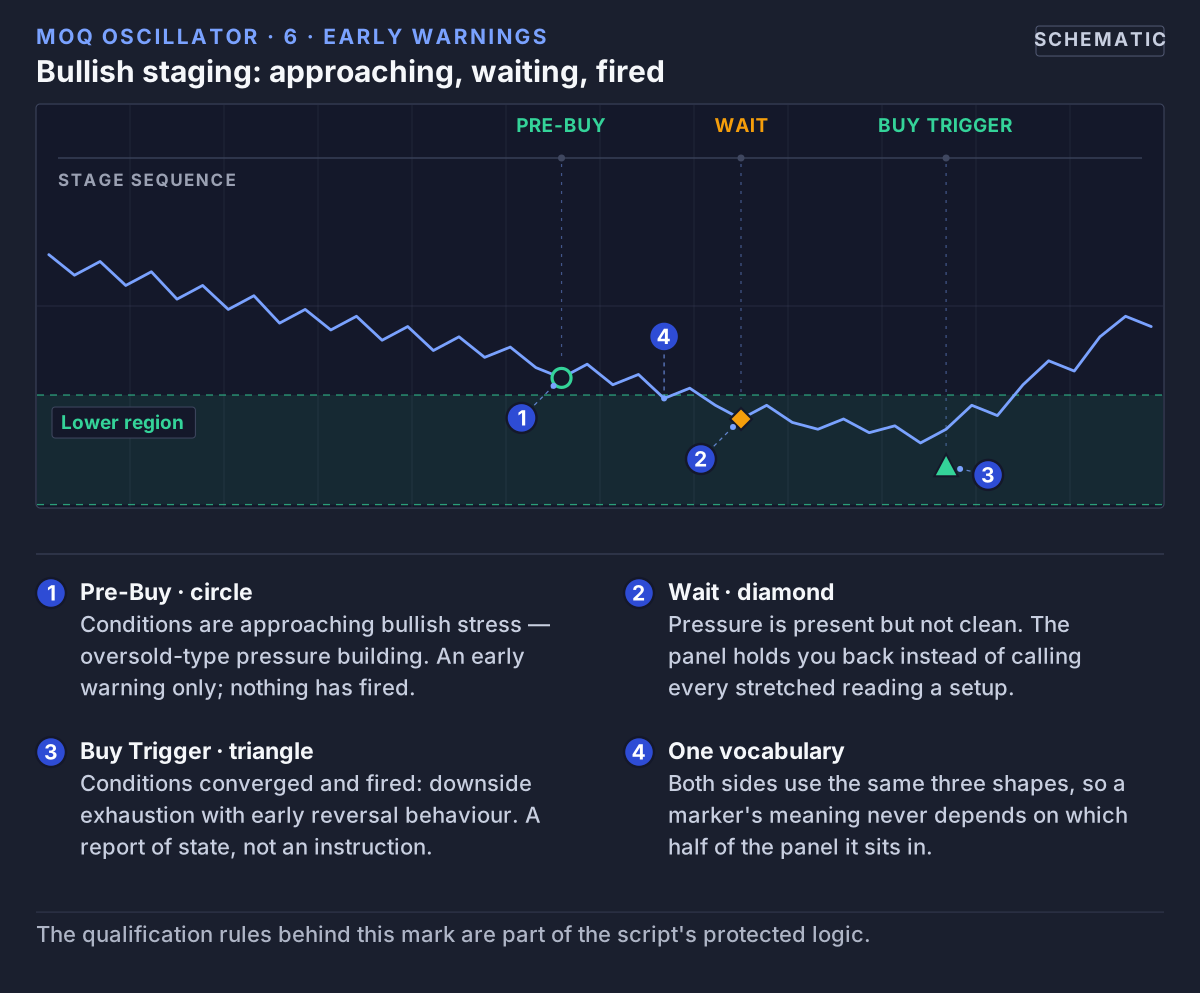 The same sequence mirrored: faint circle, stronger circle, Buy Trigger, and a solid Wait circle if price stretches lower again.
Not every sequence completes, and the steps can skip: a trigger can fire straight after a faint circle.
What this means for you: Circles are for watching. Triangles are where your own decision process starts. A trigger is not an order to buy or sell, and price can keep going in the original direction after one.
9. Reversion Triangles
Reversion triangles are a second, separate signal. They watch the main line and its volatility band, not price. When the line pushes outside the band and then comes back inside, a larger triangle prints right on the band:
- Up triangle on the lower band (Reversion Buy): A strong downward push has eased and the line is back inside.
- Down triangle on the upper band (Reversion Sell): A strong upward push has eased and the line is back inside.
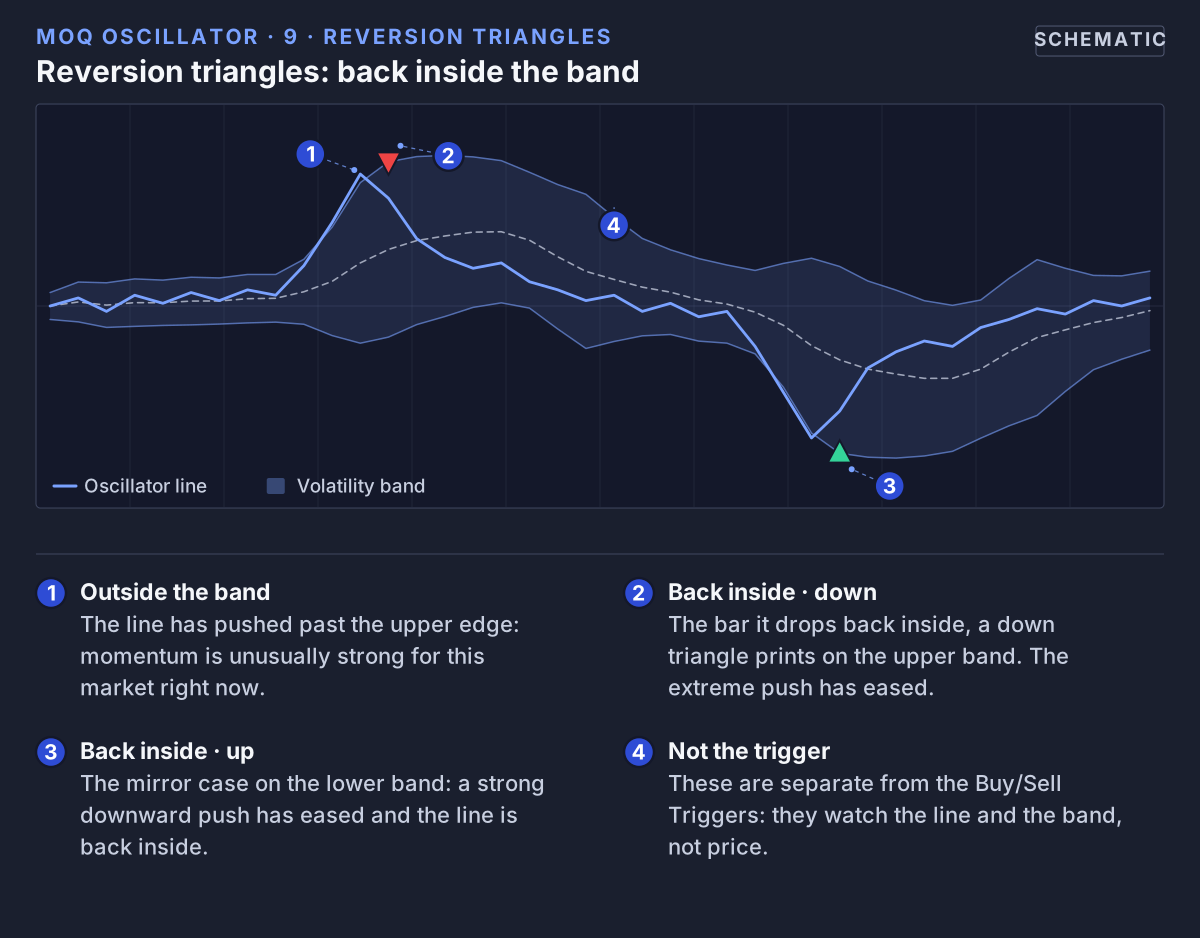 Reversion triangles sit on the band itself and mark the bar where the line comes back inside after poking out.
They are on by default. Under Extreme Source you can make them use the dynamic levels instead of the band, so they only appear after bigger swings.
What this means for you: Reversion triangles say "the extreme push is over for now". When one appears close to a Buy or Sell Trigger in the same direction, two different measurements agree. When they disagree, be more careful.
10. Divergence Lines (Optional)
A divergence is when price and the oscillator disagree. Turn on Display Divergence Lines and the tool draws a line on the panel connecting the two swings involved:
- Regular bearish (red line): Price makes a higher high, but the oscillator makes a lower high. The upward push is weakening.
- Regular bullish (green line): Price makes a lower low, but the oscillator makes a higher low. The downward push is weakening.
- Hidden divergence (blue line): The opposite pattern, which can point to the existing trend continuing.
Recent divergence lines are drawn in full color; older ones fade so the newest stand out. Divergences have no alert.
What this means for you: A divergence is an early hint, not a signal. Price can keep making new highs or lows while divergences pile up.
11. Extra Tools (Off by Default)
These are switched off to keep the panel clean. Turn them on in the settings once you are comfortable with the basics.
- Mean reversion crosses (Show Mean Reversion Crosses): small diamonds on the marker rows when the signal engine's stretch crosses back through its own average, a sign that price is settling back toward normal. Green at the bottom means the shift is upward; red at the top means downward. Some traders use them as extra confirmation after a trigger.
- Money-flow tint (Tint Histogram by Money Flow): dims histogram bars when trading volume disagrees with their direction, a hint that the push has less conviction. It does nothing on markets without volume data.
- Efficiency ratio (Plot Efficiency Ratio): a faint purple line showing how cleanly price is trending, from choppy (low) to smooth (high). Separately, the KAMA ER Collapse alert warns when that cleanliness drops sharply, which can be an early sign the market is changing character.
- Reversal confidence (Show Reversal Confidence): a 0 to 100 score that compares the current oscillator reading with its recent extremes. A small flag appears when the score is high. It measures how unusual the reading is, not how likely a turn is.
12. Alerts: Let TradingView Watch for You
An alert is a notification TradingView sends you (in the app, by email or on your phone) when something happens on the chart. MoQ Osci offers these alert conditions:
- Signals: Buy Trigger, Sell Trigger, Pre-Buy Awareness, Pre-Sell Awareness.
- Reversion: Reversion Buy, Reversion Sell.
- Squeeze: Squeeze Started, Squeeze Released.
- Bands: MACD Upper Band, MACD Lower Band (the line has reached a band edge).
- Line crosses: MACD Cross Up and MACD Cross Down (main line crosses the signal line), MACD Above Zero and MACD Below Zero.
- Histogram: Histogram Positive, Histogram Negative.
- Price extremes: Z-Score Overbought, Z-Score Oversold (the band tint from section 5 switching on).
- Extra tools: KAMA ER Collapse, High Bull Conf, High Bear Conf.
The faint and solid circles, mean reversion crosses and divergence lines have no alerts; you only see them on the chart.
To set one up:
- Make sure MoQ Osci is on your chart.
- Click the Alert button (the alarm-clock icon) in TradingView.
- Under Condition, choose MomentumQ Oscillator, then pick one of the conditions above.
- Set the frequency to Once Per Bar Close. While a bar is still forming, the tool recalculates with every price change, so a marker can appear and then disappear again. Waiting for the bar to close means you are only alerted to markers that stay.
- Choose how you want to be notified and save.
What this means for you: Start with just the Buy and Sell Trigger alerts, and maybe Squeeze Started. Too many alerts quickly become noise. Treat every alert as "go and look at the chart", not "trade now".
13. Simple Examples
These show how people commonly read the panel. They are illustrations of the reading process, not trading advice or a recipe.
A. Watching for a Turn Upward
- Price has been falling, and the main line is red and pressing the lower band.
- A faint green circle appears at the bottom, then a stronger one. You note it and keep watching.
- An up triangle appears on the bottom row (Buy Trigger). Now you look at the bigger picture, for example a longer timeframe, before deciding anything.
- If a solid green circle follows, price has stretched lower again; the fall is not done.
- If you decide to trade, you decide in advance where you would get out if you turn out to be wrong.
A possible turn downward works the same way, mirrored at the top.
B. "Stretched" Is Not the Same as "About to Turn"
The line pushes past the upper level and rides the top of the band, and the band is tinted red. It is tempting to think "it has gone up too much, it must fall now". It might not: strong markets can stay stretched for a long time. The panel is telling you the push is unusual, not that it is over. Wait for a triangle.
C. A Squeeze Before a Move
The band narrows, the histogram turns orange and the squeeze square appears. You do not guess the direction. When the diamond prints and the band widens, you look at which way the line breaks and whether the histogram bars are growing in that direction.
D. When Signals Keep Failing
Price keeps falling, and the panel shows Buy Triggers followed by solid wait circles, again and again. That is information too: the downward trend is strong and keeps overpowering every bounce. Trading against a trend like that is risky; recognizing it helps you stay out of the way.
14. What MoQ Osci Cannot Do
- It does not predict the future. It describes what momentum and price are doing now compared with the recent past.
- It can be early in strong trends. Turn signals can appear again and again while a strong trend carries on (example D).
- It does not know the direction of a squeeze. A squeeze only says the market has gone quiet.
- It needs time after big changes. The scaling and the dynamic levels learn from recent history, so they lag when a market suddenly changes character.
- The current bar is not final. Markers on a bar that is still forming can change until that bar closes.
- It is not a complete trading plan. It does not choose your entries, exits or position size.
15. Settings You Can Change
Open the indicator's settings (the gear icon next to its name on the chart). Every setting has a small info icon with an explanation. The ones beginners are most likely to want:
- Color Theme: Dark Mode or Light Mode, to match your chart background.
- Display Histogram Bars, Display Volatility Bands, Display Band Centerline, Display Dynamic Reference Levels: show or hide each layer.
- Display Divergence Lines: turn divergence lines on (off by default).
- Enable Squeeze Detection and Squeeze Visualization Style: turn squeezes off, or choose dots, background, both or hidden.
- Enable Price Extreme Detection: the red and green band tint.
- Show Early Warning Signals: the faint circles.
- Show Confirmation Pending Signals: the stronger and solid circles.
- Early Warning Sensitivity (%): how early the faint circles appear. Higher means earlier warnings, but more of them come to nothing.
- Show Reversion Triangles and Extreme Source: the reversion triangles, measured against the band or the dynamic levels.
The other settings change how the lines are calculated. Leave them at their defaults until you know exactly why you would change them. If the panel looks too busy, hide the layers you are not using.
16. Getting Access
MoQ Osci is an invite-only script on TradingView, which means only accounts that have been given access can add it. Access comes with a MomentumQ trial or subscription:
- Start a trial or subscribe on this website and enter your TradingView username.
- MomentumQ grants access to that username.
- In TradingView, open Indicators → Invite-Only Scripts and add MomentumQ Oscillator to your chart.
17. Legal Disclaimer
MoQ Osci and this documentation are provided for educational and informational purposes only. They:
- Do not constitute financial, investment, trading, or risk management advice.
- Do not guarantee performance, profitability, or specific outcomes.
Trading and investing involve risk, including the possible loss of capital. Past performance is not indicative of future results.
You are solely responsible for any decisions you make in the market. You should consider consulting a licensed financial professional before acting on any information derived from this tool.
MoQ Osci is proprietary to MomentumQ GmbH and provided for personal, non-transferable use under the MomentumQ Terms of Service; any redistribution, modification, or source extraction is prohibited.
© MomentumQ GmbH. All rights reserved.