
MoQ Dash is a small scoreboard that sits on the edge of your TradingView chart. Instead of opening ten charts to see what different markets and timeframes are doing, you read a few short tables. You don't need trading experience to follow this manual: every term is explained the first time it appears, and section 2 collects them all in one place.
1. What MoQ Dash Does
MoQ Dash helps you answer three simple questions without leaving your chart:
- Which way is this market leaning? Is it generally moving up (bullish) or down (bearish)?
- Is something happening right now? Is a possible turning point forming, did one just happen, or did it happen so long ago that it no longer matters?
- Is the bigger picture with me or against me? Are related markets, and the general mood of investors, supporting a move or working against it?
It has three tables and two optional coloured backgrounds:
- The Timeframe Table shows the market on your chart, checked on five different timeframes (for example 15 minutes, 1 hour and 4 hours). It is on when you add Dash.
- The Watchlist Table shows five other markets you pick (for example the S&P 500, gold and oil), all checked on the same timeframe. You turn it on in the settings.
- The Scanner gives a quick grade to up to 20 markets at once. You turn it on in the settings.
- The risk backgrounds colour your chart green-ish when the overall market mood is calm and red-ish when it turns nervous. The VIX background is on when you add Dash; a second background, driven by a market you choose, is off until you turn it on.
What this means for you: one look at the corner of your chart tells you whether the market you are watching, and the markets around it, are leaning the same way.
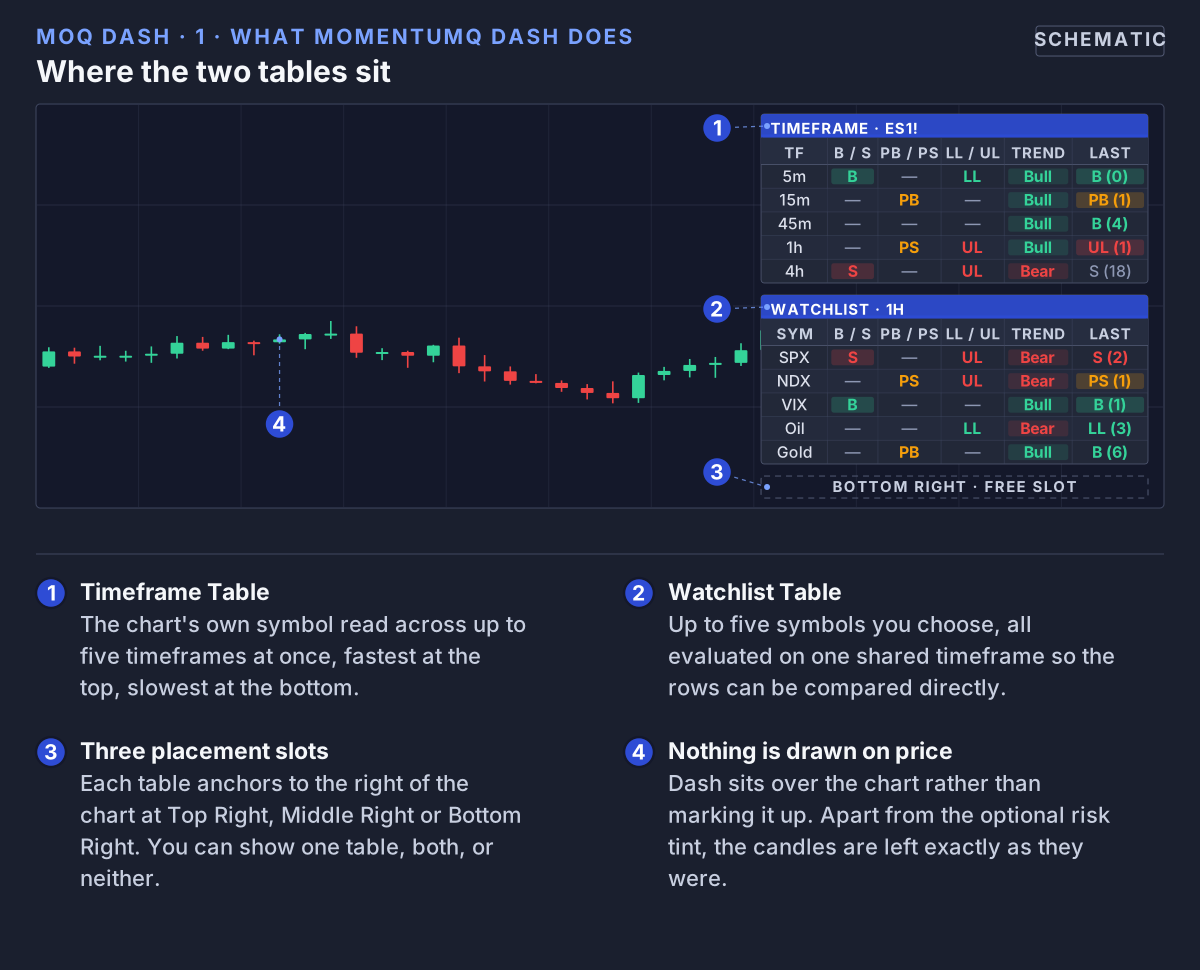 Both tables sit against the right edge of the chart, in any of three placement slots, and leave the candles untouched.
2. Words Used in This Manual
If you are new to trading, read this list once. Everything later builds on it.
- Symbol: the short code for a market on TradingView, such as ES1! (S&P 500 futures), BTCUSD (Bitcoin in US dollars) or EURUSD (euro against the dollar). Many symbols have an exchange name in front, such as TVC:VIX or BINANCE:BTCUSDT.
- Timeframe: how much time each candle on the chart covers. On a 15m (15-minute) chart every candle is 15 minutes; on a 1D (daily) chart every candle is one day. Short timeframes show detail; long timeframes show the big picture.
- Bar or candle: one block on the chart, covering one timeframe period. "3 bars ago" on a 1h chart means three hours ago.
- Bullish / Bull: leaning upward; prices rising or expected to rise.
- Bearish / Bear: leaning downward; prices falling or expected to fall.
- Average: MoQ Dash tracks a "normal level" for each market that moves along with price. It speeds up when the market is moving cleanly in one direction and slows down when the market is choppy.
- Normal range (bands): an upper and a lower edge around how far price usually strays from that average. When price goes past an edge, it has moved unusually far, like a rubber band pulled tight.
- Reversal: a turn, where a move down starts to become a move up, or the other way round.
- Trigger: a signal that the conditions for a possible reversal have just been met. It is a heads-up, not an order to buy or sell.
- Long / short: a long is a trade that profits if price goes up; a short is one that profits if price goes down.
- Risk-on / risk-off: the general mood of investors. Risk-on means they feel confident and buy riskier things like shares and crypto. Risk-off means they are nervous and move to safer places.
- VIX: often called the "fear index". It measures how big the price swings are that investors expect in the US stock market. A rising VIX usually means rising nervousness.
- DXY: the US Dollar Index, which tracks the dollar against a basket of other major currencies.
- Correlation: how two markets tend to move together. Positive correlation means they usually move in the same direction; negative correlation means they usually move in opposite directions.
- Volume: how much was traded during a candle.
3. Quick Start
- Once your access is active, open TradingView, click Indicators, choose Invite-Only Scripts and click MoQ Dash.
- The Timeframe Table appears at the top right of your chart, checking your chart's market on 5m, 15m, 45m, 1h and 4h. The VIX risk background is on too, so parts of your chart may be tinted green-ish or red-ish.
- To change anything, hover over the indicator's name at the top left of your chart and click the gear icon to open the settings.
- Set Select Mode to Light Mode or Dark Mode so it matches your chart and the text is easy to read.
- Under Timeframes, change the five timeframes if you like. A simple long-view set is 15m, 1h, 4h, 1D and 1W.
- To see other markets, tick Show Second Table under "Watchlist Table — General". It starts with VIX, the S&P 500 (SPX), the Nasdaq 100 (NDX), oil and gold on 1h, and you can change all five.
- To grade up to 20 markets at once, tick Show Scanner under "Multi-Symbol Scanner" (section 7).
- If you don't want the coloured background, untick Show VIX Risk On/Off Background. Section 9 explains what it shows.
That is all the setup there is. The next section shows you how to read what appears.
4. Reading a Row
Each row in the Timeframe and Watchlist tables is one market on one timeframe. Both tables have the same columns, so once you can read one row, you can read them all. An empty cell simply means "nothing to report here right now".
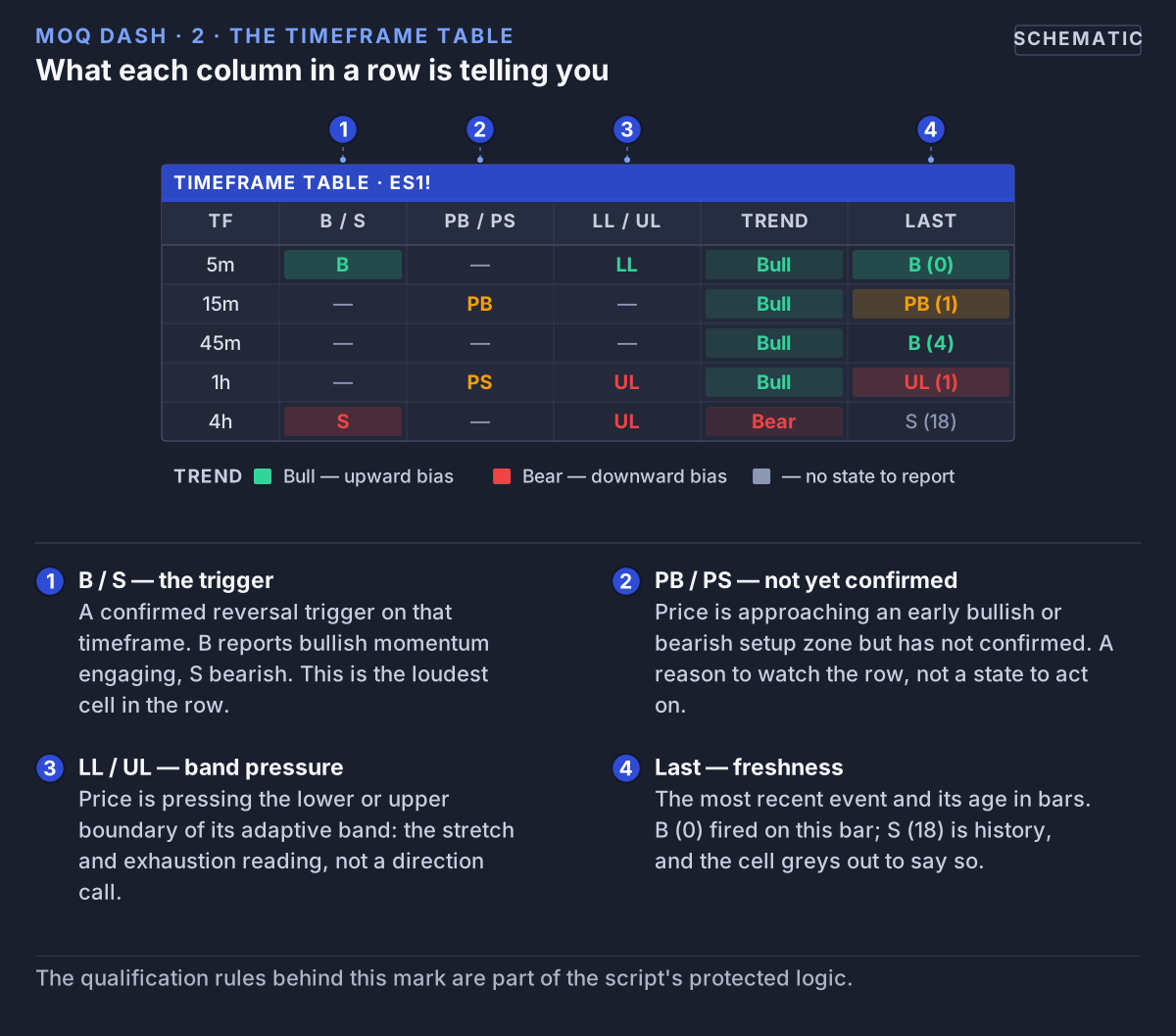 One symbol, five timeframes: a confirmed trigger, an early state, band pressure, the regime, and how many bars ago it last happened.
TF or SYMBOL
Which timeframe (in the Timeframe Table) or which market (in the Watchlist Table) the row is about.
Trend: Bull or Bear
The overall direction on that row. Bull means price is sitting above its usual distance from its average, so the market is leaning up; Bear means it is sitting below, so the market is leaning down. The cell is tinted green for Bull and red for Bear. This column changes slowly, so it gives you the background against which everything else in the row is read.
What this means for you: read this column first. A buy signal on a Bull row goes with the flow; a buy signal on a Bear row is swimming against it.
PB / LL and PS / UL: getting stretched
These two columns tell you when price is getting close to, or has gone past, the edges of its normal range. Each column shows one of two things:
- LL (Lower Limit): price is getting close to the lower edge of its normal range.
- ⚠ (warning sign) in PB / LL: price has pushed past the lower edge. It is stretched to the downside. This is the Pre-Buy (PB) state.
- UL (Upper Limit): price is getting close to the upper edge of its normal range.
- ⚠ (warning sign) in PS / UL: price has pushed past the upper edge. It is stretched to the upside. This is the Pre-Sell (PS) state.
If both apply at once, the warning sign is shown.
What this means for you: think of LL and UL as a yellow light and the warning sign as an amber light. Pay attention, but don't act yet. A stretched market often snaps back, but not always: in a strong trend, price can stay stretched for a long time.
B and S: the triggers
- ✔ in B (Buy): price had pushed past the lower edge and has just come back inside it. The fall may be running out of energy. A possible turn up.
- ✔ in S (Sell): price had pushed past the upper edge and has just come back inside it. The rise may be running out of energy. A possible turn down.
In the Timeframe Table, B cells light up green and S cells red.
What this means for you: a tick says "conditions for a turn were just met". It does not say "buy now" or "sell now", and it does not tell you where to get in or out. That decision, and the risk you take, stay with you.
Put together, the bullish side usually reads in this order: LL (getting close to the edge), then ⚠ in PB / LL (past the edge), then ✔ in B (back inside). Not every step leads to the next one. The bearish side is the mirror image: UL, then ⚠ in PS / UL, then ✔ in S.
Last: what happened most recently, and when
Shows which of B, S, PB, PS, LL or UL happened most recently on that row and, in brackets, how many bars ago. The bars are counted on that row's own timeframe, so on a 4h row, S (3) means three 4-hour bars ago, about 12 hours. If nothing has happened yet, it shows a dash (—).
- B (0): a Buy trigger appeared on the current bar. This is brand new.
- PB (0): price is past the lower edge right now.
- UL (2): price was close to the upper edge two bars ago.
- S (18): a Sell trigger appeared eighteen bars ago. That is old news.
What this means for you: Last stops you from reacting to something that is already over. A signal from eighteen bars ago may have played out long before you saw it.
The easy way to read a row
- Trend: which way is it leaning?
- Last: what happened most recently, and is it fresh?
- B / S: has a turn just been confirmed?
- PB / LL and PS / UL: is price getting stretched?
5. The Timeframe Table: One Market, Several Time Periods
The Timeframe Table checks the market on your chart (for example ES1! or BTCUSD) on the five timeframes in your settings, one row per timeframe, in the order you set them. Out of the box they are 5m, 15m, 45m, 1h and 4h. If you switch your chart to a different market, the table switches with it.
Why look at several timeframes? Because a market can be rising over the last hour while still falling over the last week. Shorter timeframes show the small waves; longer timeframes show the tide. Trading in the same direction as the tide is generally considered easier than trading against it.
Three simple examples:
- Everything agrees: the 15m row shows a ⚠ in PB / LL, and the 1h and 4h rows both say Bull. The short-term stretch points the same way as the bigger picture.
- Everything disagrees with a buy: the 15m and 1h rows both say Bear and show a ⚠ in PS / UL or a tick in S. Buying here would mean going against both.
- Mixed signals: a tick in B appears on a row whose Trend is Bear. That is a possible bounce inside a falling market, not proof the fall is over. Wait until the Trend column changes before treating it as a new direction.
Tip: list your timeframes from shortest to longest, so the table reads from "right now" at the top to "the big picture" at the bottom.
6. The Watchlist Table: Several Markets, One Time Period
Turn this table on with Show Second Table. It checks five markets you choose, all on the same timeframe (1h unless you change it), one row per market. Because they all use the same timeframe, you can compare the rows directly. It sits at the bottom right unless you move it.
It starts with VIX, SPX, NDX, oil (TVC:USOIL) and gold (TVC:GOLD). To change a market, click its symbol box in the settings and search for the one you want. If you trade futures, the settings suggest NYMEX:CL1! for oil and COMEX:GC1! for gold.
To keep the labels short, the exchange names BINANCE:, NASDAQ:, NYSE: and OANDA: are removed. Others, such as TVC:, are kept. There is no price column. The table tells you what each market is doing, not what it costs. Unlike the Timeframe Table, only the Trend column is coloured here.
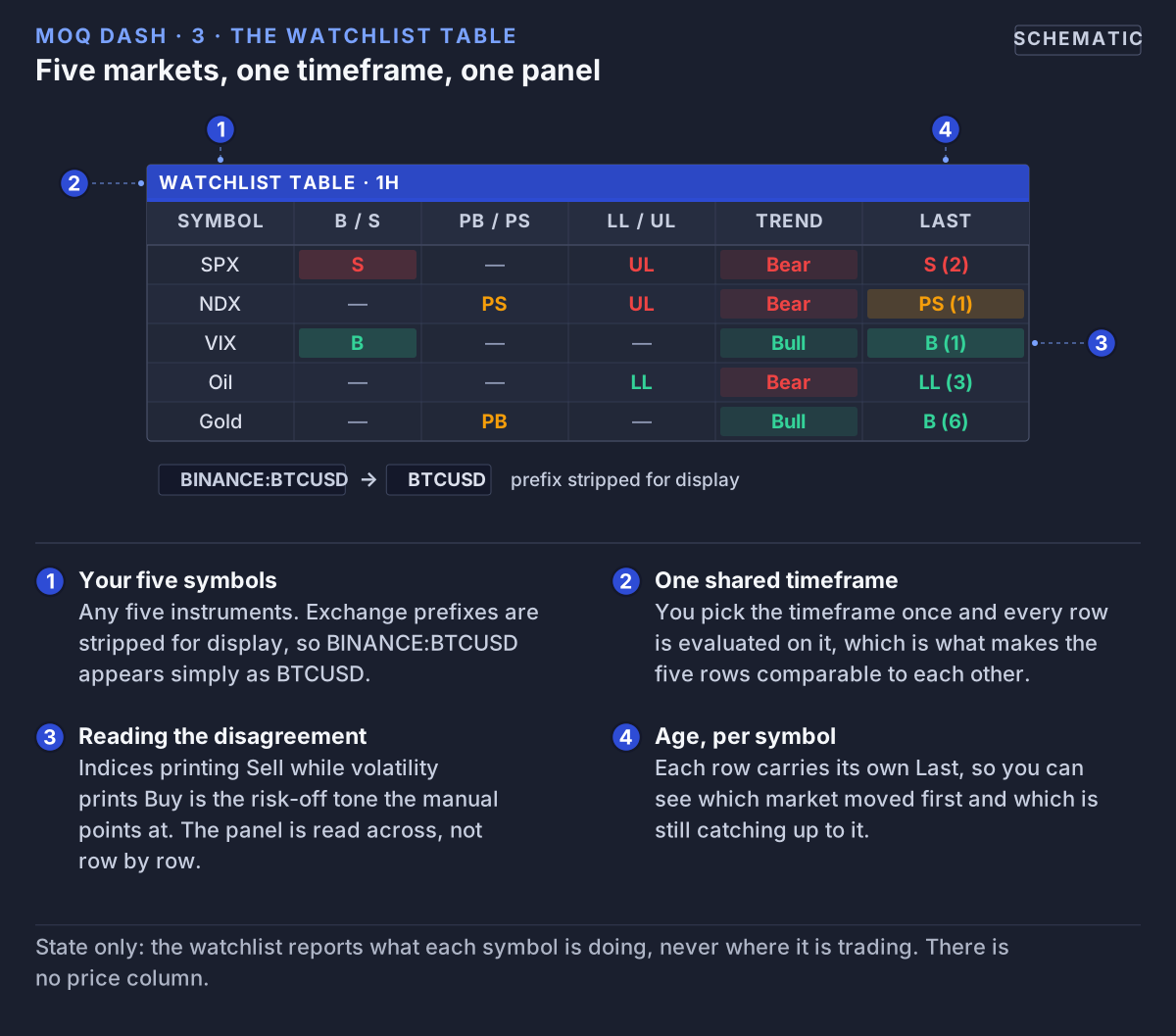 Five instruments on one shared timeframe. Equity indices leaning one way while volatility leans the other is the correlation context this table is for.
Why watch other markets? Markets affect each other. When investors get nervous, stock indices often fall while the VIX "fear index" rises. Seeing that on one panel tells you something about the mood that a single chart can't.
Questions the table can answer at a glance:
- Do the stock indices show a tick in S while VIX shows a tick in B? That usually points to a nervous, risk-off mood.
- Is oil turning Bear while gold says Bull?
- Are the big cryptocurrencies all leaning the same way, or is one going its own way?
- Which row has the youngest Last? That market moved first. The others may follow, or may not.
7. The Scanner: Up to 20 Markets at a Glance
The Scanner is a bigger, simpler table for checking many markets quickly. Turn it on with Show Scanner. Choose how many markets to show (1 to 20; 10 unless you change it) and one timeframe for all of them (1h unless you change it). It sits in the middle on the right unless you move it, and unlike the other two tables it can also go on the left side of the chart.
The Scanner's columns
- SYMBOL: the market, with common exchange names (such as TVC:, FX: or BINANCE:) and a trailing "USDT" removed to keep it short, so BINANCE:BTCUSDT shows as BTC.
- GRADE: an arrow and a letter. MoQ Dash runs several simple direction checks on the market, including its Trend and any fresh Buy or Sell trigger, and counts how many point the same way. ▲ means most point up, ▼ means most point down, and a dash means they cancel out. The letter says how strongly they agree: A+ strongest, then A, then B, with C meaning no clear lean.
- TREND: Bull or Bear, exactly as in the other tables.
- LAST: the most recent event and how many bars ago, exactly as in the other tables.
- ± Swing %: how far price is from its recent high and low, in percent. The number after ▲ is how far price would have to rise to reach the highest high of the last 50 bars; the number after ▼ is how far it is above the lowest low. Small numbers mean price is near that edge.
- L/S Bias: compares the volume traded on rising candles with the volume on falling candles over the same 50 bars, from −100% to +100%. A positive number means more trading happened on rising candles; a negative number means more happened on falling ones.
You can change the 50-bar window with Swing Lookback (bars).
Choosing the markets
Leave Symbol Preset on Custom to use the 20 symbol boxes in the settings. They start with large US tech stocks, the main US indices, VIX, the biggest cryptocurrencies, gold, silver, oil, the dollar and two currency pairs. You can also pick a ready-made list: Mag 7 + Indices, Top Crypto, FX Majors or Commodities + Macro. A ready-made list replaces your 20 symbols in the table, even though the symbol boxes in the settings don't change. Switch back to Custom to use your own again.
What this means for you: the Scanner is for finding where to look, not for deciding what to do. Use it to spot the markets with a clear lean, then open those charts and read them properly.
8. Where the Signals Come From
The Buy, Sell, PB, PS, LL, UL and Trend readings use the same engine as the Buy and Sell triggers and early warnings in the MomentumQ Oscillator (MoQ Osci). MoQ Dash runs that engine on each row's market and timeframe and shows you the result as one short label, so you don't need a separate chart for every market and timeframe.
Three things are useful to know:
- Signals often come in steps. First price gets close to an edge (LL or UL), then it pushes past it (⚠), and only then might it come back inside and trigger (B or S). Not every step leads to the next one.
- Trend and triggers can disagree. Trend describes the overall lean; a trigger describes a possible turn within it. When they disagree, that is useful information in itself.
- You can look closer with MoQ Osci. When a row catches your eye, open that market and timeframe with MoQ Osci to see how the signal formed, not just that it did.
The exact formulas are MomentumQ's own and are not published.
9. The Risk Backgrounds
MoQ Dash can colour the background of your chart to show the general market mood: green-ish for risk-on (investors feel confident) and red-ish for risk-off (investors are nervous). The colour sits behind the candles, so it doesn't hide anything. When there is nothing to report, there is no colour.
To decide the mood, MoQ Dash watches one market, called the driver, on your chart's timeframe. There are two separate backgrounds, and you can use either or both:
- VIX Risk On/Off: the driver is always VIX. This one is on when you add Dash. Turn it off with Show VIX Risk On/Off Background.
- Driver Risk On/Off (Custom): the driver is any market you choose (DXY unless you change it). Turn it on with Show Driver Risk On/Off Background.
What turns the colour on
The driver gets the same readings as a row in the tables. When the driver gives a buy-side reading (for VIX: fear may be about to rise), that is treated as risk-off. When it gives a sell-side reading (for VIX: fear may be about to ease), that is treated as risk-on. The reading is sorted into three levels, and the colour gets fainter as the level gets weaker:
- Strong: the driver has a Buy or Sell trigger. The clearest reading.
- Pre: the driver is stretched past an edge (a PB or PS). An early warning that the mood may be changing.
- Flip: the driver is getting close to an edge (an LL or UL). A possible change of mood starting to form.
If more than one applies, Strong wins over Pre, and Pre wins over Flip. The colour changes on the bar where the driver's reading changes, never before.
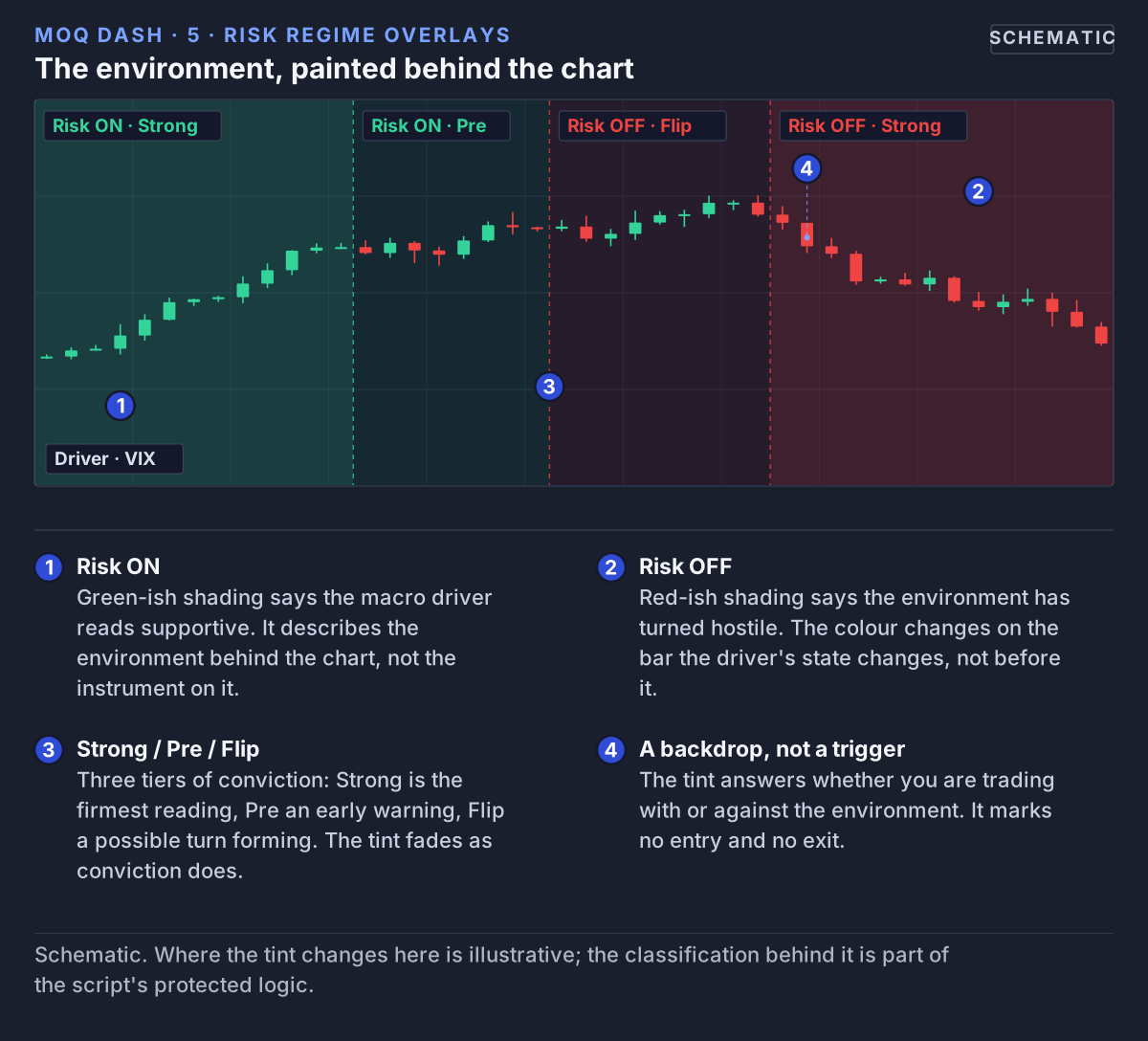 The optional overlay tints the chart behind the candles: green-ish while the driver reads risk-on, red-ish once it turns.
Correlation: making the colour fit your market
The same news can be good for one market and bad for another. When the VIX rises, that is usually bad news for stocks. So MoQ Dash needs to know how your market usually moves compared with the driver. That is the Correlation vs this chart setting:
- Negative: your market usually moves the opposite way to the driver, like stocks and the VIX. The colours are used as described above: a buy-side reading on the driver turns your chart red-ish.
- Positive: your market usually moves the same way as the driver. The colours are swapped: a buy-side reading on the driver turns your chart green-ish.
- Auto: MoQ Dash measures how your market and the driver have moved together over the last 60 bars (change this with Correlation length). If they have been moving together, it swaps the colours; if they have been moving apart, it doesn't.
The VIX background starts on Negative, because most charts people watch, such as stock indices, tend to move the opposite way to the VIX. The custom driver background starts on Auto.
Example: you are looking at an S&P 500 futures chart (ES1!) with the VIX background on. The VIX gets a Buy trigger: fear may be about to rise. With the correlation on Negative, your ES1! chart turns red-ish: a nervous, risk-off mood for stocks.
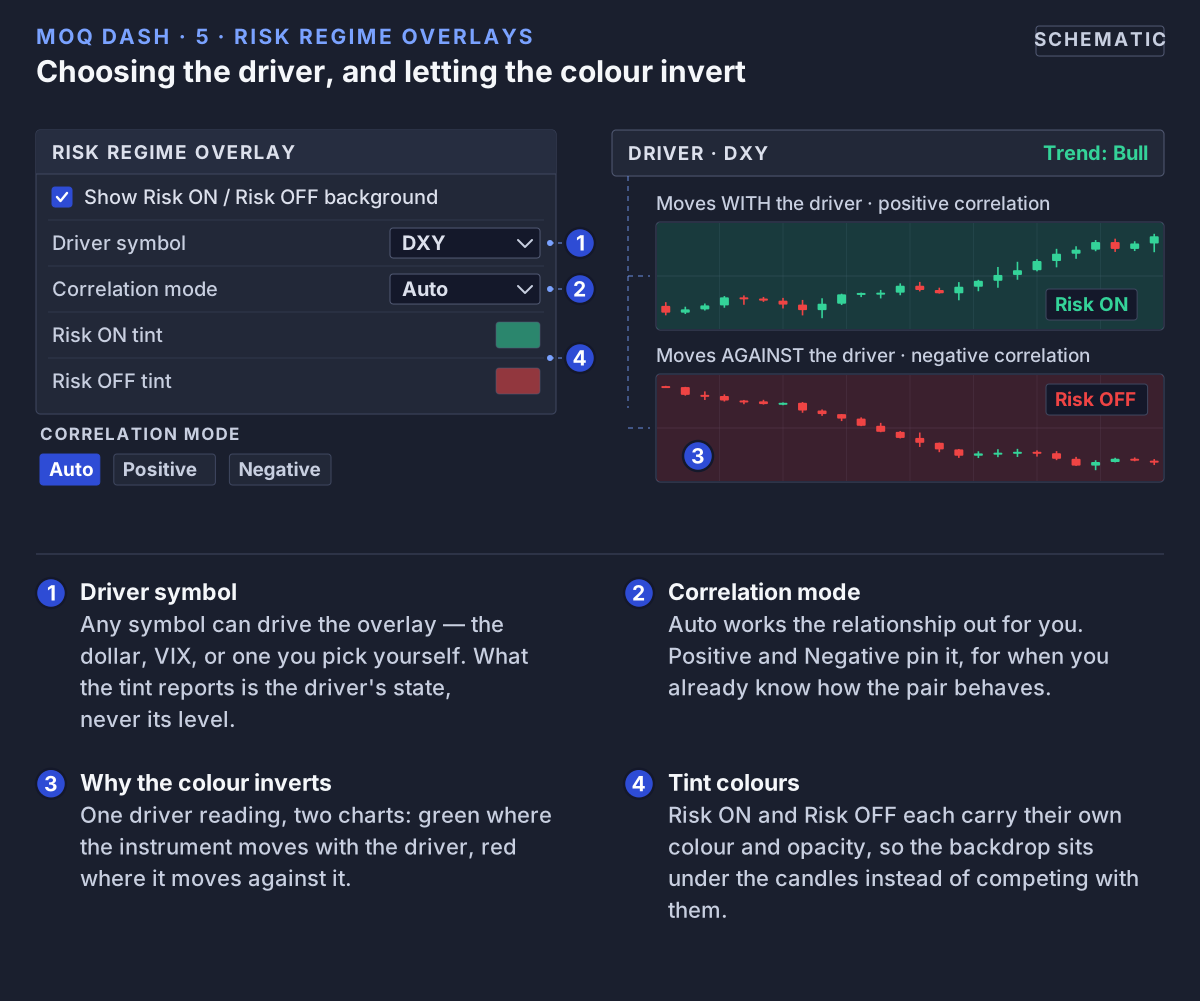 The driver's state is one thing; what it means for your chart is another. Correlation mode is what flips the colour so the backdrop reads correctly.
Each background has its own six colours (Risk ON and Risk OFF for Strong, Pre and Flip), so you can make them stronger or more subtle.
What this means for you: the background answers one question at a glance: am I trading with the market mood or against it? It doesn't tell you when to buy or sell. If you are looking at a VIX chart itself, turn the VIX background off, because it would only be describing the chart you are already looking at.
10. Alerts
MoQ Dash has one kind of alert, and it comes from the Scanner. It does not send alerts for the Timeframe or Watchlist tables.
- Turn on Show Scanner and Per-Symbol Alerts on Grade Flip in the "Multi-Symbol Scanner" settings.
- In TradingView, create a new alert, choose MoQ Dash as the condition and pick Any alert() function call.
You then get an alert when a candle closes and one of your scanned markets either turns bullish or bearish (its grade switches to ▲ or ▼ from the other side or from neutral) or reaches A+. The message names the market, whether it was a direction change or an A+, the new direction and the score.
What this means for you: an alert tells you a market is worth a look. It is not an instruction to trade.
11. Settings Reference
Open the settings with the gear icon next to the indicator's name on your chart. Here is everything you can change, in the order you will see it, with the starting value in brackets.
Theme Settings
- Select Mode (Light Mode): Light Mode or Dark Mode. Changes the text and cell colours so the tables are easy to read on a light or dark chart.
Display Settings
- Show Signals Table (on): shows or hides the Timeframe Table.
Timeframes
- Timeframe 1 to 5 (5m, 15m, 45m, 1h, 4h): the five timeframes in the Timeframe Table, top to bottom.
Table Settings
- Table Position (Top Right): where the Timeframe Table sits. Top Right, Middle Right or Bottom Right.
Watchlist Table
- Show Second Table (off): shows or hides the Watchlist Table.
- Watchlist Timeframe (1h): the one timeframe all five markets use.
- Symbol 1 to 5 (VIX, SPX, NDX, USOIL, GOLD): the five markets.
- Table Position (Bottom Right): Top Right, Middle Right or Bottom Right.
Multi-Symbol Scanner
- Show Scanner (off): shows or hides the Scanner.
- Number of Symbols (10): how many rows to show, 1 to 20.
- Scanner Timeframe (1h): the one timeframe all scanned markets use.
- Swing Lookback (bars) (50): how many bars the ± Swing % and L/S Bias columns look back over.
- Symbol Preset (Custom): your own 20 symbols, or one of the ready-made lists.
- Per-Symbol Alerts on Grade Flip (off): turns on the Scanner alerts (section 10).
- Scanner Position (Middle Right): Top, Middle or Bottom, on the right or the left.
- Sym 1 to 20: the 20 markets used when the preset is Custom.
VIX Risk On/Off
- Show VIX Risk On/Off Background (on).
- Correlation vs this chart (Negative): Auto, Negative or Positive.
- Correlation length (60): how many bars Auto looks back over.
- Colours: Risk ON and Risk OFF for Strong, Pre and Flip.
Driver Risk On/Off (Custom)
- Show Driver Risk On/Off Background (off).
- Driver Symbol (DXY): any market, for example VIX, BTCUSD or US10Y (the 10-year US government bond yield).
- Correlation vs this chart (Auto): Auto, Negative or Positive.
- Correlation length (60).
- Colours: Risk ON and Risk OFF for Strong, Pre and Flip.
Example setups
- Trading within the day: keep the starting timeframes (5m to 4h), turn on the Watchlist Table on 15m or 1h, and keep the VIX background on.
- Holding trades for days or weeks: set the timeframes to 1h, 4h, 1D, 1W and 1M, set the Watchlist Timeframe to 1D, and turn on the custom driver background with DXY.
- Looking for ideas: turn on the Scanner with the preset that matches what you trade, and turn on its alerts.
12. Using MoQ Dash in Practice
These are examples of how traders often read the tables. They are not instructions or recommendations.
Checking before a trade within the day
Say you are thinking about buying. First check the Timeframe Table: does the 15m row show a tick in B or a ⚠ in PB / LL, and does the 1h row say Bull? Then glance at the Watchlist Table: if the stock indices show a tick in S and the background is red-ish, the wider market is nervous, which is a reason to be careful.
Taking the long view
Set the Timeframe Table to longer timeframes and turn on a risk background. Before each idea, ask two questions: is the bigger trend with me, and is the market mood with me?
Spotting an early change
Watch the PB / LL and PS / UL columns. If the warning sign starts showing up on several rows at once, a wider turn may be starting before any trigger confirms it. It can also come to nothing, which is exactly why it is a warning and not a trigger.
The freshness check
Before you act on anything, look at Last. B (0) or PB (1) is fresh. S (14) is old: the move it described may already be over.
13. Good Habits and Limits
- A bar isn't finished until it closes. While a bar is still forming, a signal on it can appear and then disappear again. This matters most on long timeframes, where one bar can stay open for hours or days. (Scanner alerts wait for the bar to close.)
- Read the age in that row's own bars. (2) on a 1D row is two days old; (2) on a 5m row is ten minutes old.
- Your data is the table's data. MoQ Dash uses the same TradingView market data as your account. If a market is delayed or not available on your TradingView plan, it will be delayed or missing in the tables too.
- Pick markets from the symbol search. Each symbol box in the settings opens TradingView's symbol search, so choose the exact market you mean there (for example the futures contract rather than a similar index).
- MoQ Dash summarises. It tells you that something is happening, not the full story. When a row catches your eye, open that market and timeframe, ideally with MoQ Osci, and look for yourself.
- No tool is right every time. Signals can fail, and markets can do the unexpected. Decide in advance how much you are willing to risk on any trade.
14. What This Indicator Is (and Is Not)
It is:
- A summary of what several markets and timeframes are doing, in one place.
- A way to see direction, stretch, possible turning points and how fresh they are.
- A background that shows the overall market mood.
It is not:
- A system that trades for you.
- A guaranteed buy or sell signal.
- A promise of profit.
MoQ Dash gives you information to support your own decisions. It does not make them for you.
15. Access
MoQ Dash is an invite-only script on TradingView: anyone can find it, but only invited accounts can add it to a chart. To get access, start the free trial or subscribe and give us your public TradingView username. Access is usually granted within 24 hours, after which MoQ Dash appears in TradingView under Indicators → Invite-Only Scripts. We never need your password.
16. Legal Disclaimer
Important Notice: MoQ Dash and this documentation are provided for educational and informational purposes only. They do not provide financial advice, investment recommendations, or an offer to buy or sell any financial instrument.
Trading involves risk. Past performance is not necessarily indicative of future results. You are solely responsible for your own trading decisions. Consider consulting a licensed financial professional before acting on any analysis.
MoQ Dash is proprietary to MomentumQ GmbH and provided for personal, non-transferable use under the MomentumQ Terms of Service; redistribution, modification, and source extraction are prohibited. © MomentumQ GmbH. All rights reserved.