
1. Overview
MoQ Sniper draws directly on top of your price chart, on the candles themselves, rather than in a separate panel underneath. That is what “overlay” means. It draws a Nadaraya-Watson trend line with envelopes around it, price countdown markers, envelope signals, MARI markers, a set of moving averages, an OLS regression module and optional Bollinger Bands. Each module can be switched on or off on its own, so the same script can be a single clean channel or a full bias and structure map.
It is built to answer three simple questions from one chart:
- Which way is the market leaning? Up, down, or nowhere in particular.
- How far has price run? Is it at a normal distance from its average, or unusually far away?
- Is the move getting tired? Or does it still look strong?
If you are new to trading, read the short glossary below first. Every section also starts with an In plain words summary before the detail.
What each module answers
- Nadaraya-Watson Envelopes – Where is fair value, and how far is price from it? The line and its envelopes are the core of the script.
- NW Signals – Did price just close back inside an envelope (Reversal mode) or close beyond it (Breakout mode)?
- Price Countdown – Has a long run of closes in one direction completed, so the move may be tiring?
- MARI – Is price turning back toward its average after an unusually big stretch away from it?
- Moving Averages – Are short, mid and long-term averages lined up or tangled?
- OLS Regression – Have the last 15 candles been rising or falling, and how steeply?
- Bollinger Bands – What does the classic 20-candle volatility band say, next to Sniper's own envelopes?
None of these modules places trades or tells you to. They describe the chart; the decision stays with you.
Words used in this manual
- Candle (or bar) – one block on the chart showing where price opened, closed, and how high and low it went during one period, such as 15 minutes or one day. Green usually means price closed higher than it opened; red means lower.
- Close – the last price of a candle. Sniper's signals all look at closes, not at wicks.
- Timeframe – how much time one candle covers. On a 15m chart each candle is 15 minutes; on a 4H chart each candle is 4 hours.
- Higher timeframe (HTF) – a bigger timeframe than the one you are looking at, used to see the bigger picture. If you trade a 15m chart, 1H and 4H are higher timeframes.
- Trend – the general direction over a stretch of candles. An uptrend makes higher prices over time; a downtrend makes lower prices.
- Range – a period where price moves sideways between a ceiling and a floor, with no clear trend.
- Moving average (MA) – the average closing price of the last few candles, recalculated on every new candle and drawn as a line. A 20-period average uses the last 20 candles. SMA (simple) treats all those candles equally; EMA (exponential) gives more weight to the newest ones.
- Fair value – in this manual, the smoothed “centre” price that the model thinks price is wandering around.
- Envelope (or band) – a line drawn above or below the centre line at a set distance. It shows how far from the centre price normally goes.
- Volatility – how much price is jumping around. Big, fast candles mean high volatility; small, quiet candles mean low volatility.
- ATR and standard deviation – two common ways to measure volatility. You do not need the formulas; just know that both get bigger when the market gets jumpier.
- Slope – whether a line is pointing up, down or flat.
- Overbought / oversold – price has risen (or fallen) unusually far, unusually fast. It does not mean price must turn; it means the move is stretched.
- Reversal – price turning around and moving the other way.
- Breakout – price pushing out of its usual area and continuing in that direction.
- Exhaustion – a move that has gone on for a long time and may be running out of buyers (in a rise) or sellers (in a fall).
- Long / short – long means a position that gains if price goes up; short means a position that gains if price goes down. A “long signal” is a bullish marker, a “short signal” a bearish one.
- Bullish / bearish – pointing up / pointing down.
- Signal – a marker the indicator draws when something specific happens. It is information, not an instruction to buy or sell.
- Alert – a notification TradingView sends you (in the app, by email or on your phone) when a signal happens, so you do not have to watch the chart all day.
- Webhook – an alert sent as a message to another service's web address instead of to you. Only relevant if you connect Sniper to another tool.
2. Quick Start
- Once access is granted to your TradingView username, open a chart and go to Indicators → Invite-Only Scripts, then add MoQ Sniper.
- Out of the box you will see the NW line, its envelopes (only on the side price is on, see section 6) and the price countdown highlighting the envelope. Everything else starts switched off.
- Open the settings and, under NW Envelopes — Display, switch on Show Mini-Dashboard so the trend direction is always written in the top-right corner.
- Learn how the line and envelopes move on your market and timeframe before adding more.
- To see envelope signals, go to NW Envelopes — Signals, switch on Show Signals and pick a Signal Mode: Reversal if you look for stretched moves to snap back, Breakout if you look to follow strong moves.
- Add MARI (MA Strategy → Show Signals), moving averages or the OLS lines one at a time, and keep only what you actually read.
- If you trade a low timeframe, try Higher TF Mode so the channel reflects the bigger picture (section 6).
- Set up alerts last, once the chart shows what you want to be told about (section 11).
3. Colours and Chart Theme
In plain words: there is no theme switch to set. Sniper works on dark and light charts as they are.
- Markers (the signal triangles, the countdown + and −, and MARI's letters) use your chart's own text colour, so they are white on a dark chart and black on a light one.
- Trend colours: with Dynamic Trend Coloring on (the default), the NW line and envelopes are green while the line is rising and red while it is falling.
- Base Color (a slate blue by default) is used instead when Dynamic Trend Coloring is off. Line Width sets the thickness of the NW line.
- Moving averages each have their own colour setting (section 8).
4. MARI (Moving Average Signals)
In plain words: price tends to wander away from its average and then drift back. MARI watches how far price is from its average. When price has been stretched further below its average than it has been for a while and starts coming back up, it prints a B under the candle. When price has been stretched unusually far above its average and starts coming back down, it prints an S above the candle. Think of it as a note saying “the pull back toward the average may be starting here”.
Function
MARI is the Mean Adaptive Reversal Index named on the product page. In the settings it sits under MA Strategy. It measures how far price is from its Simple Moving Average (SMA), scales that distance against its own recent range, and marks the bars where the distance turns back from an extreme.
Settings
- Show Signals – turns the B and S markers on. Off by default.
- Length – the number of candles used for the average and for judging what counts as an extreme. Default 50.
Signals
- Bullish (B) – a blue triangle with a B, below the candle where price starts to recover from an extreme stretch below its average.
- Bearish (S) – a triangle with an S, above the candle where price starts to fall back from an extreme stretch above its average.
They are momentum markers, not entry or exit signals. MARI has no alert of its own.
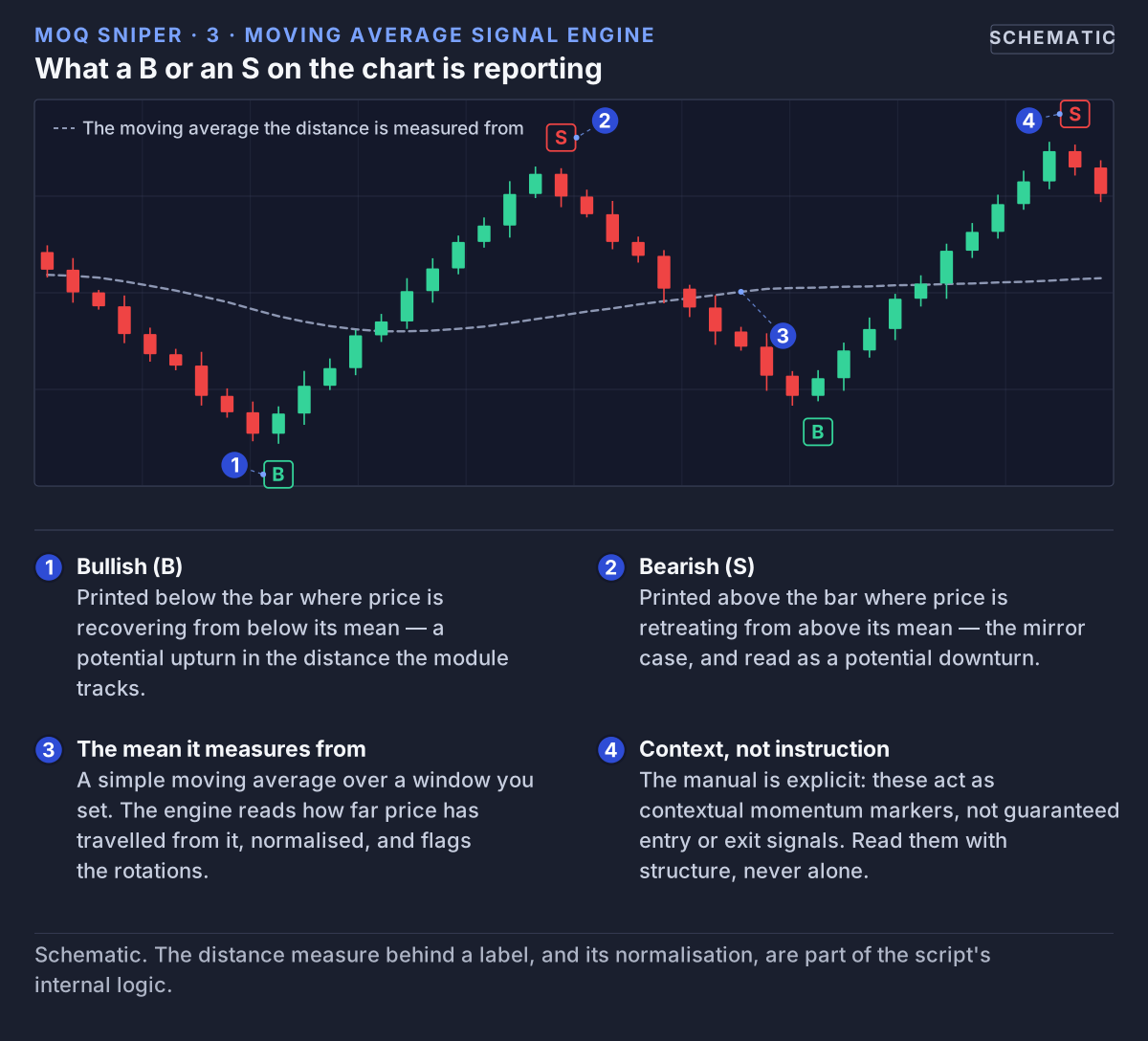 MARI prints B where price turns back up from an extreme stretch below its average, and S where it turns back down from one above.
How to read them
- A B or S means more when it lines up with something else on the chart, such as a Reversal signal at an NW envelope or a completed countdown.
- In a strong trend, marks against the trend tend to show pauses rather than turns. Check the NW line's colour and the moving averages before reading an S in an uptrend as a top.
- A shorter Length gives more marks and reacts faster; a longer Length gives fewer, slower marks.
5. Price Countdown Setups
In plain words: markets rarely move in one direction forever. This module watches for a long run of candles that keep closing in the same direction. When the run gets long enough, it marks those candles to say “this move may be getting tired”. For example, after a long string of falling candles, a + under a candle means the selling may be running out of steam. It is a heads-up, not a reason to buy on its own.
The module is inspired by quantitative exhaustion logic. Its exact counting rules are part of the script's internal logic.
Conditions
- Bullish setup (PCS Bull) – a long run of weakening closes has completed, suggesting downside exhaustion.
- Bearish setup (PCS Bear) – a long run of strengthening closes has completed, suggesting upside exhaustion.
Nothing is drawn while a run is still building. Once it completes, the mark stays on every candle for as long as the run continues, so a long run shows as a cluster of marks.
Settings
- Enable – turns the module on. On by default.
- Visualization – how a setup is shown:
- Bands (default) – the visible outer envelope is redrawn thick and amber while a setup is active.
- Shapes – a minus above the candle for a bearish setup, a plus below it for a bullish one, in your chart's text colour.
- Both – the highlight and the markers together.
- Off – nothing is drawn. The alerts still work.
Bands mode keeps the chart clean and puts the warning right on the envelope. Because it draws on the envelope, it only shows where an envelope is visible: with Show Envelopes off, use Shapes instead.
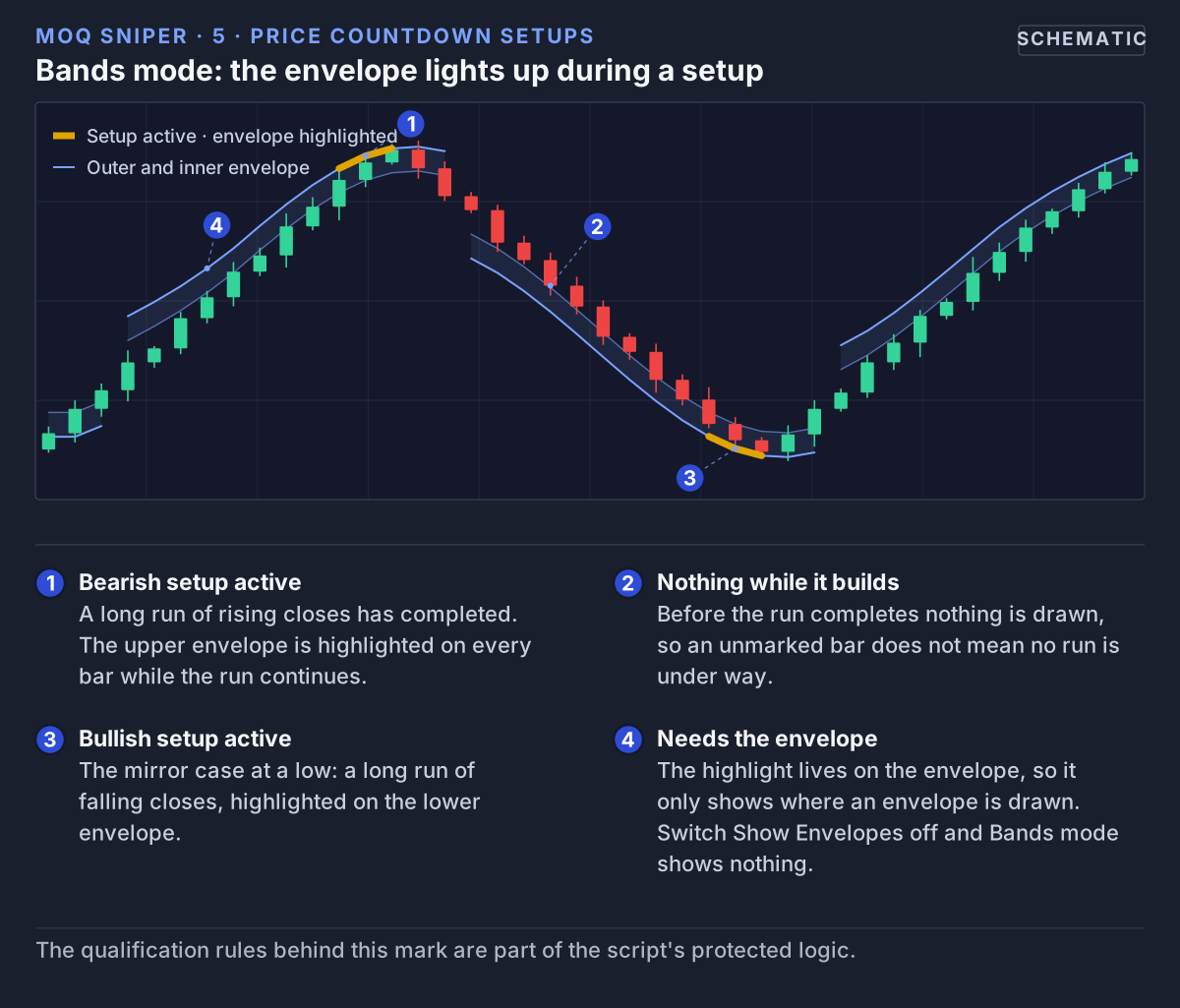 Bands mode, the default: while a countdown setup is active, the visible outer envelope is drawn thick and amber.
Shapes mode marks the same candles with + and − signs:
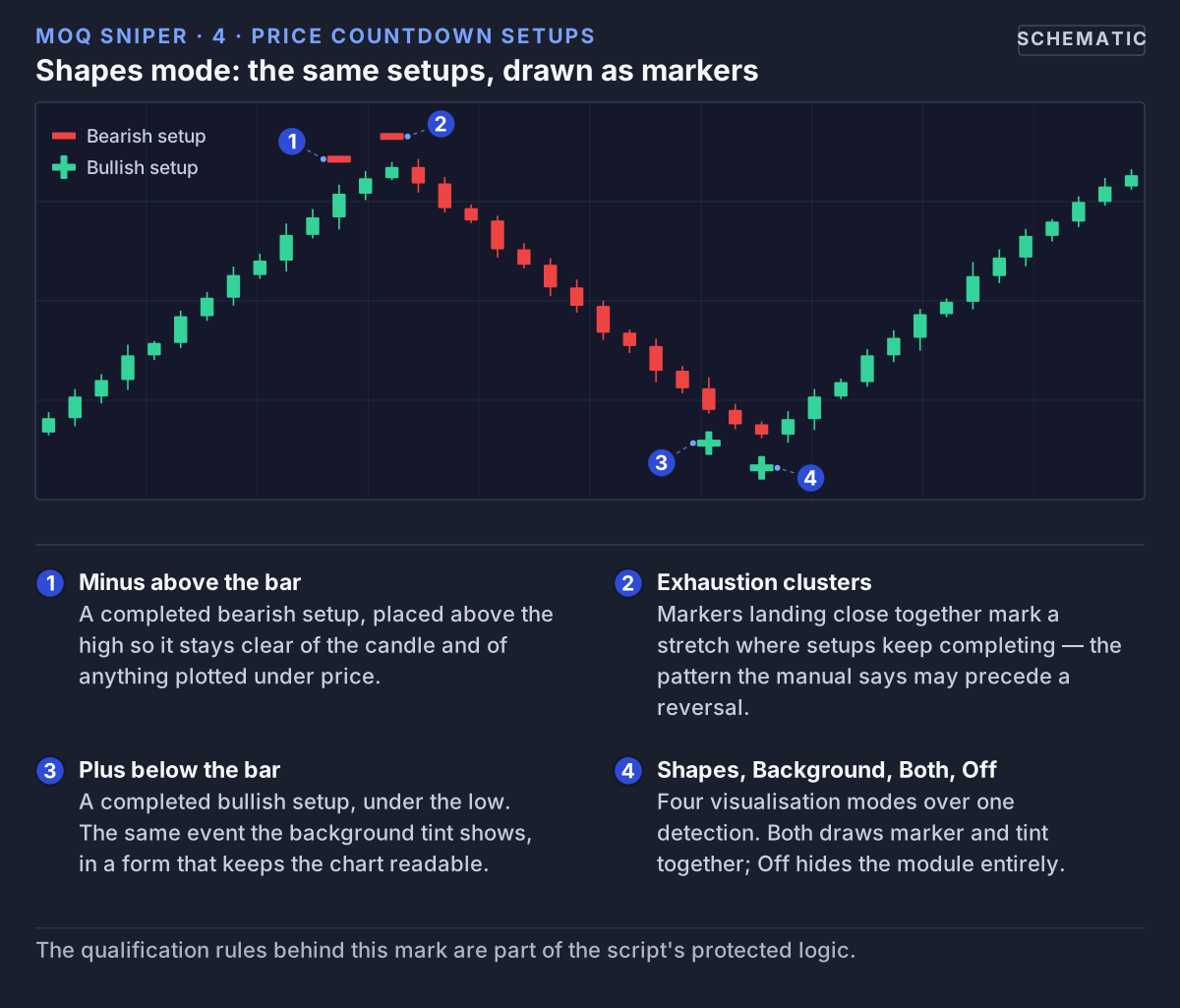 Shapes mode marks the same bars with a minus above or a plus below, in your chart's text colour.
How to read them
- A long cluster of marks means the run kept going after it first completed. The longer the cluster, the more stretched the move.
- A bearish setup while price is near the upper outer envelope, or a bullish one near the lower envelope, combines two independent views of the same stretch.
- A setup while the NW line is still rising steeply in the same direction is more often a pause than a turn.
6. Nadaraya-Watson Envelopes (Trend Model)
In plain words: picture a road with a centre line and kerbs on each side. The NW line is the centre line: the price the market is wandering around. The envelopes are the kerbs. There are two on each side: an inner one that says “getting far from the centre” and an outer one that says “unusually far”. The road keeps a steady width because it is measured over a long stretch of history. “Nadaraya-Watson” is just the name of the smoothing method; you do not need the maths to use it.
The core of Sniper. It smooths price into a fair-value line using Nadaraya-Watson kernel regression, then draws envelopes at a multiple of the typical distance between price and that line. The figures below build the model one layer at a time on the same chart.
What this means for you: a green line means the model leans up; a red line means it leans down. Price inside the shaded zone near an outer envelope is stretched; price near the line is at a normal distance.
What is drawn
- NW line (Show Smoothed Line, on) – the fair-value estimate of price.
- Outer envelopes (Show Envelopes, on) – at 2× the typical distance (Outer Multiplier). The “unusually far” lines.
- Inner envelopes – at 1× the typical distance (Inner Multiplier), drawn fainter. The “warning” lines.
- Shaded zone – the space between the inner and outer envelope on each side is lightly shaded.
- Conditional Band Display (on) – only the upper envelopes are drawn while price closes above the line, and only the lower ones while it closes below. Switch it off to see both sides all the time.
- Dynamic Trend Coloring (on) – line and envelopes are green while the line is rising and red while it is falling.
- Color Bars by Trend (off) – paints the candles in the trend colour instead of their own up/down colour.
- Show Mini-Dashboard (off) – a small UP/DOWN table in the top-right corner.
1. Smoothed NW Line
The reference every other part of the model is measured from. A flat line means the model sees no fair-value drift; a turning line is the model changing direction.
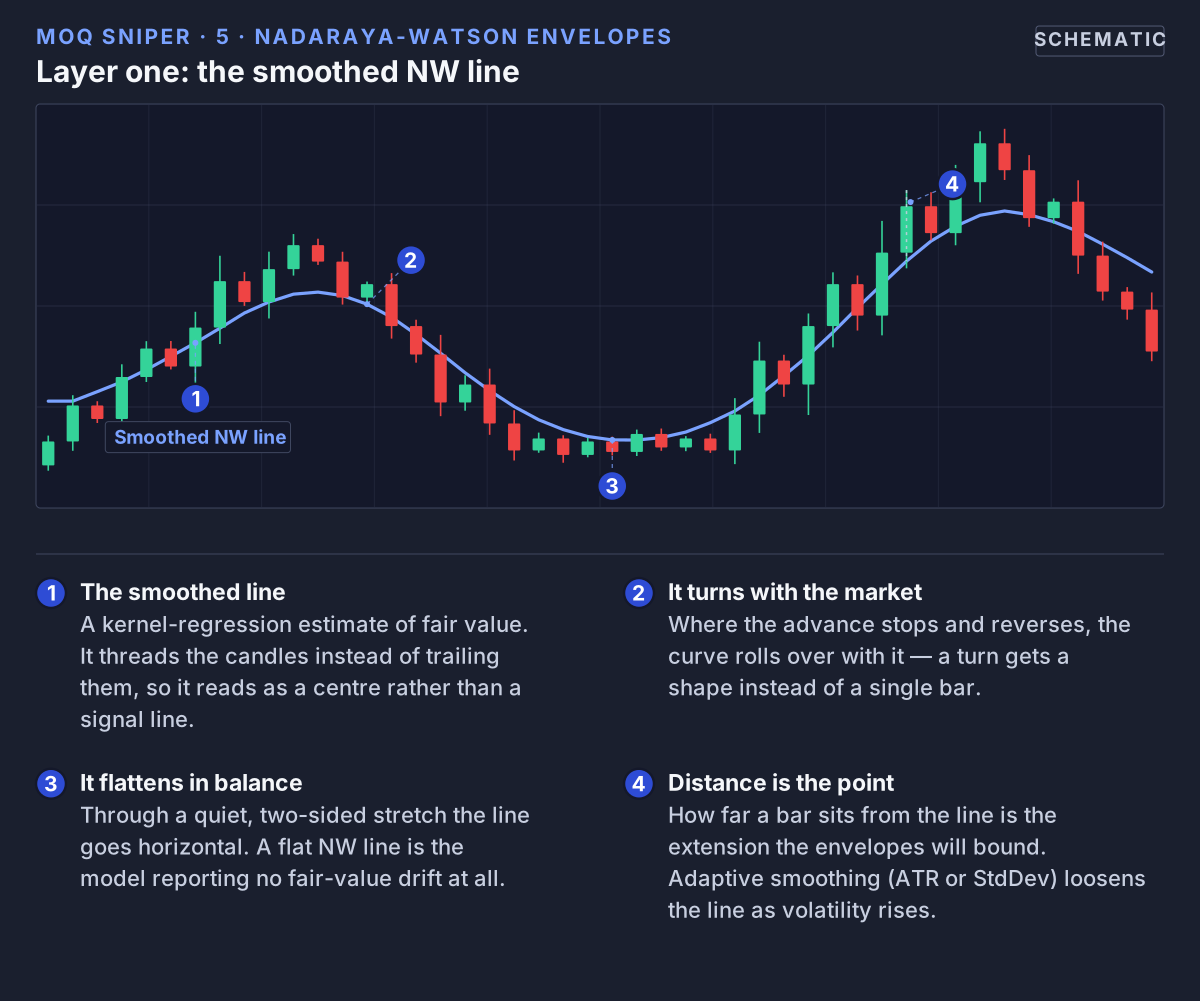 The smoothed Nadaraya-Watson line is a fair-value estimate of price — the reference every other part of the model is measured from.
2. Outer and Inner Envelopes
The envelopes mark where price is stretched relative to its usual distance from the line. Reaching the outer one says the move is extended, not that it must turn.
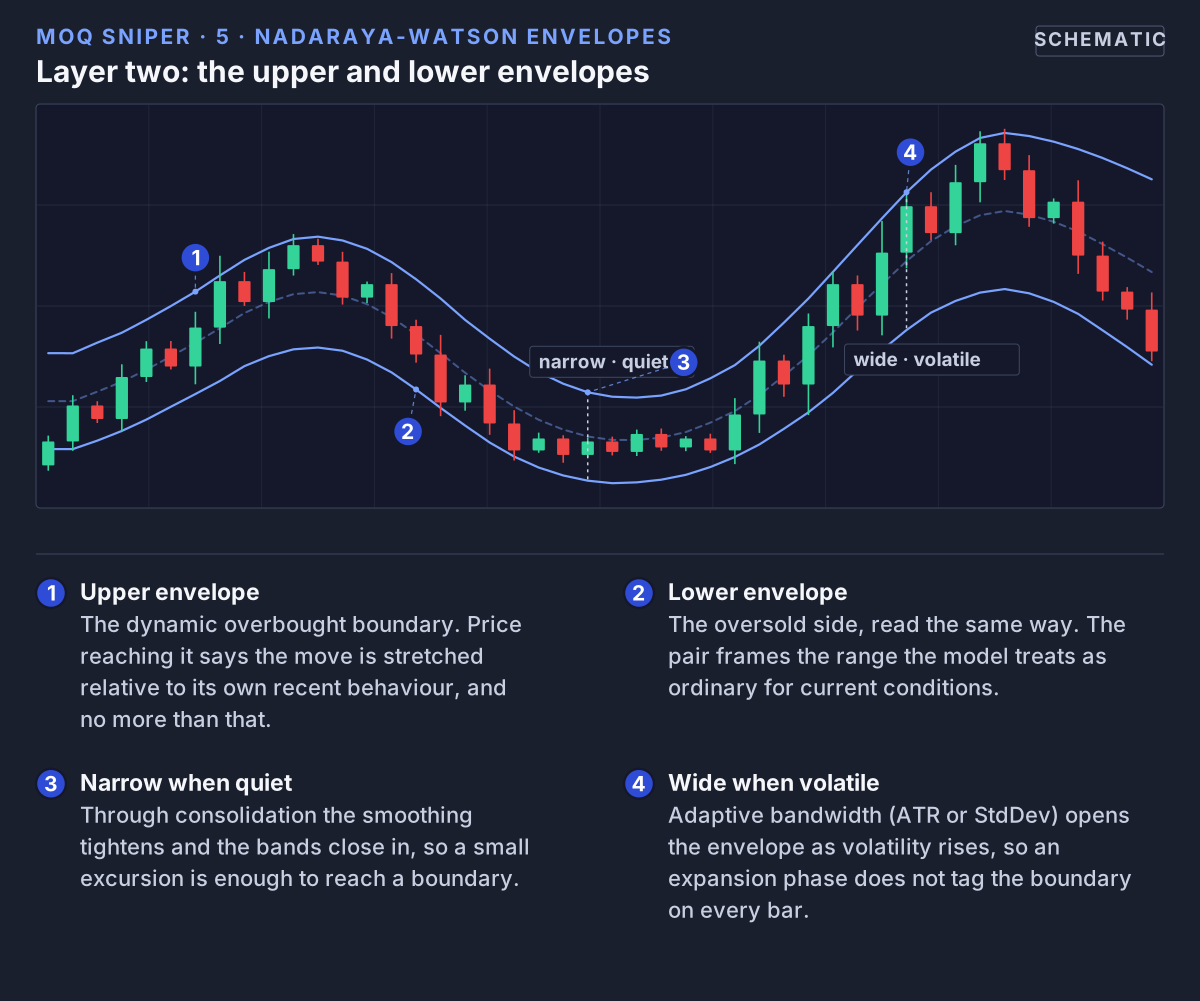 Layer two: an outer and an inner envelope with the zone between them shaded, drawn by default only on the side price is on.
3. Dynamic Trend Coloring
The colour carries the direction of the line. The candle where the colour flips is where the model's direction changes.
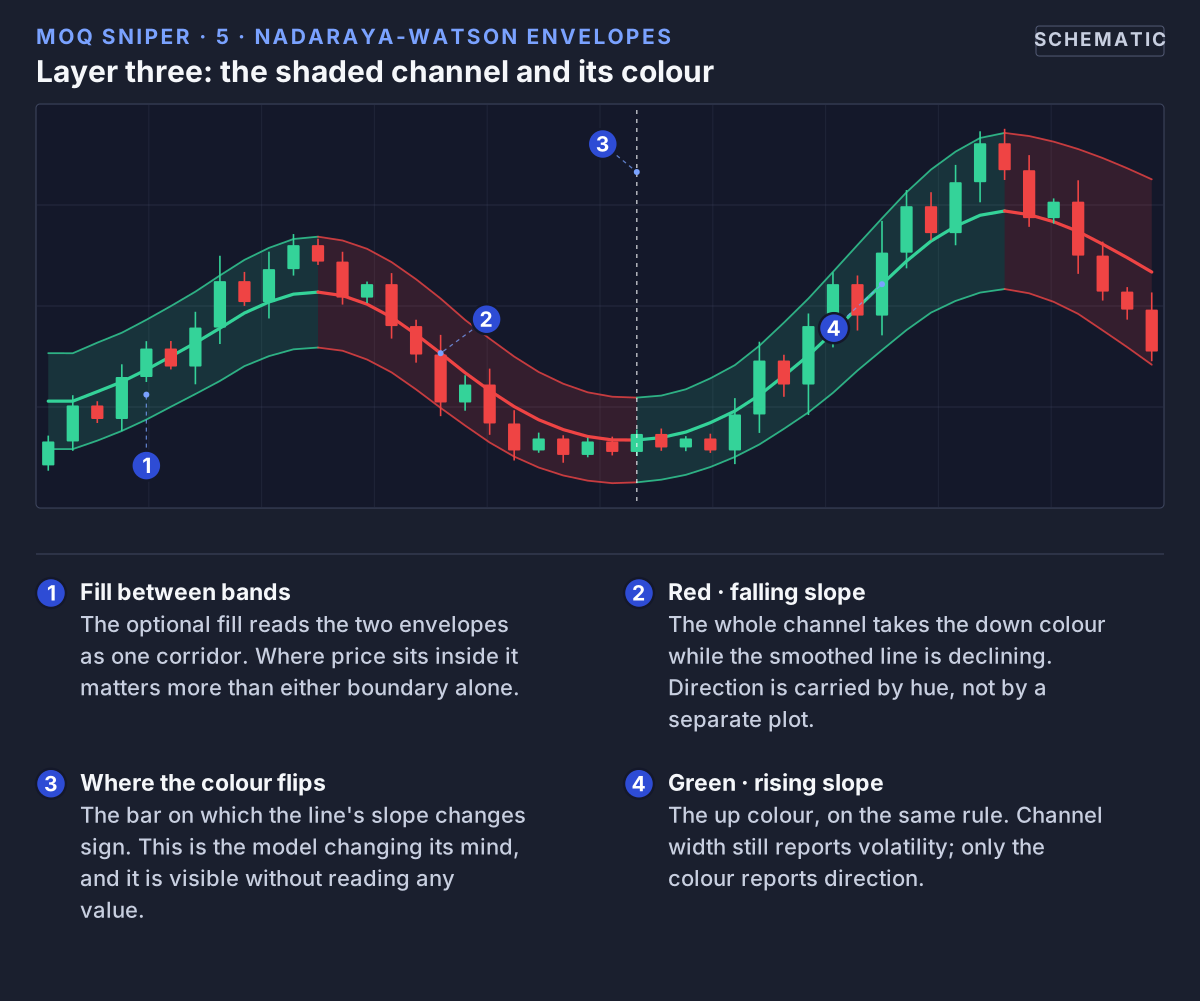 Layer three: Dynamic Trend Coloring paints the line and envelopes green while the line rises and red while it falls.
4. Color Bars by Trend
Useful when you want the chart to carry a single directional opinion. The trade-off is that a candle's own up or down close is no longer readable from its colour, so switch it off when you read individual candles closely.
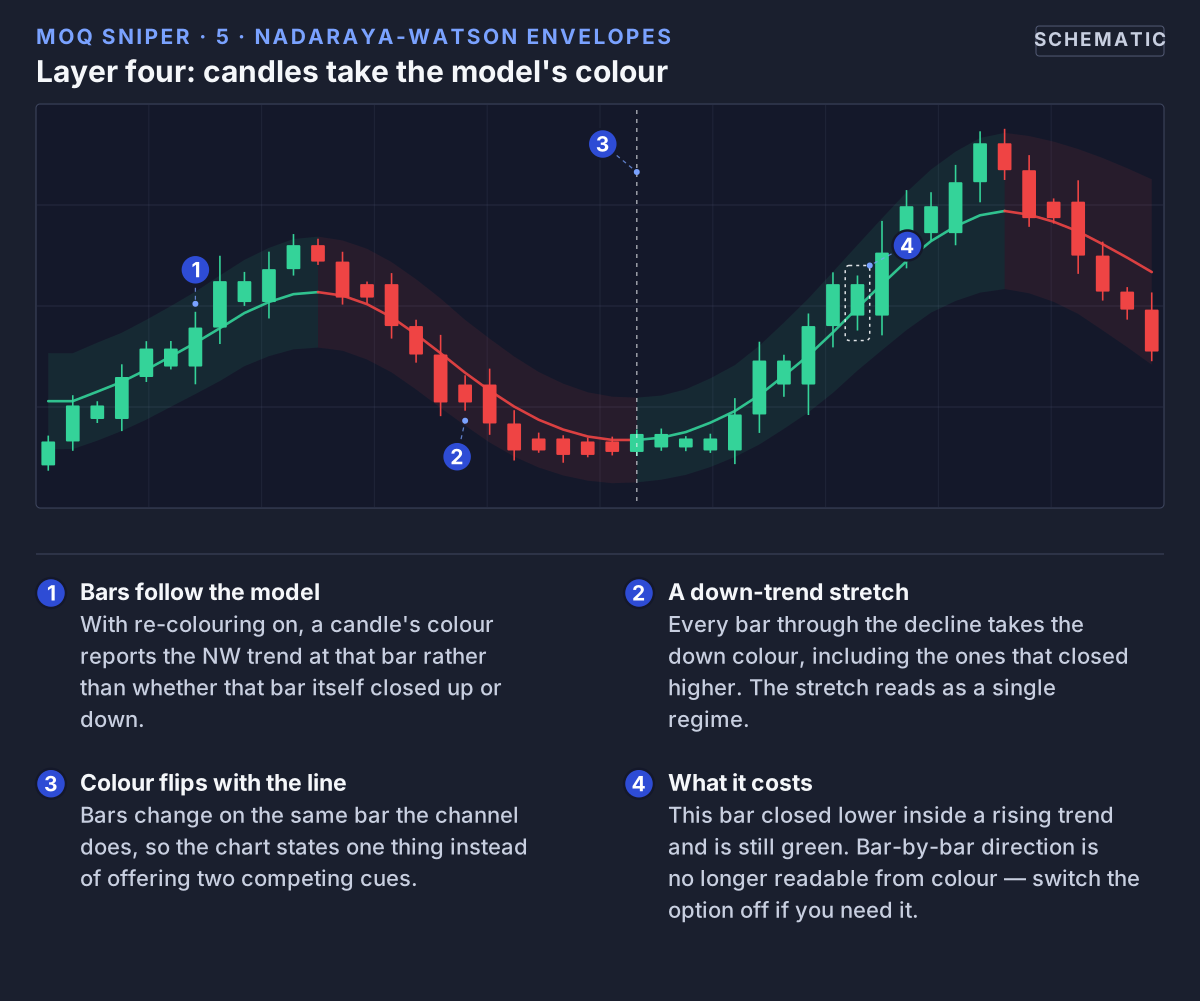 Layer four: Color Bars by Trend paints every candle with the model's direction, so the chart carries one opinion instead of two.
Calculation settings
You can use Sniper without touching these. If you do, change one at a time and compare on a stretch of history that has both quiet phases and fast moves.
- Source – the price the line follows. Default: close.
- Lookback – how many past candles the line can draw on. Default 500.
- Bandwidth – how smooth the line is. Higher is smoother and slower; lower follows price more closely. Default 6.
- Kernel – the weighting shape: Gaussian (default), Epanechnikov, Triangular or Rectangular. Gaussian gives the smoothest line; the others ignore candles beyond the bandwidth.
- Adaptive Bandwidth (on) – makes the smoothing react to volatility. When the market is jumpier than usual, the line smooths more; when it is calmer, the line follows price more closely. This changes the line, not the width of the envelopes.
- Adapt Basis – how volatility is measured: ATR (default) or StdDev.
- Adapt Lookback – how many candles define “usual” volatility. Default 10.
- Adapt Strength – how strongly the smoothing responds. Default 1.0.
- Outer Multiplier / Inner Multiplier – how far out the outer and inner envelopes sit, as multiples of the typical distance. Defaults 2.0 and 1.0.
- Band Metric – how the typical distance is measured. MAD (default) is the average distance between price and the line; StdDev is a similar measure that weighs big misses more; ATR uses the average candle range instead, so the envelopes react much faster to volatility.
- Band Length – how many candles MAD or StdDev is averaged over. Default 500, which is why the envelopes keep a steady width.
Higher Timeframe Mode
Switch on Higher TF Mode and choose a timeframe in HTF Resolution to build the line and envelopes from a higher timeframe's prices, for example 4H prices on a 15m chart. The 15m candles then move inside the 4H fair-value corridor. If HTF Resolution is left empty, the mode does nothing.
- Pick a higher timeframe that is a clear step up from your chart, such as 15m → 1H or 4H, or 1H → 4H or 1D.
- The value from a higher-timeframe candle that has not closed yet keeps changing until it closes. Treat the newest part of the channel as provisional until then.
Mini-Dashboard
Switch on Show Mini-Dashboard for a small table in the top-right corner headed NW Trend:
- UP on a green cell – the NW line is rising.
- DOWN on a red cell – the NW line is falling.
It stays in place as you scroll and zoom. It reports direction only, never a level or an action.
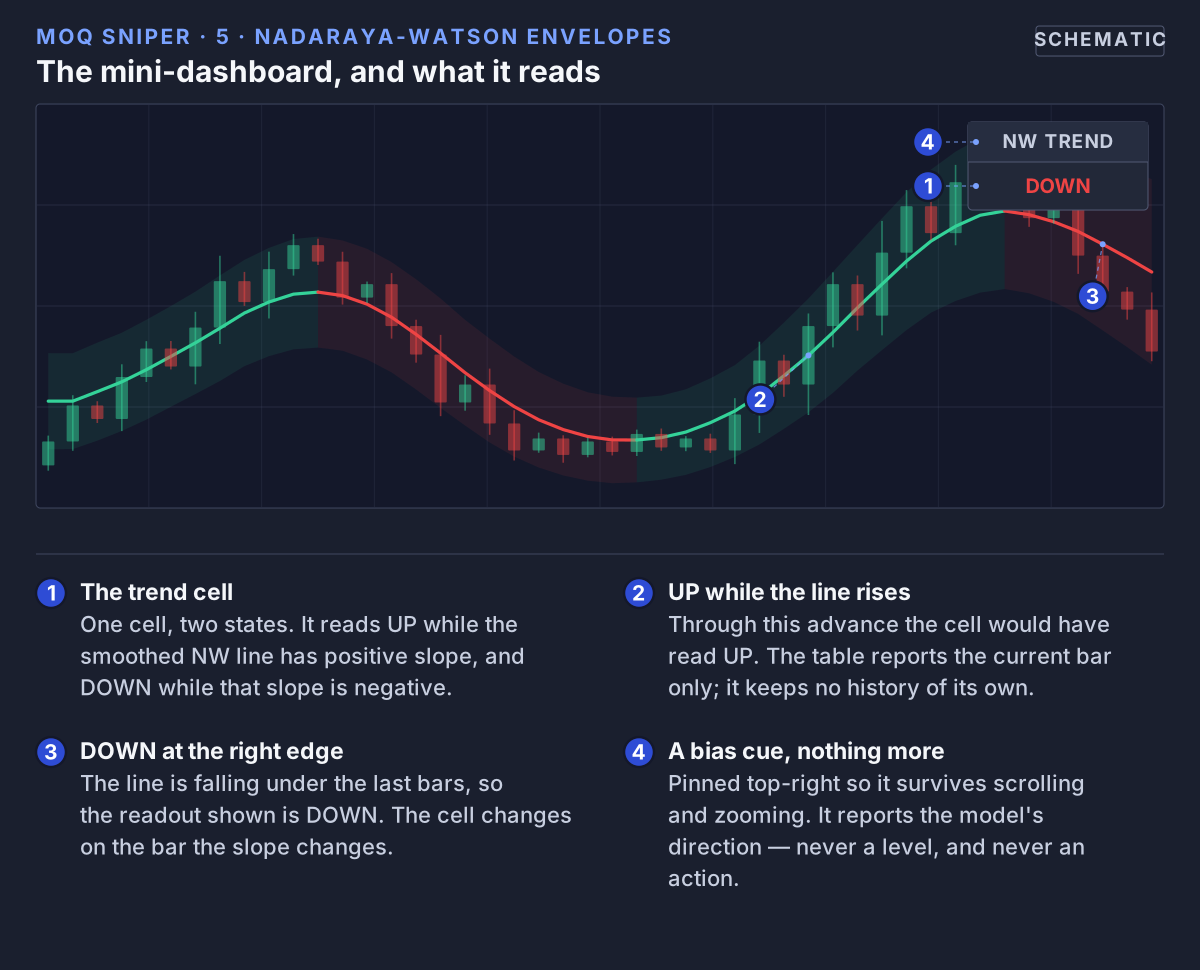 The mini-dashboard (off by default) reads UP while the NW line is rising and DOWN while it is falling.
7. NW Signals (Markers & Alerts)
In plain words: Reversal mode marks the moment price went over the kerb and came back onto the road. Breakout mode marks every candle that ends up over the kerb. They are two opposite ideas, so you pick one. If you like to catch moves that have gone too far, use Reversal. If you like to join strong moves, use Breakout. You can switch at any time.
Switch on Show Signals under NW Envelopes — Signals (off by default) and choose a Signal Mode. Signals are small triangles in your chart's text colour: below the candle for long, above it for short. They always use the outer envelopes, even when Conditional Band Display hides one side.
Modes
- Reversal (default) – a long signal when a candle closes back above the lower outer envelope after closing below it; a short signal when a candle closes back below the upper outer envelope after closing above it. A wick that only touches the envelope does not count.
- Breakout – a long signal on every candle that closes above the upper outer envelope; a short signal on every candle that closes below the lower one.
Reversal mode marks the close back inside:
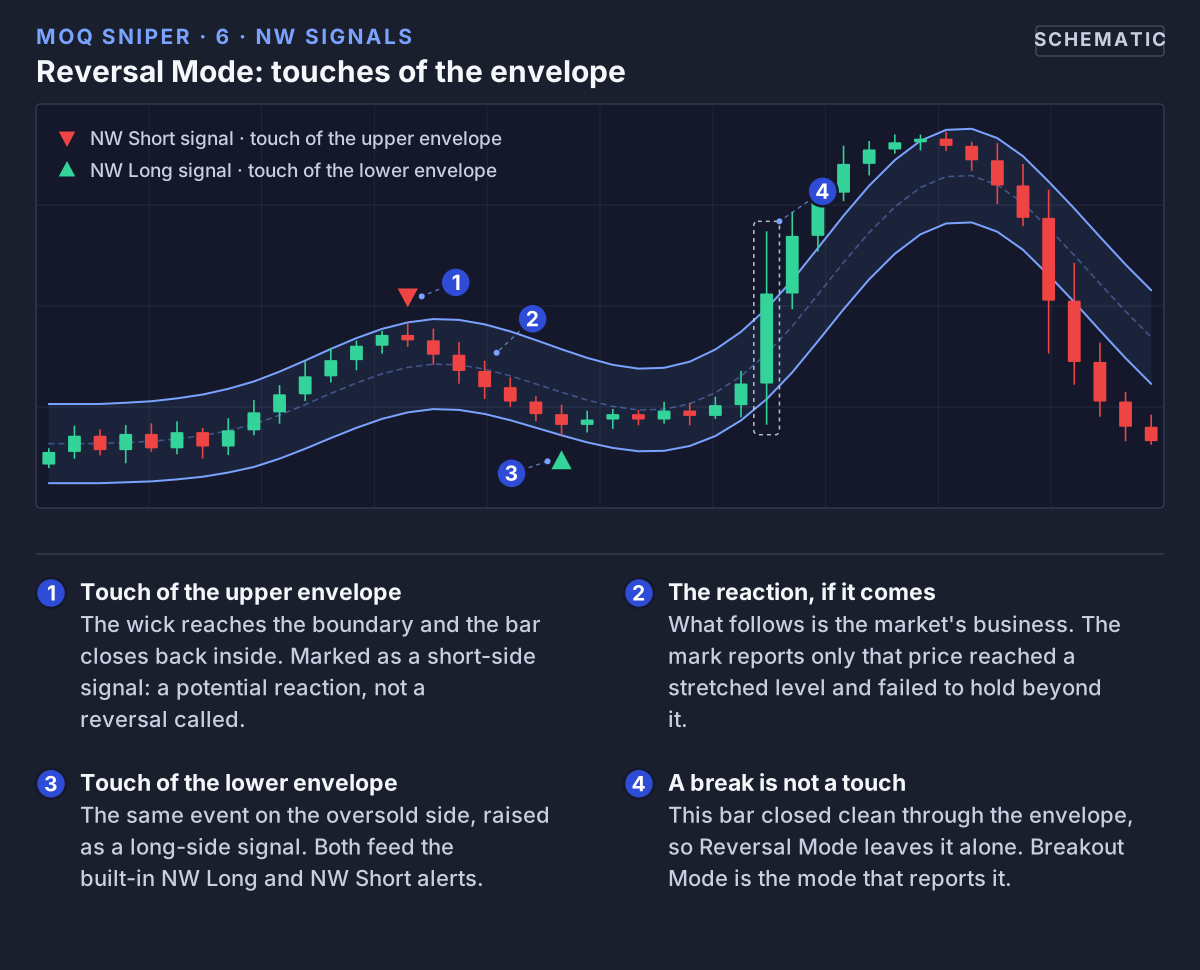 Reversal Mode marks the bar that closes back inside the outer envelope after a close outside it.
Breakout mode on the same chart marks every close outside:
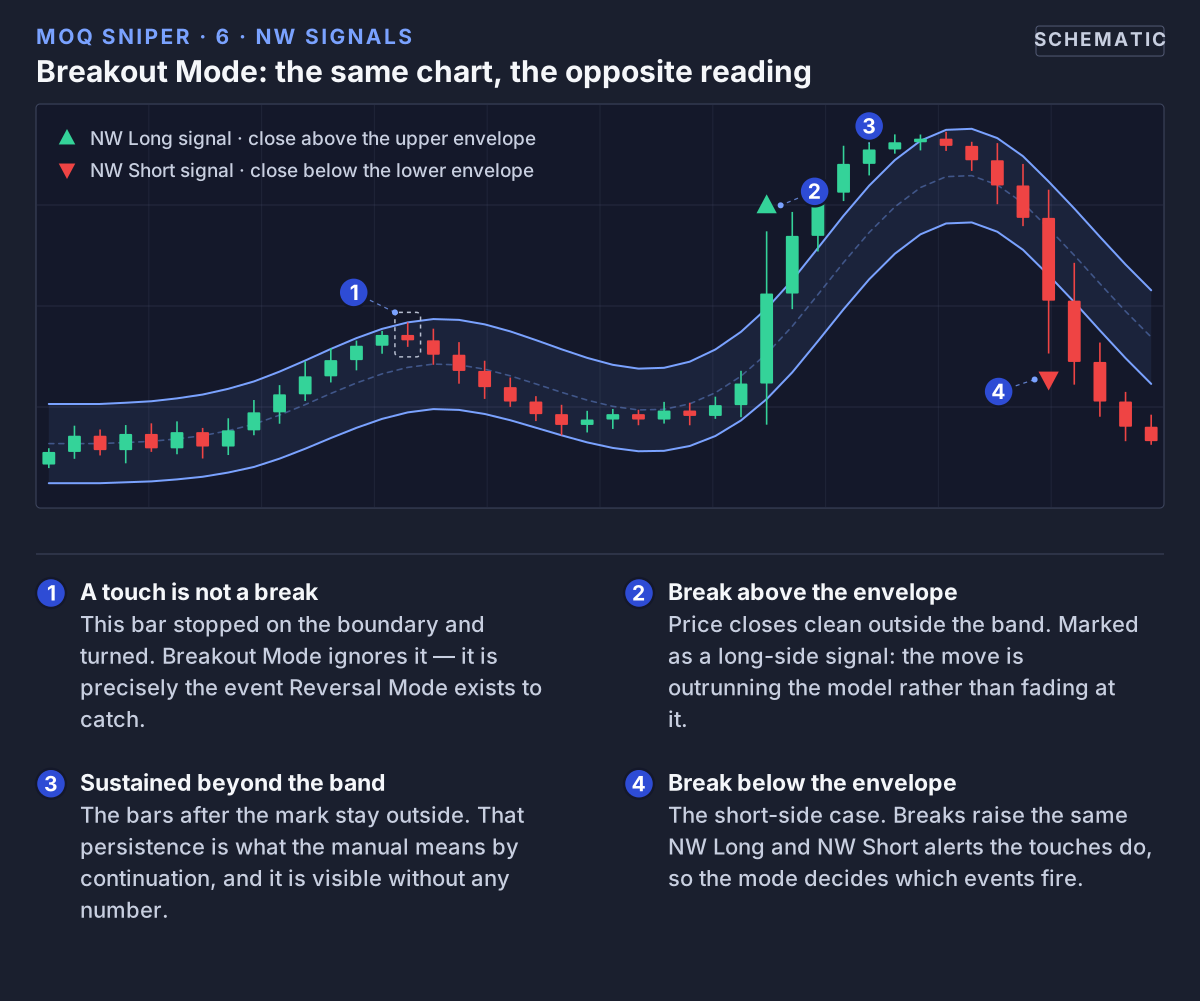 Breakout Mode marks every bar that closes beyond the outer envelope, including one-bar pokes that fall straight back.
Choosing a mode
- Reversal suits ranges and mature trends, where stretched price tends to snap back toward fair value. After a strong breakout it fires late, only once price finally falls back inside.
- Breakout suits the move out of a quiet stretch into a fast one. It marks every candle outside the envelope, so a strong move leaves a row of signals, and a one-candle poke that falls straight back is marked too.
- The line's own shape is a good hint: a flat line argues for watching reversals; a steep line with price riding the outer envelope argues for watching breakouts.
8. Moving Averages
In plain words: this draws up to twelve moving averages at once, from short (a few candles) to long (hundreds of candles). Short ones follow price closely; long ones move slowly. If the short averages sit above the long ones, recent prices are higher than older prices, which is what an uptrend looks like. For example, if the 10 is above the 50 and the 50 is above the 200, price has been rising over the short, medium and long term.
The available periods are 5, 7, 8, 9, 10, 13, 20, 30, 50, 100, 200 and 325. All are off by default. The 200 and 325 lines are drawn thicker.
Configuration
Three groups of settings, each with one entry per period:
- Moving Averages — Visibility – tick a period to show it.
- Moving Averages — Type – tick a period to make it an EMA; unticked it is an SMA. EMA reacts faster to recent candles; SMA weighs the whole window equally.
- Moving Averages — Colors – a colour per period.
 Twelve averages from 5 to 325 periods, each with its own on/off, SMA or EMA and colour; the order they sit in is the read.
Common Use Cases
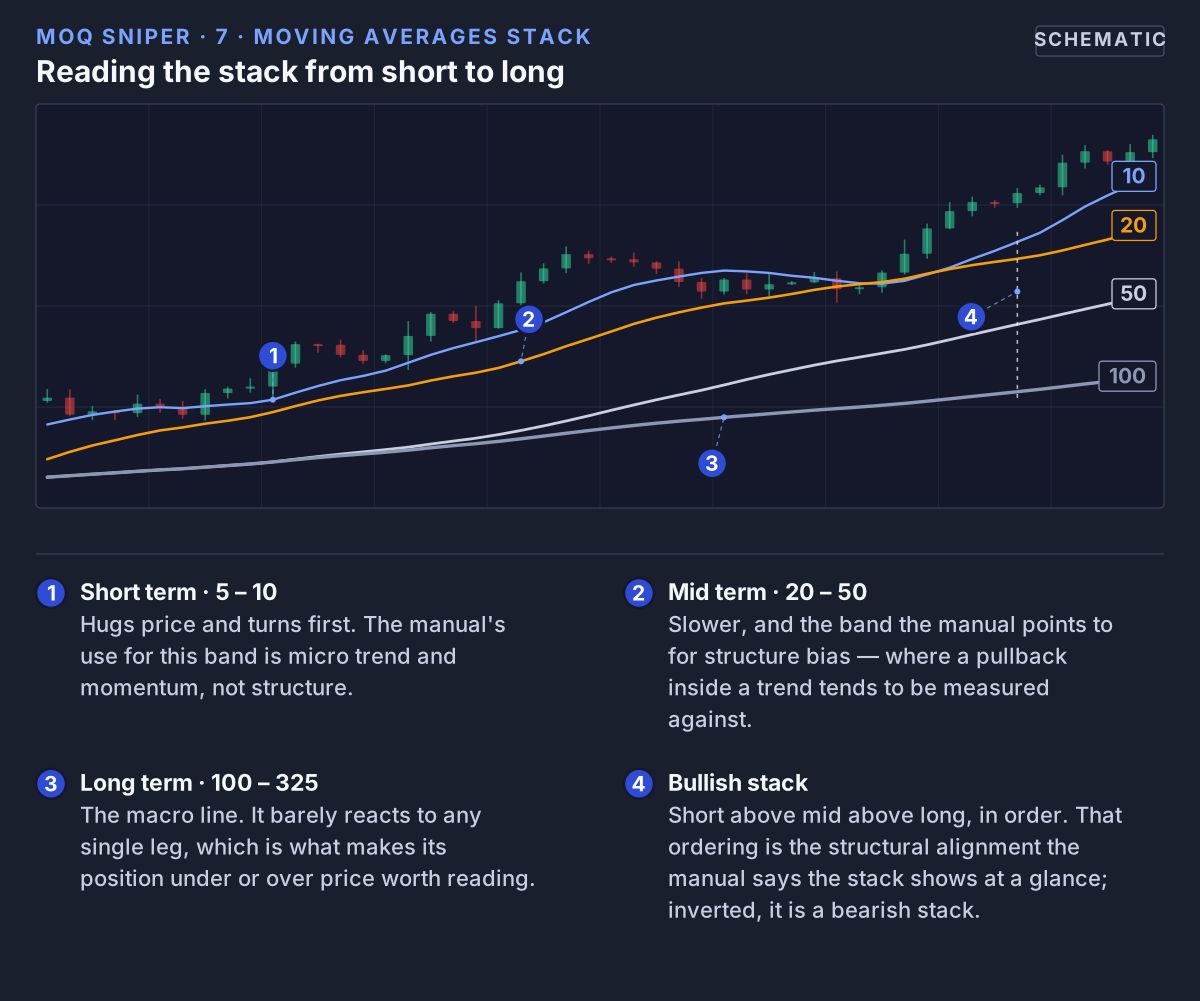
- Short-term (5–13) → micro trend and momentum.
- Mid-term (20–50) → structure bias.
- Long-term (100–325) → macro direction.
A bullish stack has short above mid above long, in order; a bearish stack is the reverse. Averages that cross and tangle mean the timeframes disagree, which usually describes a range or a transition rather than a trend.
Three or four averages are usually enough. Every extra line competes with the NW envelopes for attention.
9. OLS Regression
In plain words: on every candle, this module draws the straight line that best fits the last 15 closes. It then plots two points from that line: where it ends (on the current candle) and where it started (15 candles ago). When the end is higher than the start, the last 15 candles have been rising; the bigger the gap, the steeper the rise.
Settings
- Intercept Line (red) – where the fitted line ends, on the current candle. It follows price closely and smoothly. Off by default.
- Regression Line (blue) – where the fitted line starts, 15 candles back. It trails behind. Off by default.
- Period – how many candles the fit uses. Default 15. Shorter reacts faster; longer is steadier.
Read them as a pair: red above blue means the recent window is rising, red below blue means it is falling, and a cross means the direction of the last 15 candles has flipped. A gap that widens means the move is accelerating; one that narrows means it is losing drive.
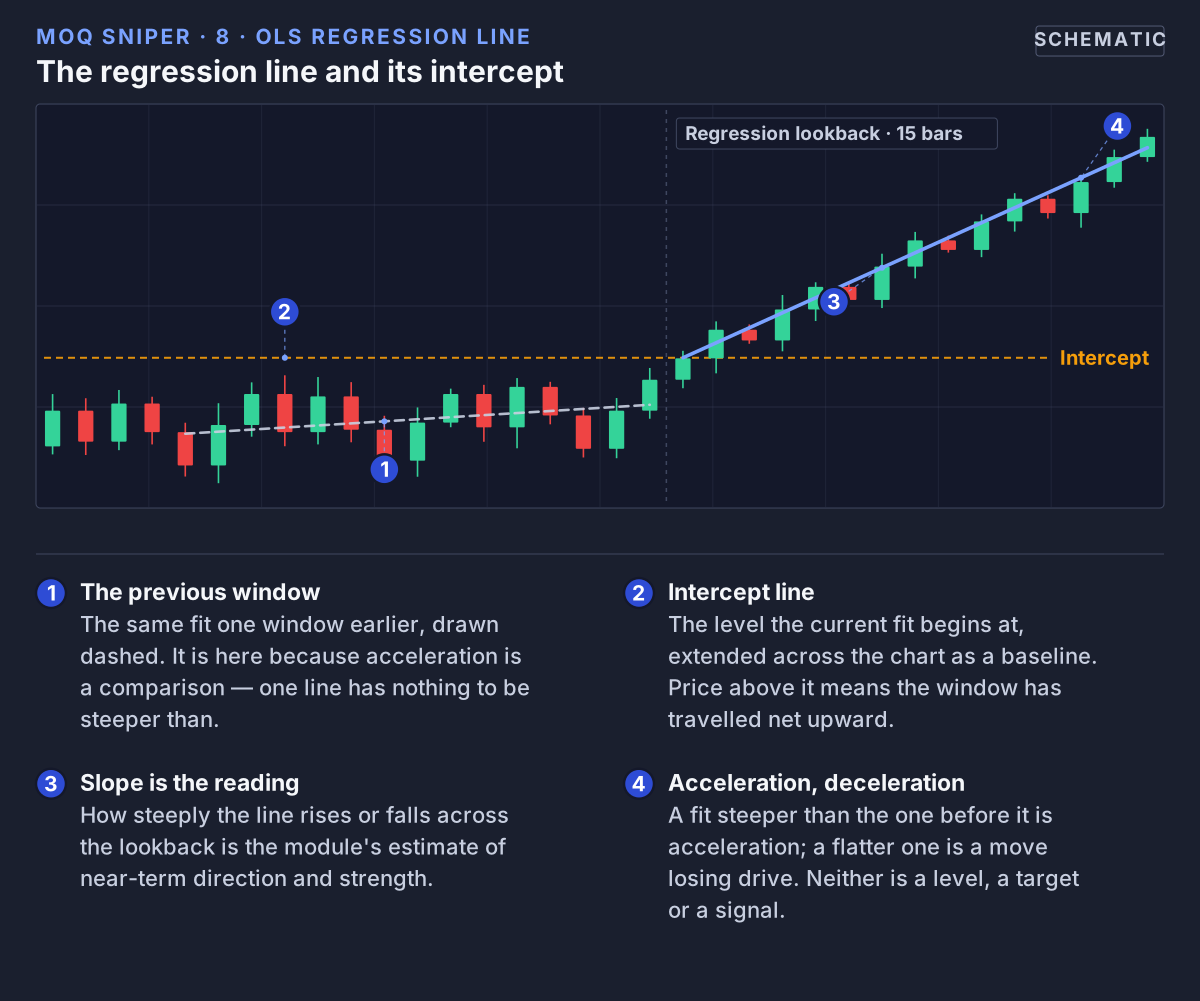 The OLS module fits a straight line through the last 15 closes on every bar: the Intercept Line plots its end, the Regression Line its start.
10. Bollinger Bands
In plain words: Bollinger Bands are one of the most widely used bands in trading: a line two “normal swings” above and below a 20-candle average. Many traders know them, so you can switch them on to compare them with Sniper's own envelopes.
Switch on Show Bands under Bollinger Bands (off by default). The script draws the classic 20-period SMA ± 2 standard deviations, with the upper band in red and the lower band in green. There is no middle line and no fill, and the period and width are fixed.
The difference from the NW envelopes is how much history each looks at. Bollinger Bands measure the last 20 candles, so they pinch in a quiet stretch and balloon after a fast move. The NW envelopes measure distance over 500 candles by default, so they keep a steady width.
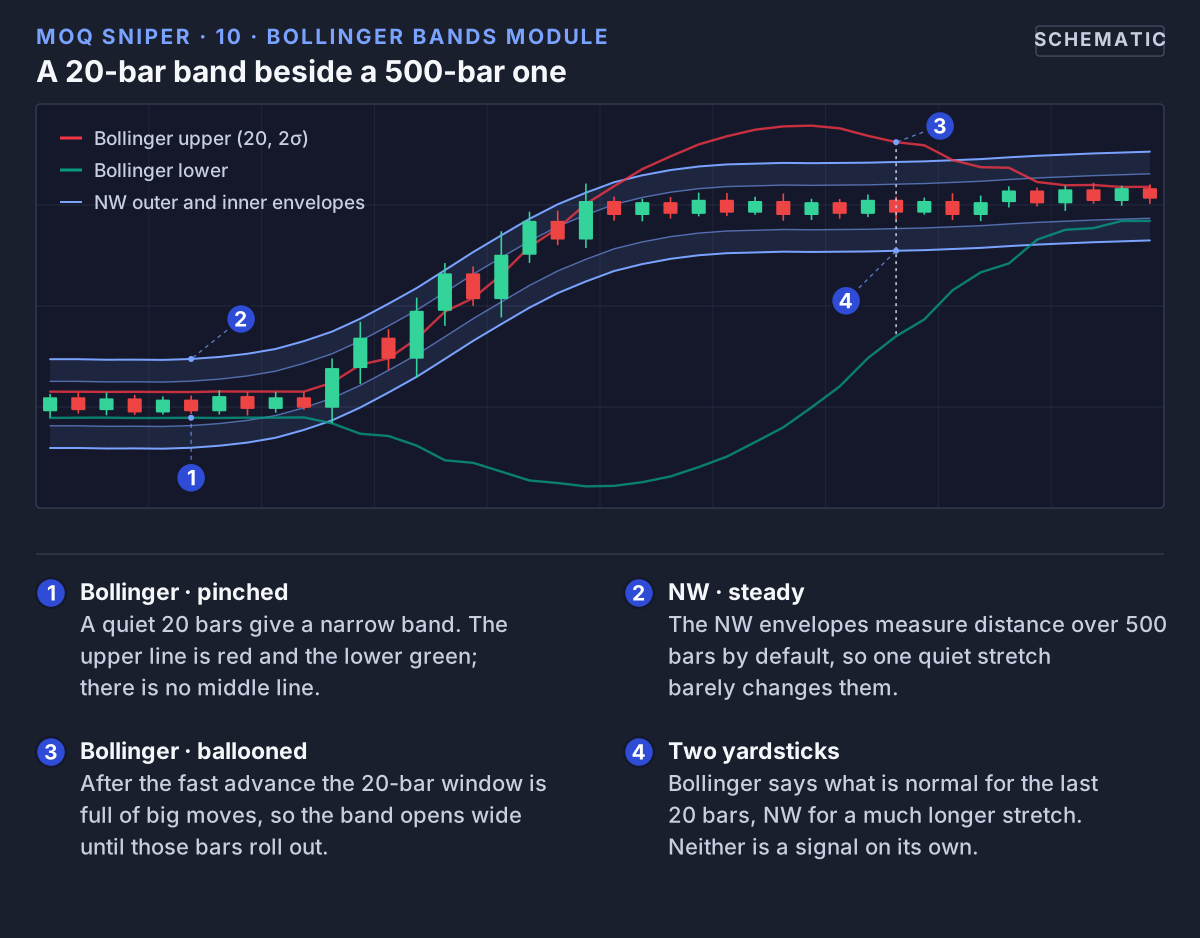 Bollinger Bands react to the last 20 bars; the NW envelopes, measured over 500 bars by default, keep a steady width.
11. Alerts
In plain words: an alert is a message TradingView sends you when one of Sniper’s events happens, so you do not have to watch the chart all day. You choose which event, and how you want to be told (pop-up, app notification, email).
Sniper provides four alert conditions:
- NW Long – a long NW signal in your chosen Signal Mode: a close back above the lower envelope (Reversal) or a close above the upper envelope (Breakout).
- NW Short – a short NW signal: a close back below the upper envelope (Reversal) or a close below the lower envelope (Breakout).
- PCS Bull – a bullish countdown setup is active (downside exhaustion).
- PCS Bear – a bearish countdown setup is active (upside exhaustion).
These conditions work even when the matching markers are hidden. In Breakout mode, NW Long and NW Short can fire on several candles in a row; a countdown alert can repeat on each candle of a cluster.
Setting up an alert in TradingView
- Configure the indicator first (Signal Mode, timeframe, Higher TF Mode). An alert keeps the settings the indicator had when the alert was created.
- Open the alert dialog (the clock icon in the right toolbar, or Alt + A).
- Under Condition, choose MoQ Sniper, then NW Long, NW Short, PCS Bull or PCS Bear.
- Under trigger, Once Per Bar Close is the safest choice: the alert fires on the finished candle, not on one that is still forming.
- Choose how you want to be notified and create the alert.
If you change the indicator's settings later, delete the alert and create it again so it uses the new settings. Alerts are informational: they tell you something happened on the chart, not what to do about it.
Webhook messages (optional)
Only relevant if you connect TradingView to another service. With Show Signals on, Sniper also sends a message on every NW Long or NW Short signal, once per candle close, in the format chosen under NW Envelopes — Webhook:
- Webhook Format – Plain (a readable line with the symbol, price, NW line and envelope; default), TradersPost, PineConnector or 3Commas.
- PineConnector License ID and PineConnector Risk – used only by the PineConnector format.
- 3Commas Bot ID and 3Commas Email Token – used only by the 3Commas format.
To use it, create an alert with the condition MoQ Sniper → Any alert() function call and enter the other service's address under Webhook URL in the alert's notifications. What the other service does with the message is set up in that service, not in Sniper. Keep IDs and tokens private: anyone who can see your indicator settings can read them.
12. Reading the Modules Together
In plain words: one marker on its own is weak evidence. When several modules tell the same story at the same place, the reading is stronger. When they disagree, the honest answer is “not clear”, and waiting is a valid choice.
Each module is one view of the chart. They become useful when they agree, and the order you read them in matters more than how many are switched on. One way to work through a chart:
- Context – Read the NW line first: its colour (or the mini-dashboard), and where price sits relative to the envelopes. With Higher TF Mode on, this is the higher timeframe's view.
- Structure – Check the moving averages. An ordered stack in the direction of the NW line means the timeframes agree; a tangled stack means they do not.
- Stretch – Is price in the shaded zone near an outer envelope? Is a countdown setup active there? Two independent views of exhaustion at the same place are worth more than either alone.
- Trigger – Look for the event in your chosen signal mode, and for a MARI mark or a change in the OLS lines pointing the same way.
- Plan – Decide in advance what would prove the reading wrong, such as a close back through the envelope or the line changing colour.
When the modules disagree, for example a reversal signal at the upper envelope while the NW line, the moving averages and the OLS lines all point up, the disagreement is the information: the chart is not offering a clear reading.
A worked example
This is an illustration of how to read the chart, not a trade recommendation. Imagine a 1H chart where:
- The NW line is red and the mini-dashboard reads DOWN: the model leans down.
- The moving averages are in bearish order: short below mid below long.
- Price bounces up and closes above the upper outer envelope.
- A bearish countdown setup is active (the upper envelope is drawn thick and amber).
- The next candle closes back below the upper envelope, and in Reversal mode a short signal appears.
Here several modules agree: the bigger direction is down, and the bounce stretched past the edge of the channel, looks tired and has fallen back inside. Now imagine the same short signal, but with a green line, a dashboard reading UP and the averages in bullish order. The signal is going against everything else, so it deserves much less weight.
13. Suggested Setups
In plain words: if you are just starting, use the clean bias view for a week or two. Learn what the line and envelopes do on your market before adding anything else.
Starting points, not recommendations. Adjust them to your market and timeframe.
- Clean bias view:
- NW line and envelopes (on by default) with the mini-dashboard switched on.
- Price Countdown in Bands mode (the default), or Off if you want nothing else.
- Scalping or intraday:
- NW Envelopes with Adaptive Bandwidth, optionally with Higher TF Mode.
- Price Countdown in Shapes or Both mode.
- Short averages (8–30).
- Swing or positional:
- Focus on the higher-timeframe NW trend and long averages (50–325).
- Keep signals off for clarity.
14. Troubleshooting & FAQ
I updated the indicator and my settings look wrong.
After each update, remove the indicator from the chart and add it again so new settings and defaults load. If you saved a template, re-save it afterwards.
I only see one envelope at a time.
That is Conditional Band Display, on by default: the upper envelopes show while price is above the line and the lower ones while it is below. Switch it off under NW Envelopes — Display to see both sides.
No NW signals appear.
Check that Show Signals is switched on (it is off by default) and which Signal Mode is selected. Reversal marks only closes back inside the envelope, and Breakout marks only closes outside it, so a quiet chart in one mode can be busy in the other.
I don't see the mini-dashboard or the B and S markers.
Both are off by default. Switch on Show Mini-Dashboard under NW Envelopes — Display, and Show Signals under MA Strategy.
The countdown highlight disappeared.
Bands mode draws on the envelope, so it needs Show Envelopes on and only appears on the side that is visible. Switch Visualization to Shapes or Both to see markers instead.
The chart feels cluttered.
Turn modules off until only the ones you read remain. Start from the clean bias view in section 13 and add one module at a time.
The latest part of the channel moved after I looked at it.
With Higher TF Mode on, the newest higher-timeframe candle is still forming, so its values can change until it closes. Read decisions from closed candles, and use Once Per Bar Close for alerts.
Is Sniper a strategy or an automated system?
No. It is an indicator. It draws context on the chart and can send alerts, including webhook messages to a service you connect yourself. It does not place orders, size positions or manage risk.
15. Legal Disclaimer
The MomentumQ Sniper indicator and this documentation are provided for educational and informational purposes only. They do not constitute financial advice, investment recommendations, or an offer to buy or sell any financial instrument.
Trading involves substantial risk. Past performance is not indicative of future results. Users are solely responsible for their own decisions and should consult a licensed financial advisor before acting on any analysis.
The MomentumQ Sniper script is proprietary to MomentumQ GmbH and provided for personal, non-transferable use under the MomentumQ Terms of Service; redistribution, modification, and source extraction are prohibited.
© MomentumQ GmbH. All rights reserved.