
1. What MoQ Combo Is, in One Minute
Price on a chart tells you where the market is. It does not tell you how much energy is behind the move. That energy is called momentum: how fast and how strongly price has been moving in one direction.
Think of a ball thrown up in the air. It is still rising, but it slows down before it turns. Markets often behave the same way: price can still be going up while the push behind it is already fading. MoQ Combo is built to show you that push.
MoQ Combo has two parts:
- A momentum pane underneath your price chart. It can show the Momentum Tracker (on by default), an RSI line coloured by who is in control, a Stochastic RSI for timing, and divergence lines that warn when a move is getting tired.
- Filtered Signals on the price chart itself (also on by default): buy and sell triangles that only appear when several checks agree, a suggested stop and three targets for the latest signal, and two small tables.
What this means for you: MoQ Combo is a second opinion, not an autopilot. Even the Filtered Signals are mechanical rules, not advice. You decide whether a trade makes sense, how much to risk, and when to get out.
2. Key Terms, Explained Simply
Each term is explained again where it first matters, but here they are in one place.
- Bar (or candle): one block of time on your chart, for example one hour on a 1-hour chart. Combo calculates one value per bar.
- Closed bar / open bar: a closed bar is finished and will not change. The open bar is the one still forming; its values can still move.
- Timeframe: how much time each bar represents (1 minute, 1 hour, 1 day and so on). A higher timeframe is a slower one, for example the 1-hour chart when you trade on the 5-minute chart.
- Oscillator: an indicator that moves up and down between fixed limits, like 0 to 100, instead of following price.
- RSI (Relative Strength Index): a classic oscillator from 0 to 100 that compares recent up-moves with recent down-moves. High values mean buyers have been stronger lately; low values mean sellers have.
- Stochastic: an oscillator from 0 to 100 that shows where a value sits inside its own recent range. 100 means "at the top of the range", 0 means "at the bottom".
- %K and %D: the two lines of a Stochastic. %K is the fast line; %D is a slower average of %K. When %K crosses %D, short-term momentum is changing direction.
- Overbought / oversold: momentum has gone very far up or very far down. It means "stretched", not "about to reverse".
- Regime: the mood of momentum that has lasted a few bars: bullish (buyers in control), bearish (sellers in control) or neutral.
- Bullish / bearish: pointing up / pointing down.
- Pivot (turning point): a peak or a dip that is higher or lower than the bars on both sides of it.
- Divergence: price and momentum disagree, for example price makes a new high but momentum does not.
- EMA (Exponential Moving Average): an average of recent closing prices that reacts faster to new prices. EMA 20 uses about the last 20 bars.
- ATR (Average True Range): the average size of a bar over recent bars. It is a simple measure of how much the market is moving.
- Stop loss (SL): a price where you accept you were wrong and get out. Take profit (TP): a price where you take money off the table.
- R (risk unit): the distance from your entry to your stop. If your stop is 10 points away, 1R is 10 points and a target at 2R is 20 points away.
3. What You See When You First Add It
The default settings show:
- In the pane: the Momentum Tracker in Lines style, with its pivot lines, shaded range and green/red fill. The RSI line, Stochastic RSI, divergence lines and cross dots are off.
- On the price chart: Filtered Buy (green triangle below a bar) and Filtered Sell (red triangle above a bar) markers, entry, stop and target lines for the latest signal, a filter table in the bottom-left corner and a Tracker table in the top-left corner.
If you want a quieter chart, you can switch the price-chart parts off in the settings (see Settings Reference).
4. Reading the Panel at a Glance
- Blue line with a green/red fill: Momentum Tracker %K. Green fill means %K is above %D (buyers have the short-term edge); red means below.
- Red / green lines around it: the average of recent momentum peaks (red) and dips (green). The grey shading between them is momentum's normal range lately.
- Green RSI line: bullish regime. Red: bearish regime. Yellow: neutral. (Only visible when the Momentum Tracker is off.)
- Blue and black/white lines between 0 and 100 with grey lines at 80 and 20: Stochastic RSI.
- Dot above the pane (red) or below it (green): RSI and Stochastic RSI both reached an extreme on the same bar.
- Red / green / blue line between two points: divergence. Red is regular bearish, green is regular bullish, blue is hidden divergence.
- Small dot on the 0 line: the Momentum Tracker's %K crossed %D (only with Show Cross Signals on).
- Triangle on the price chart: a Filtered Buy or Filtered Sell.
5. Quick Start
- Once you have access, open TradingView, click Indicators, choose the Invite-Only Scripts tab and click MoQ Combo. The pane opens below your chart.
- Click the gear icon to open the settings. Under Theme Settings → Select Mode, pick Light Mode for a white chart background or Dark Mode for a dark one.
- Spend a few minutes with the default view: watch how the Momentum Tracker's fill turns green and red as price moves.
- To see the RSI view instead, untick Momentum Tracker (Momentum Settings) and tick RSI Stochastic (Stoch RSI Settings).
- Scroll back through older history and look at how the colours, lines and triangles behaved before big moves. Add one feature at a time.
6. RSI Regime (Who Is in Control?)
The RSI line is a 14-bar RSI of the closing price. It only appears when the Momentum Tracker is switched off. With it you also get three fixed guide lines: a red line at 70, a green line at 30 and a line at 50 in the middle.
RSI moves between 0 and 100. Above 50, recent buying has been stronger than selling; below 50, selling has been stronger. Instead of using a simple "above 70, sell" rule, Combo colours the RSI line by what it has been doing over the last few bars:
- Green (bullish regime): RSI is above 50 and below 75, and the three bars before it were all above 46.
- Red (bearish regime): RSI is below 50 and above 25, and the three bars before it were all below 54.
- Yellow (neutral): neither rule holds. In Light Mode the yellow is a darker shade so it stays readable.
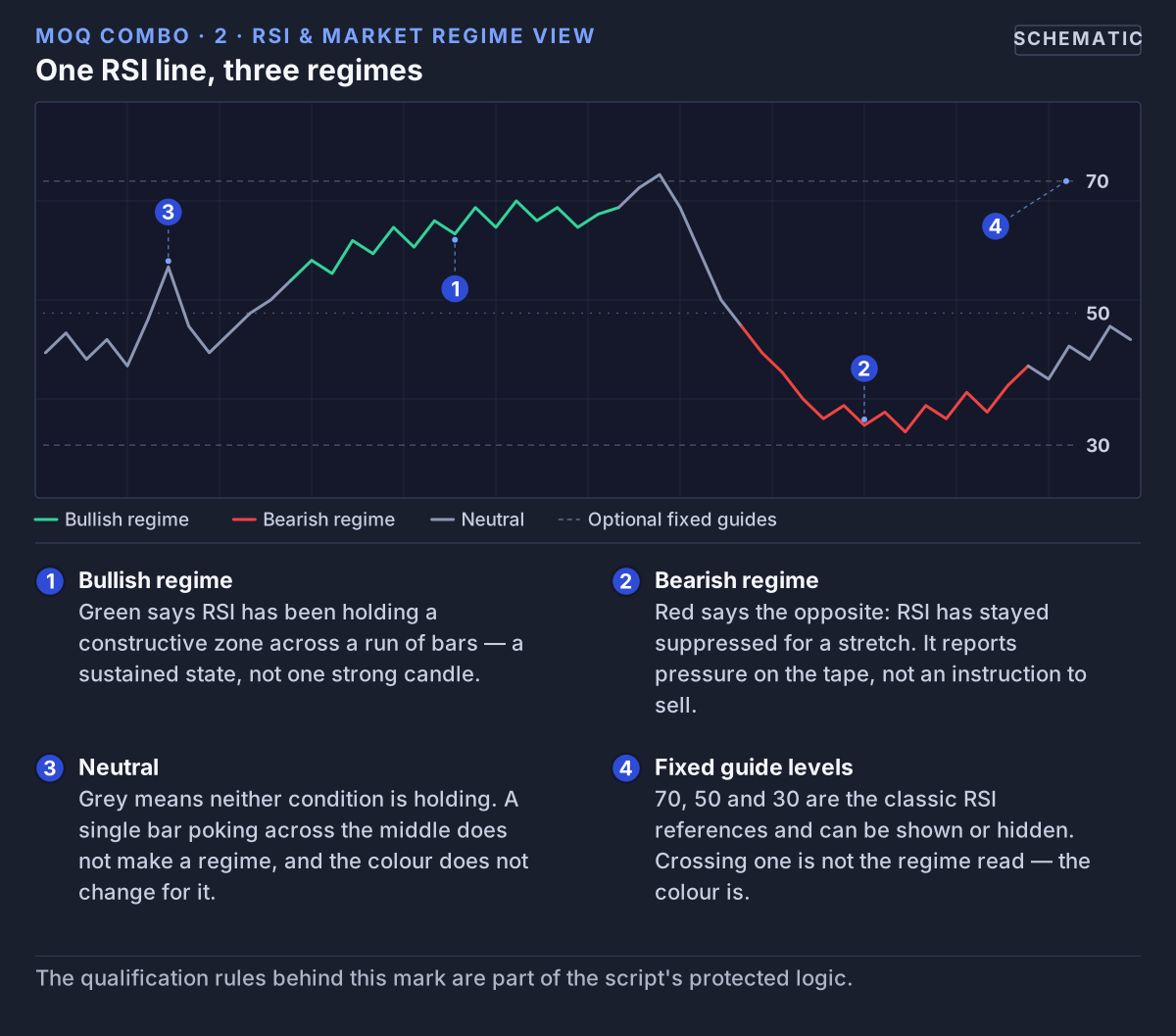 Green needs RSI between 50 and 75 with the three bars before it above 46. Red is the mirror image. Everything else is yellow.
Why the Last Few Bars Matter
RSI crosses 50 back and forth all the time when the market goes sideways. Because the rule also looks at the three previous bars, the line only turns green or red once RSI has settled on one side. The trade-off is a short delay: the colour changes a bar or a few after the shift starts.
Example: RSI has been bouncing between 42 and 58 and the line is yellow. Then buyers step in: RSI reads 54, 57, 55, 60. As soon as the three bars before the current one are all above 46 and RSI is between 50 and 75, the line turns green.
A common surprise: when RSI shoots above 75, the line turns yellow again. The market is overheated, which is not the same as a steady bullish regime. The same happens below 25 on the bearish side.
The "RSI Regime" setting: the green and red colours are always shown. Ticking RSI Regime (RSI Settings) hides the yellow stretches, so only the green and red parts of the line remain.
What this means for you: use the colour to decide which direction you prefer. Green: look mainly for reasons to buy. Red: look mainly for reasons to sell or stay out. A colour change on its own is not a reason to enter a trade.
7. Stochastic RSI (Is a Turn Starting?)
RSI changes slowly. That is good for seeing who is in control, but slow for timing. Stochastic RSI asks: "Compared with the last 14 bars, is RSI near its highest or lowest point right now?" The answer runs from 0 to 100, and it moves much faster than RSI.
Switch it on with RSI Stochastic (Stoch RSI Settings; off by default). You can show it with either the RSI view or the Momentum Tracker. Its settings are fixed in the script: RSI 14, Stochastic 14, %K smoothing 3 and %D 3.
- %K: the fast line, in blue.
- %D: the slow line, a 3-bar average of %K. It is black in Light Mode and white in Dark Mode.
- Grey lines at 80 and 20: above 80 is overbought (stretched up), below 20 is oversold (stretched down).
- Red line at 100 and green line at 0: the limits.
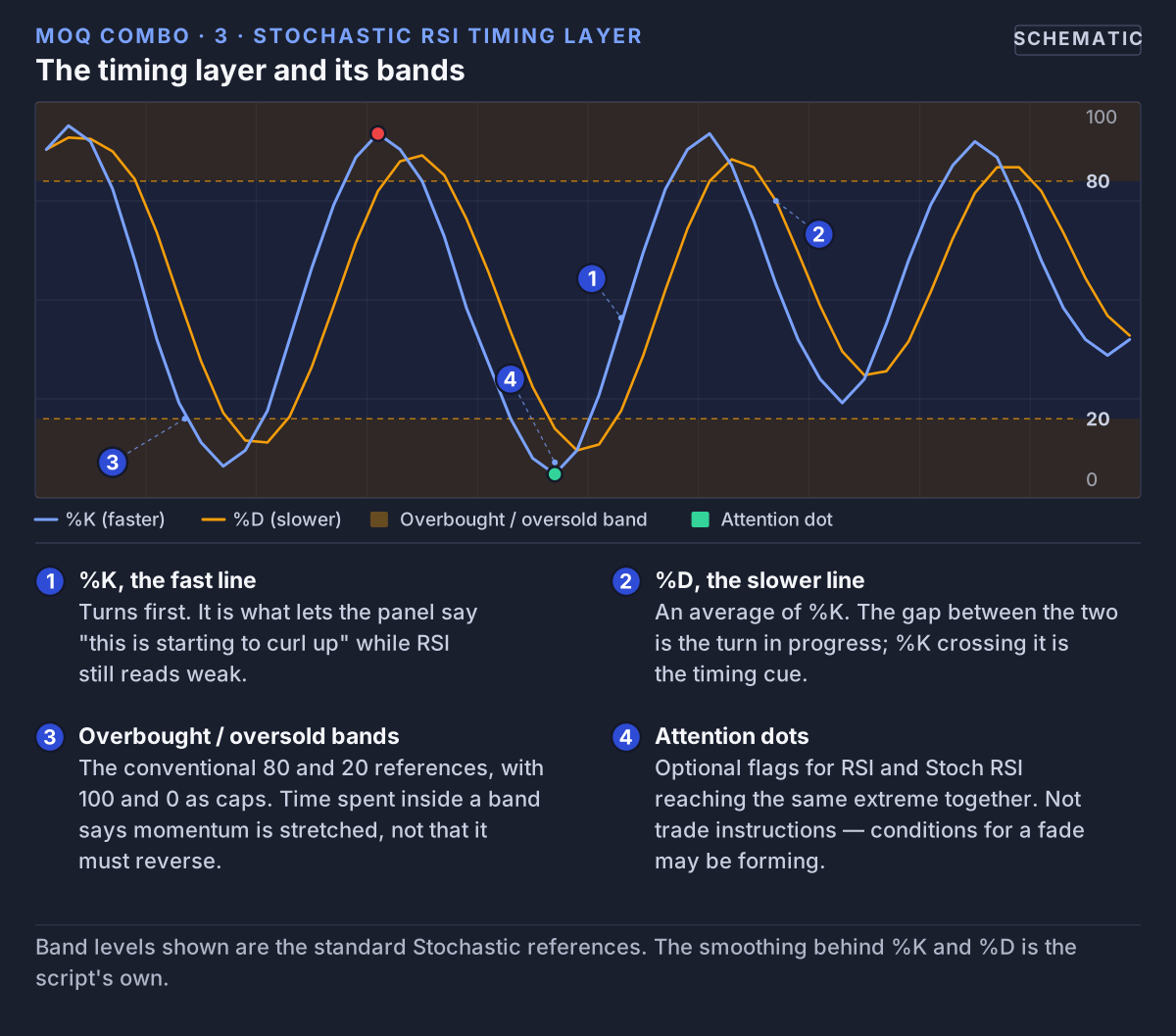 %K turns first and %D follows. Above 80 is stretched up, below 20 stretched down. Dots appear above or below the panel when RSI is extreme too.
How It Works with the RSI Colour
Think of driving: the RSI colour is the direction of the road, and Stochastic RSI tells you when to turn the wheel.
- Green RSI + %K curling up from below 20: buyers are in control and a small dip seems to be ending.
- Red RSI + %K curling down from above 80: the mirror image for sellers.
- Red RSI + %K curling up from below 20: a bounce is possible, but it goes against the sellers in control. Be more careful.
Attention Dots
Combo marks bars where RSI and Stochastic RSI are both extreme. You cannot switch these dots off separately; they show whenever the Stochastic RSI or the RSI view is visible.
- Green dot: RSI is below 30 and %K is below 20. Selling may have gone too far, too fast.
- Red dot: RSI is above 70 and %K is above 80. Buying may have gone too far, too fast.
With Stochastic RSI on, the dots sit just outside the 0 to 100 range (green below, red above). In the RSI view without Stochastic RSI, they sit at 20 and 80. A dot means "look here", not "trade here": in a strong trend, extremes can last and dots can repeat.
8. Divergence (Is the Move Getting Tired?)
Normally, when price makes a new high, momentum does too. When they stop agreeing, that is divergence, and it can be an early sign that a move is running out of energy.
Example: price rises to a peak, dips, then rises to a higher peak. But the Stochastic RSI %K line makes a lower peak the second time. Price says "stronger", momentum says "weaker". That is a bearish divergence.
Turn it on with Show Divergence Signals (Divergence Settings; off by default). Combo looks for a turning point in %K on the same bar as a turning point in price (the bar's high for peaks, its low for dips), compares it with the previous pair, and draws a line between the two %K points in the pane:
- Regular bearish (red): price makes a higher peak, %K a lower peak. A rise may be running out of steam.
- Regular bullish (green): price makes a lower dip, %K a higher dip. A fall may be running out of steam.
- Hidden bearish (blue): price makes a lower peak, %K a higher peak. Often seen in a downtrend before it continues lower.
- Hidden bullish (blue): price makes a higher dip, %K a lower dip. Often seen in an uptrend before it continues higher.
An easy way to remember it: regular divergence warns that a move may be ending; hidden divergence suggests a pause inside a trend may be ending and the trend may continue.
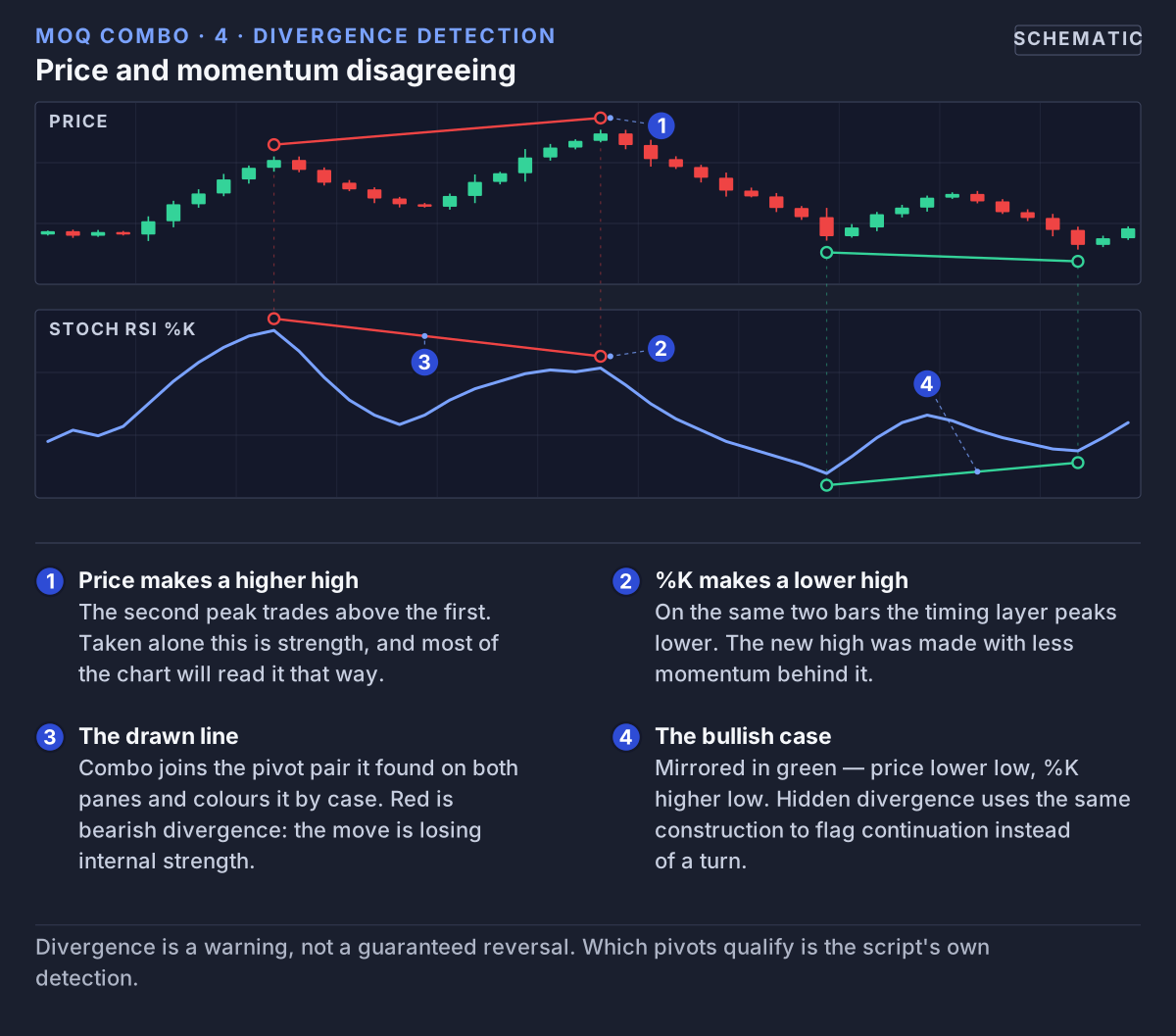 Combo draws the line in its own pane, between two turning points of %K. Price is shown here only so you can see the disagreement.
Tip: divergence is measured on the Stochastic RSI %K line even if that line is hidden. Turn on RSI Stochastic as well, so you can see the line the divergence is drawn on.
Pivot Length and Why Lines Appear a Little Late
A peak only counts as a peak once the bars after it are lower. Pivot Length for Divergences (default 1) sets how many bars on each side are checked. Combo therefore draws each line that many bars after the actual turning point. With the default of 1, that is one bar later.
- Higher number: fewer lines, only bigger turning points, drawn later.
- Lower number: more lines, drawn sooner, but more of them are noise. 1 is already the most sensitive setting.
What this means for you: treat divergence as a yellow warning light, not a stop sign. Strong trends can show several divergences in a row and keep going.
9. Momentum Tracker (On by Default)
The Momentum Tracker is a Stochastic calculated on price: it shows where the close sits between the highest high and lowest low of the last 14 bars, from 0 (at the bottom) to 100 (at the top). It is switched on by default under Momentum Settings → Momentum Tracker. While it is on, the RSI line and its 70/50/30 guide lines are hidden. Stochastic RSI and divergence lines can still be shown on top of it.
Its settings: Stoch %K Length 14, Stoch %K Smoothing 3, Stoch %D Length 3.
Two Display Styles
Momentum Style lets you pick Lines (default) or Histogram. Both use the same numbers; only the picture changes.
Lines
- %K as a blue line and %D as a black line, with a green fill between them while %K is above %D and a red fill while it is below.
- Best for seeing exactly where the lines cross.
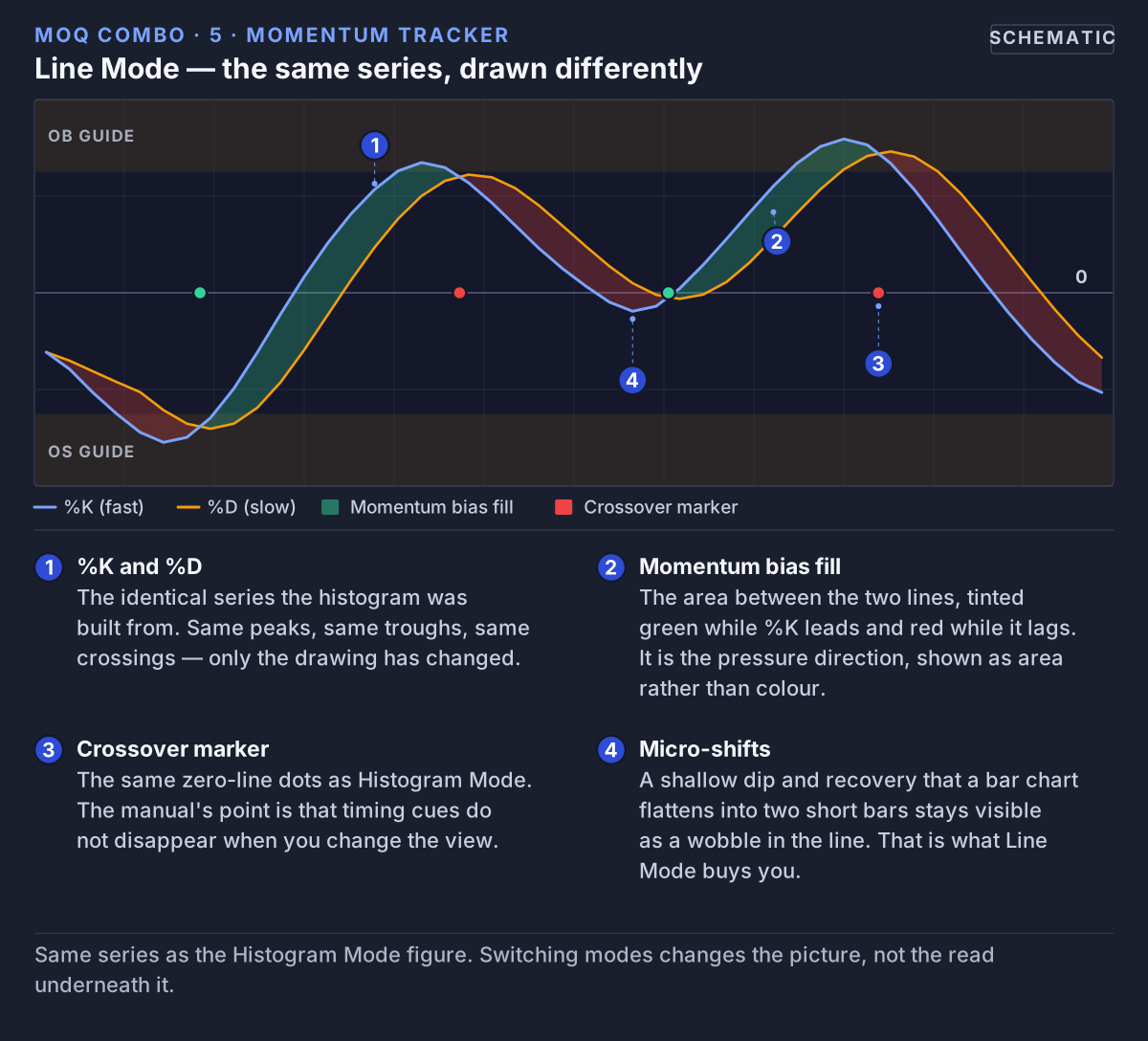 Lines style plots the same %K and %D as lines. Nothing in the calculation changes; crossings are simply easier to see.
Histogram
- %K as bars rising from 0. Bars are green while %K is above %D and red while it is below, with %D as a black line.
- Tall bars mean price is near the top of its recent range; short bars mean it is near the bottom.
- The green/red fill is drawn in this style too, and the pivot lines are shown more faded to reduce clutter.
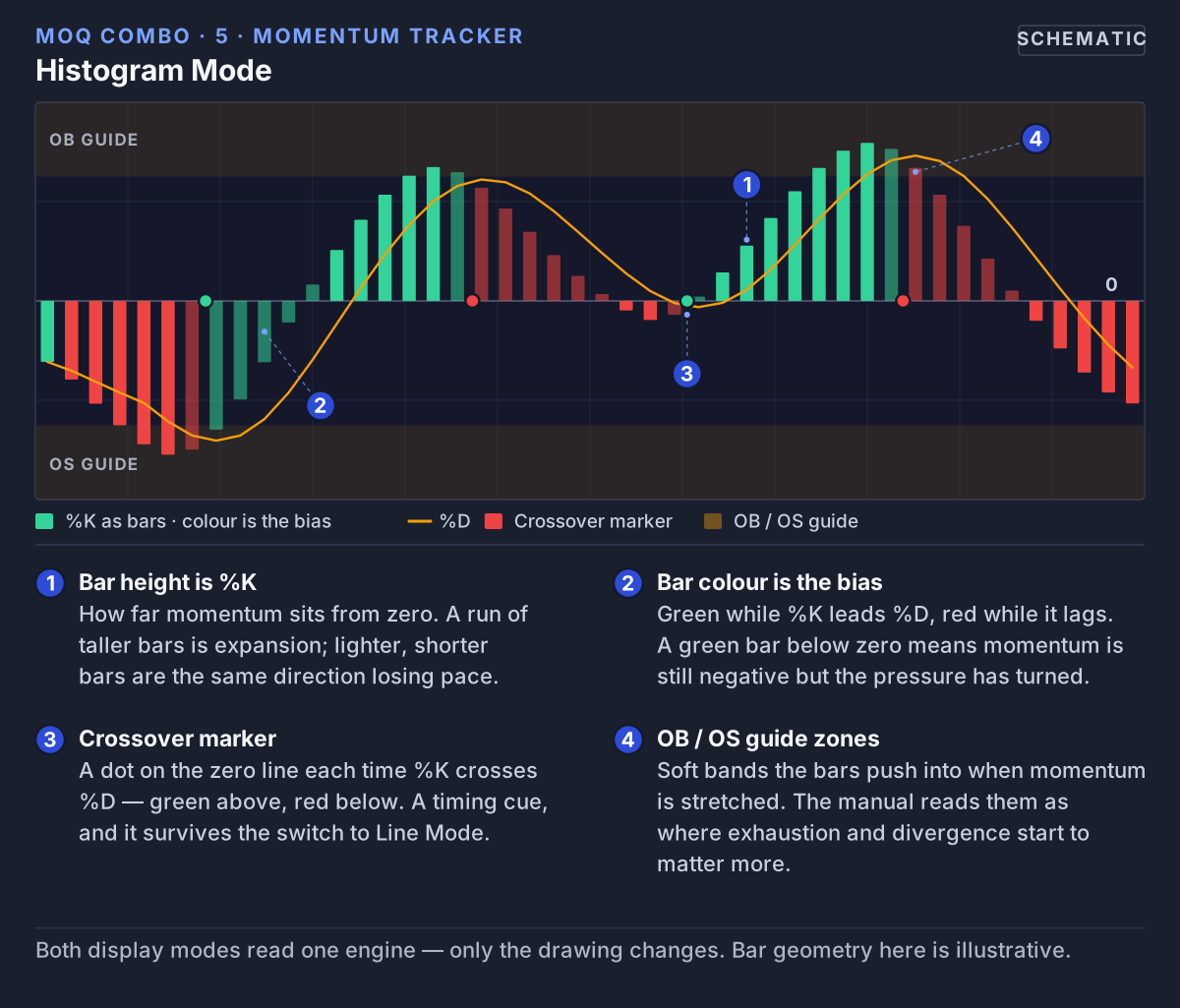 Histogram style draws %K as bars from 0. Bar colour tells you whether %K is above or below %D.
The tracker's colours are fixed and do not change with the theme. On a dark chart the black %D line can be hard to see.
Cross Dots
Tick Show Cross Signals (Momentum Signal Settings; off by default) to place a small dot on the 0 line whenever %K crosses %D: green when it crosses up, red when it crosses down. These same crossings are what the Filtered Signals start from (section 10).
Pivot Lines and Range
The tracker finds turning points in %K and averages the recent ones:
- Pivot High (red line): the average of recent %K peaks.
- Pivot Low (green line): the average of recent %K dips.
- Pivot Mean (grey dots): halfway between them.
- Mid lines (purple and teal dashed): halfway between the mean and the high, and between the mean and the low.
- Pivot Range (grey shading): the space between Pivot High and Pivot Low.
Pivot Detection Length (default 5) sets how many bars on each side confirm a turning point. Lookback Period (default 50) sets how much pivot history is averaged. The lines therefore move slowly: they show momentum's normal range lately. %K pushing above the red line or below the green one means momentum is doing something unusual for its recent behaviour.
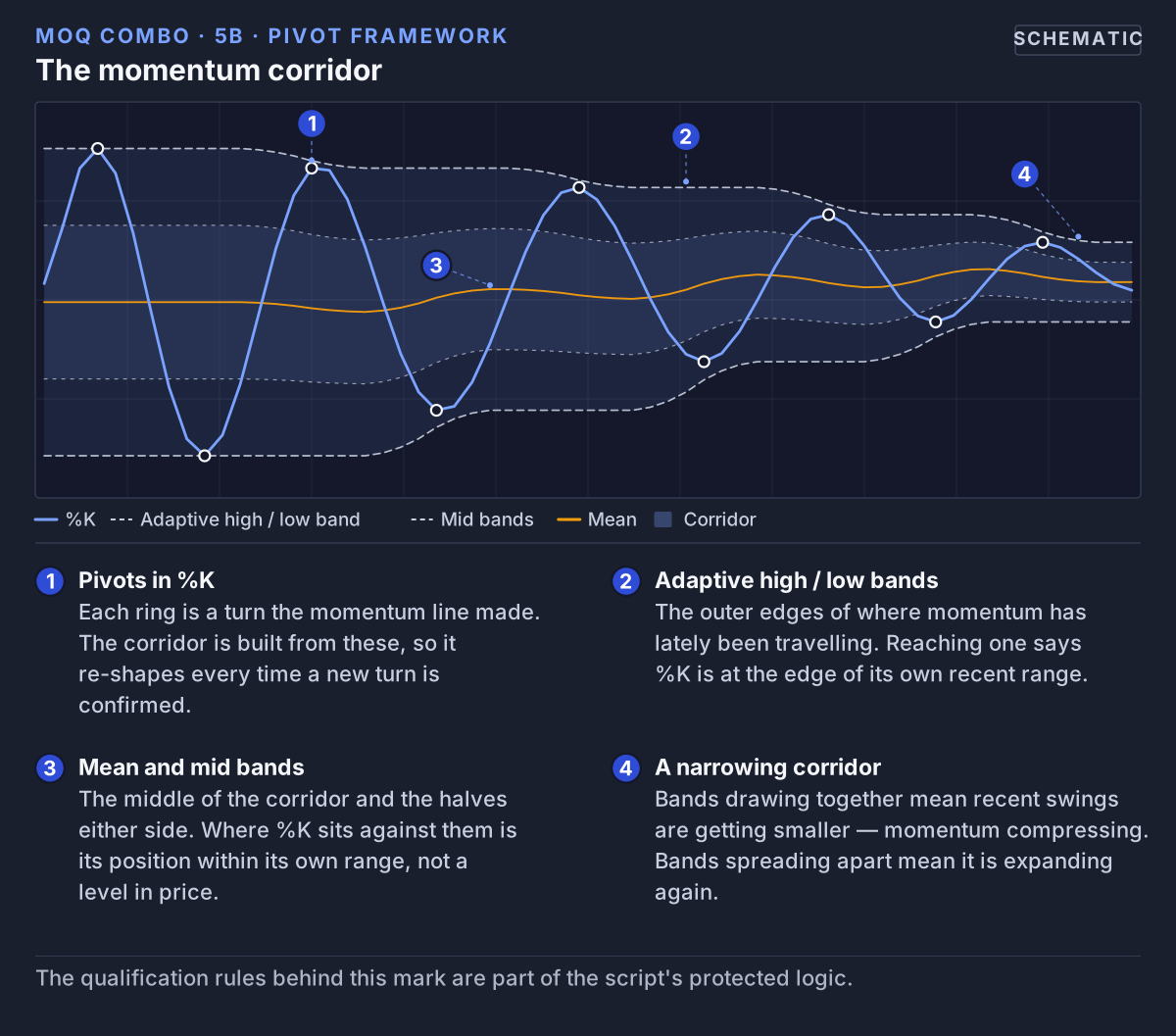 The tracker averages recent turning points of %K. Red is the average high, green the average low, and the shading is the range between them.
Oversold and Overbought Zones
A soft green zone from 0 to 25 marks oversold: price is near the bottom of its recent range. The script also draws a red overbought zone, but it sits between 150 and 175, above the highest value %K can reach (100), so %K never enters it. Use the red Pivot High line and the top of the range as your "stretched up" reference instead.
10. Filtered Signals and Trade Plan (On by Default)
Every time the Momentum Tracker's %K crosses %D, Combo asks a list of questions (filters). A Filtered Buy or Filtered Sell only appears if enough of them say yes. This works even when the Momentum Tracker is hidden, because the calculation always runs.
The Five Filters
Each filter that is switched on and agrees counts as one vote. For a buy:
- EMA20 > EMA50 stack (on): the 20-bar EMA is above the 50-bar EMA, a simple sign of an uptrend.
- %K vs %D alignment (on): %K is above %D. On the crossover bar this is always true, so with this filter on every crossover starts with one vote.
- Volume ≥ 1.2 × SMA(20) (on): the bar's volume is at least 1.2 times its 20-bar average. On instruments without volume data this filter always says yes.
- RSI not extreme (on): RSI is below 70. This is a vote, not a hard block: a buy can still fire with RSI above 70 if enough other filters agree.
- HTF EMA bias (off): the close on a higher timeframe (default 60 minutes) is above its EMA (default 50).
A sell uses the mirror image (EMA20 below EMA50, %K below %D, RSI above 30, higher-timeframe close below its EMA; the volume rule is the same). Min Filters to Pass (default 3) is how many votes a signal needs.
Extra Rules
- Direction Lock (on): after a Filtered Buy, no further buy appears until the current plan ends or a sell appears. The same for sells. This stops a cluster of signals in one trend.
- Cooldown after stop-out (on, 5 bars): after a plan ends at its stop, no new signal for 5 bars.
- Session Filter (off): only allows signals in a time window, chosen by the type of instrument. Forex and CFDs: 07:00–17:00 UTC. Crypto and funds: always allowed. Everything else (for example stocks and futures): 14:30–21:00 UTC. Both windows can be changed.
The Filter Table
The table in the bottom-left corner of the price chart shows each filter on the latest bar: ✓ means it agrees, · means it does not, — means it is switched off. The bottom row shows the votes for Bull and Bear next to the minimum needed.
The Trade Plan
When a Filtered signal appears, Combo draws a plan on the price chart (Show Trade Plan, on):
- Entry (blue dashed line): the close of the signal bar.
- SL (red line): 2 × ATR(14) away from the entry. That distance is 1R.
- TP1, TP2, TP3 (green lines): 1R, 2R and 3R from the entry.
- When price reaches TP1, the stop moves to the entry price (Move SL to BE on TP1, on).
- After TP2, the stop follows price at 1.5 × ATR (ATR Trail after TP2, on).
- The plan ends when price reaches the stop or TP3. Only the current plan is drawn; old ones are removed.
Example: a Filtered Buy appears with the close at 100 and ATR at 2.5. The stop is 2 × 2.5 = 5 points below, at 95, so 1R is 5 points. TP1 is 105, TP2 110 and TP3 115. If price reaches 105, the stop moves up to 100.
What this means for you: the plan is a mechanical template, not a recommendation. A 2 × ATR stop may be too wide or too tight for your account and your market. Decide your own risk before you trade.
11. The Tracker Table (Use with Care)
The table in the top-left corner of the price chart (Show Tracker Table, on) counts how the Trade Plan would have played out over the chart history TradingView has loaded:
- Trades: how many plans have ended.
- Win %: the share of those plans that reached at least TP1.
- Total R: the sum of the results in R.
- Drawdown: how far Total R is below its highest point so far.
These numbers are a rough sketch, not a backtest you can rely on:
- A plan that reaches TP3 counts the full 3R, and one stopped before TP1 counts −1R. But a plan stopped after TP1 counts a fixed +0.2R, and after TP2 a fixed +0.5R, whatever price actually did.
- It ignores commissions, spreads and slippage, and assumes you entered exactly at the signal bar's close.
- It only sees each bar's high and low, so it cannot know which level price touched first inside a bar.
- If a new signal appears while a plan is still open (for example a sell during a buy plan), the open plan is replaced and never counted.
- It changes with the symbol, the timeframe, your settings and how much history is loaded.
Past results, real or simulated, do not tell you what will happen next. Use the table to understand how the rules behave, not as proof that they work.
12. Alerts
Combo offers two alert conditions: Filtered Buy and Filtered Sell. To set one up, click the alarm-clock icon (or press Alt + A) in TradingView, choose MoQ Combo as the condition, then pick Filtered Buy or Filtered Sell. Choosing Once Per Bar Close means the alert only fires when a bar has closed with the signal, so it cannot disappear afterwards.
There are no alerts for regime colours, divergence, attention dots or cross dots.
13. Putting It All Together: A Simple Routine
A starting point, not a trading system:
- Look at price first. Find an area that matters to you, such as a level where price has turned before.
- Check who is in control. In the RSI view: green favours buying, red favours selling, yellow means no clear direction. With the Momentum Tracker: is the fill green or red, and where is %K inside its range?
- Wait for timing. For example a Stochastic RSI curl from below 20 in a green regime, or a Filtered signal that agrees with your idea.
- Check for warnings. Is there a divergence against your idea? If so, be more careful or wait.
- Make your own decision. Decide where you would be wrong and how much you are willing to risk before you trade.
When the Layers Disagree
- Green RSI, but Stochastic RSI above 80: buyers are strong but momentum is stretched. Often a late moment to start a new buy.
- Red RSI, but Stochastic RSI curling up from below 20: a bounce may happen, but sellers are still in control.
- Yellow RSI: the market is probably going sideways, and timing signals mean less. Rely more on price levels.
14. Settings Reference
- Theme Settings: Select Mode, Light Mode (default) or Dark Mode.
- Stoch RSI Settings: RSI Stochastic (off).
- Divergence Settings: Show Divergence Signals (off); Pivot Length for Divergences (1).
- RSI Settings: RSI Regime (off; when on, hides the yellow neutral stretches).
- Momentum Settings: Momentum Tracker (on); Momentum Style, Lines (default) or Histogram; Stoch %K Length (14); Stoch %K Smoothing (3); Stoch %D Length (3).
- Momentum Signal Settings: Show Cross Signals (off).
- Momentum Pivot Settings: Pivot Detection Length (5); Lookback Period (50).
- Filtered Entry Gate: Enable Filtered Signals (on); the five filters (four on, HTF EMA bias off, with HTF 60 and HTF EMA length 50); Min Filters to Pass (3); Direction Lock (on); Cooldown after stop-out (on, 5 bars); Session Filter (off) with FX and Equity session times in UTC.
- Trade Plan: Show Trade Plan (on); Plan ATR Period (14); SL ATR Multiplier (2.0); TP1, TP2, TP3 (1, 2, 3 R); Move SL to BE on TP1 (on); ATR Trail after TP2 (on); Trail ATR Multiplier (1.5).
- Backtest Tracker: Show Tracker Table (on).
The RSI and Stochastic RSI lengths are fixed and cannot be changed. Tip: change one setting at a time, then scroll back through history to see what difference it made.
To keep only the momentum pane, untick Enable Filtered Signals (this also hides the filter table), Show Trade Plan and Show Tracker Table.
15. Light and Dark Theme
Select Mode changes the Stochastic RSI %D line and the 50 line (black in Light Mode, white in Dark Mode), the neutral RSI yellow (darker in Light Mode), and the colours of the two tables. The Momentum Tracker, RSI regime green and red, divergence lines and trade plan keep the same colours in both modes.
16. Common Beginner Mistakes
- Treating a Filtered signal as an instruction. It means a set of rules agreed on one bar. It does not know your account, your risk or the news.
- Reading the Tracker table as proof. It uses simplified, fixed results for some trades and ignores costs. See section 11.
- "Overbought means sell." In a strong uptrend, momentum can stay overbought for a long time. Read it together with the RSI colour.
- Expecting the colour to change on the exact turning bar. The regime looks at the previous three bars, so the colour follows the shift.
- Judging the open bar. Values on the bar still forming can change until it closes.
- Treating divergence as a guaranteed reversal. It is a warning, and with the default Pivot Length of 1 there are many small ones.
- Expecting the two Stochastics to match. Stochastic RSI is calculated from RSI; the Momentum Tracker from price. They will sometimes disagree.
17. Troubleshooting
- I can't see the RSI line. The Momentum Tracker is on by default and hides it. Untick Momentum Tracker under Momentum Settings.
- There are triangles, lines and tables on my price chart. Those are the Filtered Signals, Trade Plan and Tracker table. Untick them under Filtered Entry Gate, Trade Plan and Backtest Tracker.
- The divergence lines float without a line under them. Turn on RSI Stochastic: the lines are drawn on its %K line.
- There are too many divergence lines. Increase Pivot Length for Divergences.
- Older divergence lines disappear. TradingView limits how many drawn lines an indicator can keep, so the oldest are removed first.
- The black %D line is hard to see. The Momentum Tracker's %D is black in both themes. Lines style with the fill can be easier to read on a dark background.
- I can't find MoQ Combo in TradingView. Look under Indicators → Invite-Only Scripts. It only appears there after access has been granted to your TradingView username.
18. Access
MoQ Combo is a proprietary MomentumQ GmbH script, published on TradingView as an invite-only script. That means it is not public: it is unlocked for your TradingView account. It works on every TradingView plan, and there is nothing to download or install.
- Start the trial or subscribe on this site, and give us your public TradingView username.
- We grant access to that username.
- In TradingView, open Indicators → Invite-Only Scripts and add MoQ Combo to your chart.
We never need your TradingView password, API keys or any other access to your account.
19. Disclaimer
The MomentumQ Combo (MoQ Combo), including all visuals, filtered signals, trade plan levels, tracker statistics, alerts, divergence logic, regime classification and momentum tools, is provided strictly for educational and informational purposes. It is not financial advice, investment advice, trading advice, or a guarantee of performance.
All forms of trading and investing carry risk, including the risk of loss. Past performance, including simulated results such as those in the Tracker table, is not indicative of future results.
You are solely responsible for any decisions you make in the market. You should use proper risk management, and you may wish to consult a licensed financial professional before acting on any signal or interpretation from this tool.
© MomentumQ GmbH. All rights reserved. Provided for personal, non-transferable use under the MomentumQ Terms of Service; redistribution, modification, and source extraction are prohibited.