
1. What MoQ X Is
MoQ X is an indicator for TradingView. An indicator is a tool that sits on top of a price chart and adds information to it, such as lines, shaded areas, or small tables. It does not trade for you. It helps you see what the market is doing.
Most traders look at several indicators at once: one for trend, one for momentum, one for important price areas, and so on. That gets cluttered, and the indicators often disagree. MoQ X combines many of these tools into one script, checks how much of their evidence points the same way, and shows you the result in a small table on your chart.
One more idea makes MoQ X different. Markets behave in two broad ways. Sometimes they trend (price keeps moving in one direction, like a staircase going up or down). Sometimes they range (price bounces back and forth between a floor and a ceiling). Tools that work well in a trend often work badly in a range, and the other way round. MoQ X detects which of the two is happening and automatically trusts the tools that suit the current situation more.
What this means for you: instead of reading six indicators and deciding which one to believe, you read one table that has already weighed them up for you.
Three things to know before you start:
- It draws in two places. It has its own small window (a pane) underneath the price chart, and it also draws lines, boxes, and three small tables directly on the price chart.
- It never puts "BUY" or "SELL" arrows on the chart. When its tools agree, it tells you in its main table and, if you want, through a TradingView alert (a notification). It also draws a trade plan at that moment: a set of reference lines for an entry, a stop and three targets (section 7). You can switch the plan off.
- It is a helper, not a trading system. It shows you how much the evidence agrees. It does not know your account, it does not decide how much to trade, and it does not place orders. It cannot promise that price will go where the evidence points.
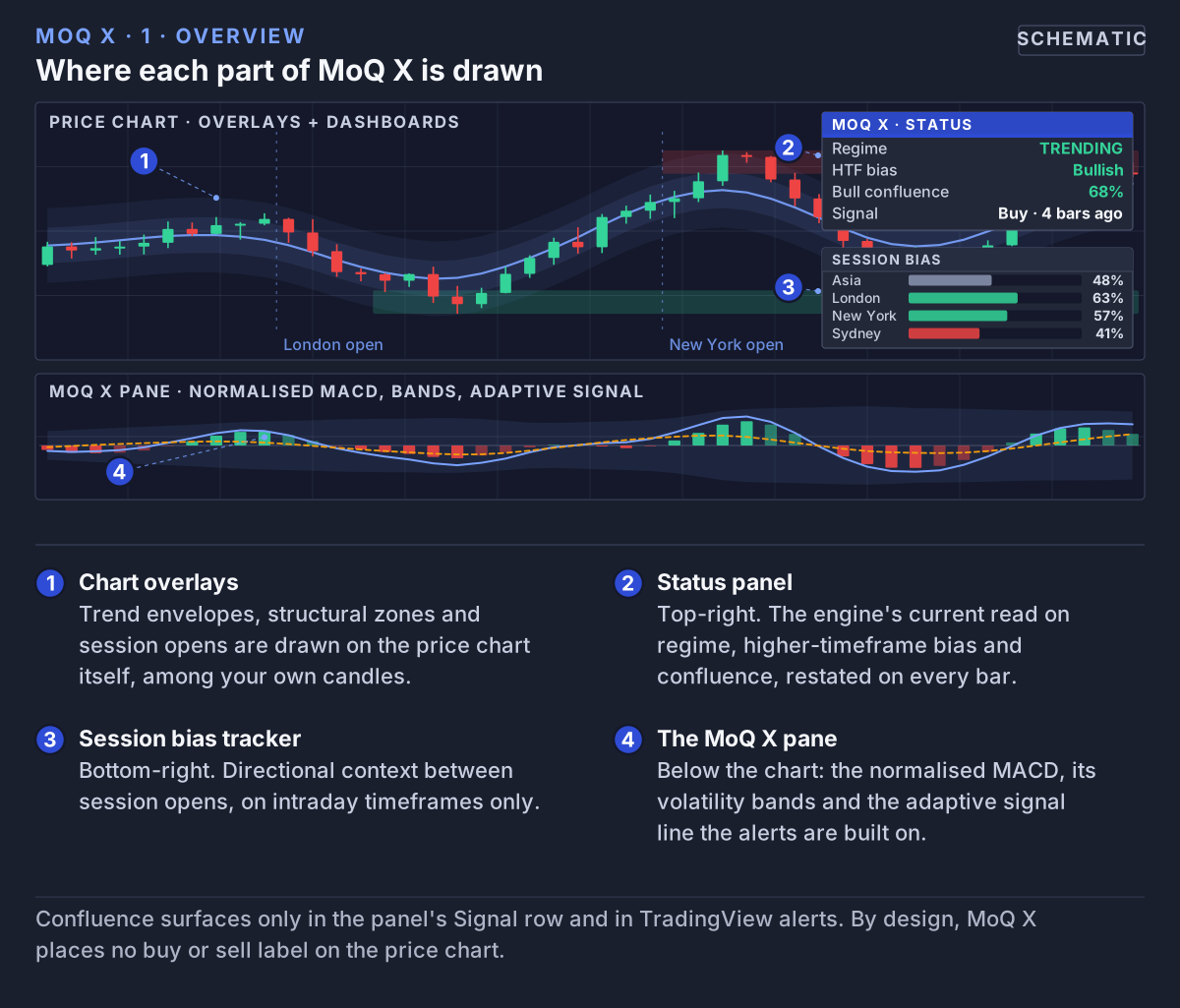 MoQ X draws in two places at once: its own oscillator pane, and overlays plus two dashboards on the price chart itself.
2. Getting Started in Six Steps
- Add it to your chart. In TradingView, click Indicators at the top of the chart, open the Invite-Only Scripts tab, and click MoQ X. It works on any market (stocks, futures, forex, crypto) and any timeframe, which is how much time each candle on your chart represents, for example 5 minutes, 1 hour, or 1 day.
- Find its parts. The MoQ X pane appears below the price chart. The status panel (the main table) is in the top-right corner of the chart. The MTF Bias table is in the top-left corner, and the session tracker is in the bottom-right corner.
- Read the status panel from the top. The first row tells you whether the market is trending or ranging. Everything below it makes more sense once you know that. Section 6 explains every row.
- Leave the settings alone at first. MoQ X picks sensible settings for your timeframe by itself (the Timeframe Preset, section 9). If your chart has a light background, switch Theme to Light Mode so the tables are easy to read.
- Turn on alerts. Create a TradingView alert for Confluence BUY or Confluence SELL so you get a notification when the tools line up, instead of watching the screen all day. Section 8 shows how.
- Hide what you don't need. If the chart looks too busy, the Master Control settings let you switch whole parts of MoQ X off, and Show Trade Plan removes the plan lines.
3. What You See on the Screen
MoQ X is made of many smaller tools, called modules. Each one has its own group in the settings. Here is what each one shows, in plain words.
In the MoQ X pane (below the chart)
The pane shows momentum: not where price is, but how fast and how strongly it is moving. Think of a car. Price is where the car is; momentum is how hard the driver is pressing the accelerator.
- MACD line, signal line and histogram — MACD is a classic momentum tool: it compares a fast average of recent prices with a slow one. When the fast average pulls ahead, buyers are gaining strength; when it falls behind, sellers are. The MACD line is green above zero and red below it, and brighter while momentum is building. The thin blue signal line is a smoothed copy of it; when the two cross, momentum is turning. The bars (the histogram) show the gap between the two lines. MoQ X rescales everything so the readings look similar on any market, whether the price is 1.08 or 18,000. Small green or red dots on the zero line mark the moments the MACD crosses zero.
- Bands & Squeeze — two bands around the MACD that widen when the market is lively and narrow when it is quiet. When they narrow a lot, that is a squeeze: the market is calm and coiled, like a spring being pressed. During a squeeze the bands turn yellow and the histogram turns orange. When the bands widen again, the squeeze is released and movement usually returns. The release does not tell you the direction, only that things are waking up.
- Price heat — the area between the bands turns red when price has run unusually far above its recent average, and green when it has fallen unusually far below it.
- Adaptive triggers — small green triangles (pointing up) and red triangles (pointing down) in the pane. MoQ X keeps a moving average of price that speeds up in clean trends and slows down in choppy markets, and watches how far price strays from it. A green triangle appears when price comes back up after stretching unusually far below that average; a red one when it comes back down after stretching unusually far above. They are early signs that a move may be turning.
- Dynamic Levels — red and green shaded areas above and below zero showing where momentum has turned around before. They are in the pane's own units, not in price.
- Divergence (off by default) — draws lines when price and momentum disagree. Example: price makes a new high, but momentum makes a lower high than last time. The move is still going, but with less force behind it, like a car still rolling after the driver eases off the pedal. Regular divergence is drawn in green (bullish) or red (bearish). Hidden divergence, a hint that a pause inside a trend may be just a pause, is drawn as a purple dashed line. Turn them on with Show Divergence and Show Hidden Divergence.
On the price chart
- Trend Envelopes — a smooth line that follows the general direction of price, with an inner and an outer band around it. The line is green while it slopes up and red while it slopes down. When price reaches the outer band, it has moved unusually far from its normal path, like a rubber band stretched to its limit. To keep the chart tidy, only the bands on the side where price currently is are shown. The line turns amber when price has closed in the same direction for many candles in a row, a sign the move may be getting tired. The method behind the line is called Nadaraya-Watson; you don't need to know the maths to use it.
- Supply & Demand Zones — shaded boxes around prices where the market turned before. A demand zone (green, below price) is an area where buyers stepped in; a supply zone (red, above price) is where sellers did. Price often reacts when it comes back to these areas. The stronger the trading volume behind a zone, the more solid its color.
- Order Blocks — boxes around the last candle before a strong move: a red box for the last rising candle before a drop, a green box for the last falling candle before a rise. Many traders treat these as areas big players may defend. A fainter box (the wick shadow) shows that candle's full range, wicks included.
- Fair Value Gaps — green or red boxes marking a spot where price moved so fast that it left a gap: in three candles in a row, the first and third don't overlap. Price often comes back to "fill" such gaps. As price trades back into a gap, the box shrinks to show only the part not yet filled.
- Price Gaps — yellow boxes where one candle opened completely clear of the previous candle, for example a stock opening far above yesterday's high. These shrink as they fill too. Strict Mode (on by default) only counts gaps where the whole candle cleared the previous one.
- When zones are used up — once price closes through a zone or order block, or fills a gap completely, the box turns grey and disappears a few candles later. This is called mitigation.
- Sessions — the trading day is split into sessions named after the financial centres that are open. MoQ X marks the opening candle of Asia (00:00 UTC), London (08:00 UTC) and New York (13:30 UTC) with a color and a small label (ASIA, LDN, NY). Sydney (22:00 UTC) is available but off by default. Session marks only appear on charts where each candle is shorter than 4 hours.
- VIX candle colors — the VIX is often called the market's "fear gauge". It rises when investors are nervous. MoQ X colors your candles green when the wider market looks calm (risk-on, people are willing to take risks) and red when it looks nervous (risk-off). See section 4.
- Trade plan — lines for an entry, a stop and three targets, drawn when a confluence signal fires. See section 7.
- News shading (off by default) — you can enter the times of up to six news events (for example an interest-rate decision), and MoQ X shades the chart for a few minutes either side so you remember to be careful around them.
If several modules want to color the same candle, the VIX color wins, then the session color.
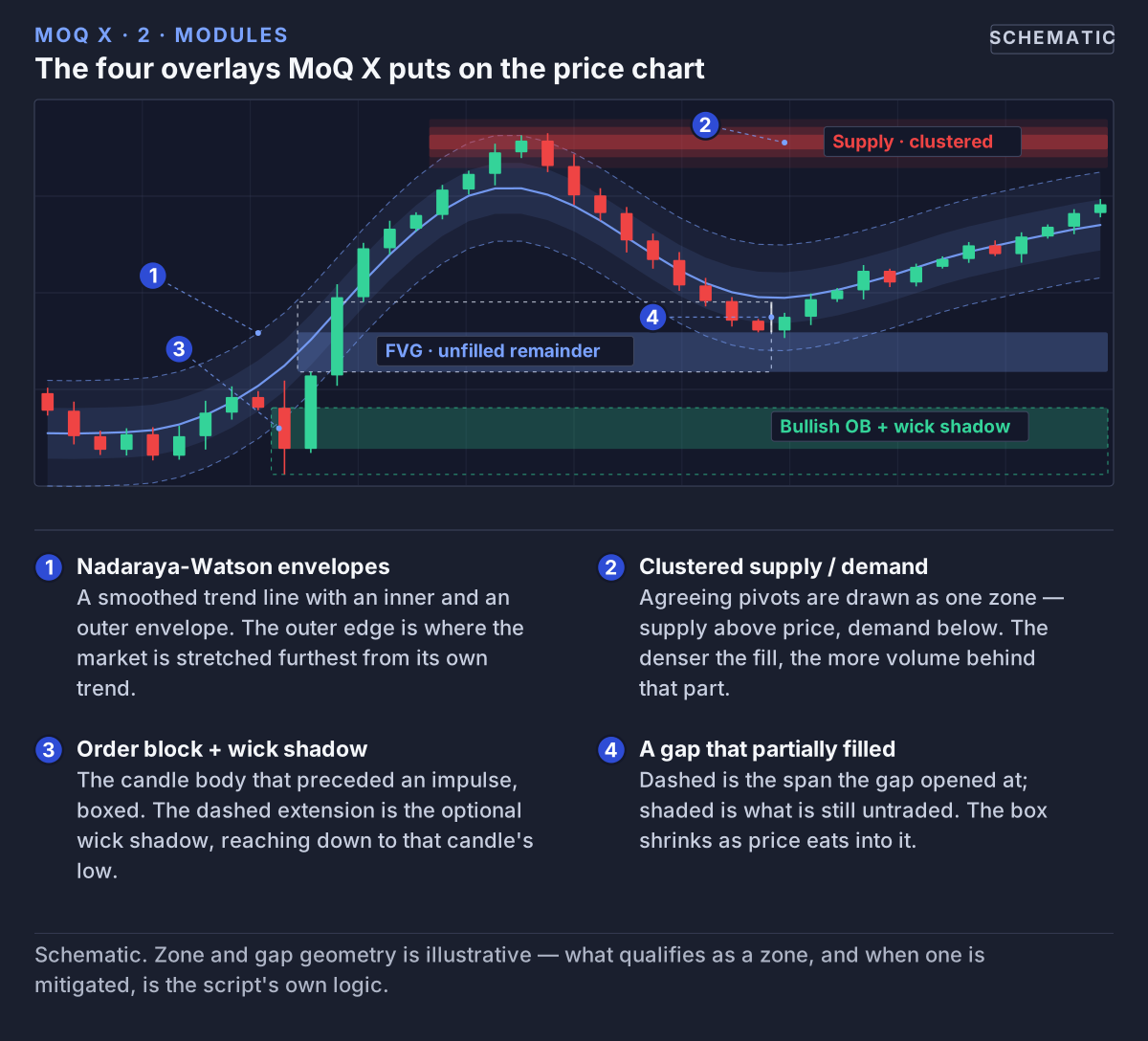 The overlay layer on one chart: envelopes, a clustered zone, an order block, and a gap that has shrunk to the part of it price has not yet traded back through.
4. The Big Picture: Three Background Checks
Three modules don't give signals by themselves. They answer "what kind of market are we in right now?" so the rest of MoQ X can be read correctly.
Trending or ranging? (Regime)
MoQ X uses a tool called ADX, which measures how strong a trend is (not its direction, just its strength). From that, it labels the market as one of three regimes:
- Trending — ADX is above 25: price is moving clearly in one direction.
- Ranging — ADX is below 18: price is going sideways, bouncing between a floor and a ceiling.
- Transition — ADX is in between, as one turns into the other.
You can change both levels in the Regime Detection settings. In a trend, MoQ X gives more weight to tools that follow the trend. In a range, it gives more weight to tools that spot prices that have gone too far and may snap back. The exact weights are MomentumQ's own method and are not published.
What this means for you: always look at the Regime row first. Price touching the outer trend band means "maybe stretched too far" in a range, but can simply mean "strong trend" in a trending market.
What is the bigger timeframe doing? (HTF bias)
HTF stands for higher timeframe. If you trade on a 15-minute chart, the 4-hour chart shows you the bigger picture. MoQ X looks at an average of price on that higher timeframe (an EMA, a moving average that pays more attention to recent prices):
- BULL — price on the higher timeframe is above its EMA and the EMA is rising.
- BEAR — price is below its EMA and the EMA is falling.
- NEUTRAL — anything in between.
Unless you pick one yourself, the higher timeframe is chosen from your chart: charts under 15 minutes look at the 1-hour chart, charts under 1 hour at the 4-hour chart, charts under 4 hours at the daily chart, and anything larger at the weekly chart.
Require HTF Alignment is on by default. It stops buy signals while the bigger picture is BEAR, and sell signals while it is BULL. When it is NEUTRAL, both are allowed.
What this means for you: trading in the same direction as the bigger trend is like swimming with the current. This setting filters out signals that try to swim against it.
Is the wider market calm or nervous? (VIX)
The VIX module watches the VIX itself for signs that fear is about to rise or fall, and colors your candles to match. It has three strengths of color: a strong color when a turn in the VIX is confirmed, a lighter color while one is building, and a very faint color for an early hint. Not every market reacts to fear the same way: stock indices usually fall when fear rises, while some markets, such as gold or certain currencies, often rise. The Correlation Mode setting tells MoQ X which kind your chart is:
- Negative (the default) — your market usually moves the opposite way to the VIX. Typical for stock indices such as the S&P 500 or Nasdaq.
- Positive — your market usually moves the same way as the VIX. The colors are swapped to match.
- Auto — MoQ X measures how your market and the VIX have moved together recently and picks for you.
If you trade something other than stocks or stock indices, choose Positive or Auto.
5. How MoQ X Decides: The Confluence Engine
Confluence means several separate pieces of evidence pointing the same way at the same time. One indicator saying "up" is weak evidence; six saying "up" together is stronger. The confluence engine is the part of MoQ X that does this counting. It looks at nine pieces of evidence:
- MACD state — is momentum positive or negative?
- RSI profile — RSI measures whether price has risen or fallen a lot in a short time.
- Stochastic extremes — whether price is near the top or bottom of its recent range.
- Trend direction — which way the trend line on the chart is sloping.
- Zone touches — whether price is inside a supply or demand zone.
- Squeeze releases — whether a quiet period has just ended.
- Higher-timeframe alignment — whether the bigger picture agrees.
- Momentum acceleration — whether momentum is speeding up.
- Divergence — whether price and momentum disagree. This only counts while Show Divergence is switched on.
From these, MoQ X calculates two scores and shows them in the status panel: Bull (how much of the evidence points up) and Bear (how much points down). Example: Bull 68% and Bear 24% means most of the evidence currently leans up.
These percentages measure agreement, nothing else. 68% does not mean "68% chance of going up", and it is not a success rate.
When does MoQ X give a signal?
A high score alone is not enough. MoQ X only registers a confluence signal when all four of these are true at the same moment:
- The score reaches the Min Score. With the default Timeframe Preset, this is set for you: 50% on charts of 5 minutes or less, 55% up to 1 hour, 60% up to 4 hours, and 65% above that.
- Something has actually happened. At least one trigger must fire on that candle: a MACD cross, an adaptive trigger, or price coming back inside the outer trend band. A signal is tied to an event, not just to a score sitting high.
- Enough candles have passed since the last signal in the same direction (the cooldown, also set by the preset). This stops a burst of signals one after another.
- The bigger timeframe doesn't disagree (only checked while Require HTF Alignment is on, which it is by default).
What this means for you: if you see a high Bull % but no new signal, that is normal. One of the other three conditions isn't met yet.
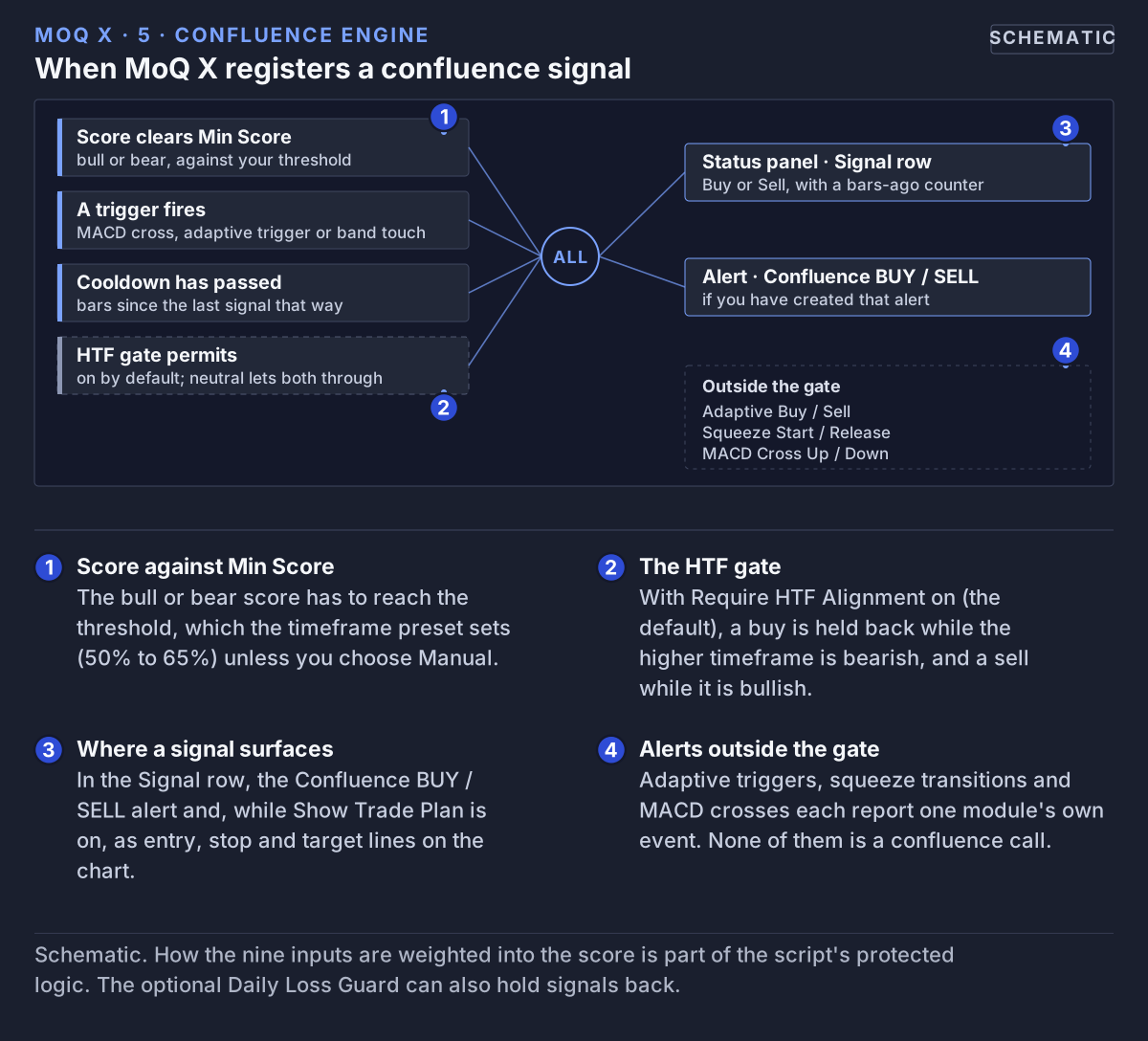 A confluence signal needs all four conditions at once. When one fails, nothing registers: no Signal row update, no Confluence alert, no trade plan.
Exit signals
MoQ X can also tell you when a move may be over. Exit Long (for someone who bought) and Exit Short (for someone who sold) appear when the evidence on the other side reaches the Min Score with its own trigger, or when momentum fades and the MACD lines cross the other way. They arrive through alerts.
6. Reading the Three Tables
The status panel (top-right)
This is the heart of MoQ X. Its header shows your chart's timeframe. Read it from top to bottom:
- Regime — TRENDING, RANGING or TRANSITION, with the current ADX number. Read this first.
- HTF — which way the bigger timeframe points (BULL, BEAR or NEUTRAL). The row name shows which timeframe is used, for example "HTF 240" for the 4-hour chart.
- MACD — BULL when momentum is above zero, BEAR when below. A filled arrow means the histogram is moving in that direction; an outlined arrow means it is easing off.
- Momentum — BUILDING, FADING or NEUTRAL.
- RSI — the RSI number, or OVERBOUGHT (above 70) / OVERSOLD (below 30) when price has moved a lot in a short time.
- Squeeze — OFF, or ON with how many candles the quiet period has lasted.
- Trend — BULL or BEAR, the direction of the trend line on the chart.
- Bull / Bear — how much of the evidence points up and down. A row lights up when its score reaches the Min Score.
- Signal — the most recent buy or sell signal, and how many candles ago it happened. Example: "BUY · 4 ago".
- Grade — a letter for the stronger of the two scores: A+ at 85% or more, A at 70%, B at 55%, C below that. Hover over it to see a plain-English list of which pieces of evidence are active right now.
- Plan — whether a trade plan is open (LONG or SHORT), and whether its stop has moved to the entry (BE) or is trailing (trail). See section 7.
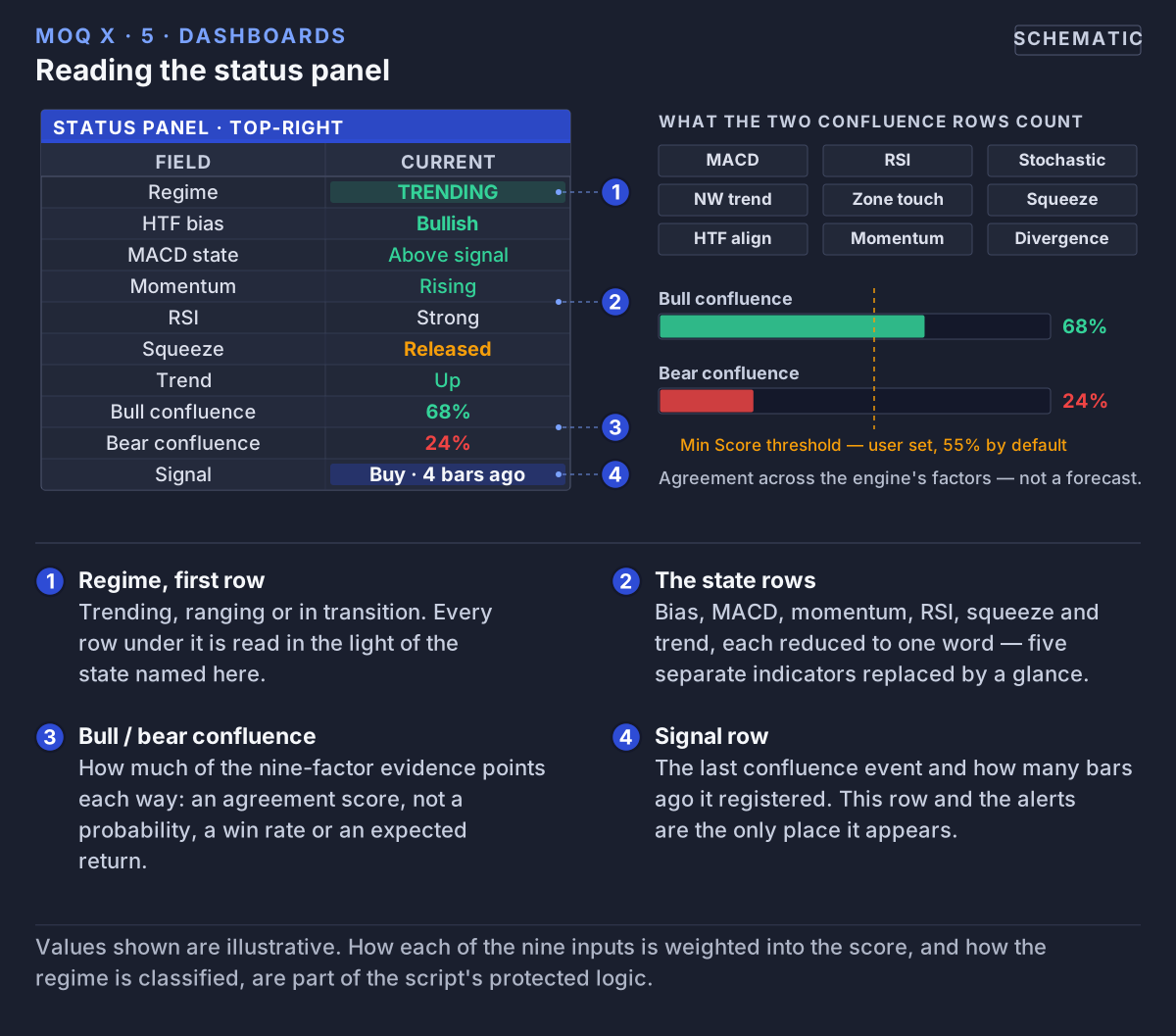 The status panel sums the engine up in twelve rows, from the regime at the top to the last signal, its grade and the trade plan at the bottom.
The MTF Bias table (top-left)
MTF means multi-timeframe. This small table shows four timeframes side by side (15 minutes, 1 hour, 4 hours and 1 day unless you change them). Each gets a green ▲ when price on that timeframe is above its 50-period EMA, or a red ▼ when it is below. It gives you the bigger picture at a glance. It is for reading only and doesn't change the signals.
The session tracker (bottom-right)
This table has three rows, one for each stretch of the trading day: ASIA→LDN (from the Asia open to the London open), LDN→NY (London open to New York open) and NY→ASIA (New York open to the next Asia open). For each stretch it shows:
- Last — "+" if price ended the latest stretch higher than it started, "−" if lower.
- Up% 3 and Up% 5 — how many of the last three and last five stretches ended higher. Example: LDN→NY 80% in the Up% 5 column means that in four of the last five days, price was higher at the New York open than at the London open.
Readings of 60% or more are shown in green, 40% or less in red. This describes how price has moved. It is not a success rate for any signal or trade.
The tracker only works on charts where each candle is shorter than 4 hours. On 4-hour, daily, or weekly charts, it stays empty on purpose.
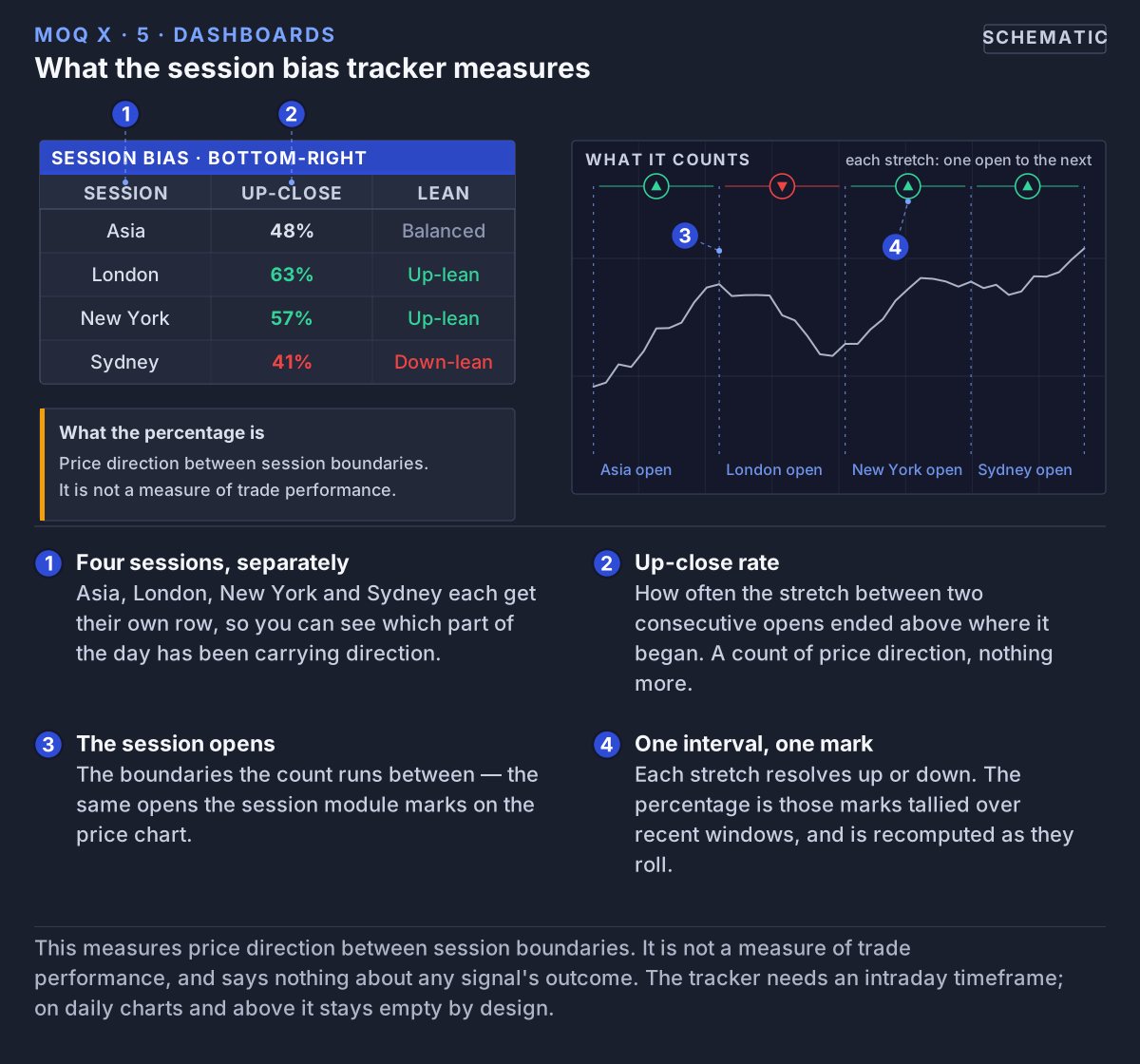 The tracker counts how often the stretch from one session open to the next ended higher — price direction between boundaries, nothing about trades.
7. The Trade Plan
When a confluence signal fires, MoQ X draws a trade plan on the price chart, unless you switch off Show Trade Plan. It is a set of reference lines that shows what a disciplined plan for that signal could look like:
- Entry (blue line) — the closing price of the signal candle.
- SL (stop loss, red line) — the price at which the idea would be proven wrong. Its distance from the entry is based on ATR, a measure of how much price normally moves per candle, so it is wider in jumpy markets and tighter in calm ones. That distance is called 1R (one unit of risk).
- TP1, TP2, TP3 (take-profit, green lines) — three targets placed at multiples of that distance, for example TP2 · 2R means twice as far from the entry as the stop. The labels show the multiples.
The plan then follows price. When TP1 is reached, the stop moves up to the entry (shown as "BE", break-even, in the Plan row). When TP2 is reached, the stop starts trailing behind price ("trail"). The plan ends when price reaches the stop or TP3, and the lines disappear.
The Timeframe Preset chooses the distances for you. Set the preset to Manual to choose your own stop size and targets.
What this means for you: the plan is a picture, not an instruction. MoQ X doesn't know your account size or how much you are willing to lose, and it places no orders. Decide your own stop and position size before you act on anything.
ATR Trail (optional)
An older, simpler option, off by default. After a signal it draws a single stepped line that follows price at a distance based on ATR. If price closes on the other side of the line, the line ends: the move that triggered the signal can be considered over.
Daily Loss Guard (optional)
Off by default. When switched on, MoQ X keeps a tally of how the drawn trade plans worked out that day, counted in R. If the tally falls to your limit (2R unless you change it), it stops giving new signals until the next day (UTC) and shades the chart light red. It counts the drawn plans only, not your real trades.
8. Alerts: Let TradingView Tell You
An alert is a notification TradingView sends you (in the app, by email, or on your phone) when something happens on the chart. MoQ X offers ten alerts. Every message starts with "MoQ X:".
The main alerts (all conditions checked)
- Confluence BUY and Confluence SELL — all four conditions from section 5 are met. These are the alerts most people start with.
- Exit Long and Exit Short — the evidence has turned against the last direction, or momentum has faded.
Early-warning alerts (one tool only)
- Adaptive Buy and Adaptive Sell — an adaptive trigger triangle has appeared.
- Squeeze Start and Squeeze Release — the market has gone quiet, or has just woken up.
- MACD Cross Up and MACD Cross Down — the MACD line has crossed its signal line.
Early-warning alerts come from a single tool, so they happen more often and are less filtered. They are useful as a heads-up, but they are not confluence signals.
How to set up an alert
- Change any MoQ X settings first. An alert remembers the settings from the moment you create it.
- Click the clock icon in the toolbar on the right of TradingView (or press Alt + A).
- Under Condition, pick MoQ X, then pick the alert by name, for example Confluence BUY.
- Under trigger, choose Once Per Bar Close. This waits until the candle has finished before alerting you, so you don't get alerts for something that disappears before the candle closes.
- Choose how you want to be notified, then click Create.
If you change a setting later, your existing alerts keep using the old settings. Delete them and create them again.
Detailed signal alerts
If you choose Any alert() function call as the condition instead, MoQ X sends one message per confluence signal that includes the direction, the grade and score, and the trade plan's entry, stop and three targets. The Webhook Format setting can shape that message for third-party automation services (TradersPost, PineConnector or 3Commas) instead of plain text. Those services act on their own; MoQ X itself never places orders.
9. Settings Worth Knowing
Every setting has a small info icon in TradingView that explains it. These are the ones that change MoQ X the most:
- Theme — Dark Mode or Light Mode, to match your chart background.
- Timeframe Preset — Auto-by-TF (the default) picks how strict MoQ X is from your chart's timeframe: Scalp for 5 minutes or less, Day up to 1 hour, Aggressive up to 4 hours, Swing above that. You can also pick one of these yourself. The preset sets the Min Score, the cooldown and the trade plan's distances.
- Min Score (%) and Signal Cooldown — your own values, used only when the Timeframe Preset is Manual. Raise Min Score for fewer signals that need more agreement; raise the cooldown if signals come too close together.
- Display Preset — Pro shows everything. Clean hides the inner trend bands. SMC-only hides the trend bands altogether, keeping the zones and structure.
- Require HTF Alignment — on by default. Off: the bigger timeframe can no longer block a signal, but it still counts as one of the nine pieces of evidence.
- Enable HTF Bias — switch it off to ignore the higher timeframe completely, both in the score and as a filter.
- HTF Timeframe — leave blank for the automatic choice, or pick one yourself.
- Correlation Mode (VIX) — Negative, Positive, or Auto (see section 4).
- Show Trade Plan — switch off to hide the entry, stop and target lines.
- Show Divergence — off by default. Switch it on to see divergence lines and to let divergence count towards the score.
- Master Control — switch the chart drawings, the confluence engine, or the status panel and session tracker on and off. The MTF Bias table has its own switch.
Tip: change one setting at a time, then scroll back through the chart to see how it changes things before you change the next one.
10. A Simple Routine
- Open your chart and check that the MoQ X pane and the tables are showing.
- Look at Regime and HTF: is the market trending or ranging, and which way is the bigger picture pointing? Glance at the MTF Bias table for the other timeframes.
- Look at Bull % and Bear %: which way is the evidence leaning, and how strongly? Hover over the Grade row to see why.
- Look at the chart: is price near a supply or demand zone, an order block, a gap, or the outer trend band?
- Wait for a confluence signal in the Signal row or an alert. Don't act just because a percentage is high.
- On short timeframes, glance at the session tracker for context.
- Make your own decision, including how much to risk and where you would get out if you're wrong. The trade plan lines are a reference, not an instruction.
11. Common Questions
I can't find MoQ X in TradingView
It isn't in the public list. Click Indicators, then the Invite-Only Scripts tab. Access is given to the TradingView username you sent us, usually within 24 hours. If it still isn't there, check that the username matches your TradingView profile exactly.
Where are the buy and sell arrows?
There are none, on purpose. Signals appear in the Signal row of the status panel, in alerts, and as the trade plan lines.
What are the SL and TP lines on my chart?
That is the trade plan from the latest signal (section 7). Switch off Show Trade Plan if you don't want it.
I changed Min Score but nothing happened
Min Score and Signal Cooldown are only used when the Timeframe Preset is set to Manual. Otherwise the preset decides.
The Bull % is high, but there's no signal
The score is only one of four conditions (section 5). There may be no trigger on this candle, the cooldown may still be running, or the bigger timeframe may disagree.
The session tracker is empty, or there's no Sydney row
Switch to a timeframe shorter than 4 hours; the tracker stays empty on 4-hour charts and above. The tracker covers the three stretches between the Asia, London and New York opens, so there is no Sydney row.
The VIX candle colors don't appear
MoQ X needs the VIX data (TVC:VIX) from TradingView. If your account can't access it, the colors can't be shown.
The VIX colors seem backwards on gold, currencies, or crypto
Set Correlation Mode to Positive or Auto. The default, Negative, is meant for stock indices.
My alert ignores a setting I changed
Alerts keep the settings they were made with. Delete the alert and create it again.
The chart looks too busy
Try the Clean or SMC-only Display Preset, switch off the trade plan, or switch off single tools (zones, order blocks, gaps, sessions) in their own settings group.
12. Good to Know
- The session tracker and session marks need a timeframe shorter than 4 hours. On larger timeframes they stay empty by design.
- The VIX colors need
TVC:VIXto be available in your TradingView account. - Session times are fixed in UTC: Asia 00:00, London 08:00, New York 13:30, Sydney 22:00.
- The Key Levels switches (previous day, week and month high/low) don't draw anything in the current version.
- How the nine pieces of evidence are weighted is MomentumQ's own method and is not published.
13. Word List
- Candle — one bar on the chart, showing where price opened, closed, and how high and low it went during that time.
- Timeframe — how much time one candle covers (5 minutes, 1 hour, 1 day...).
- Pane — a separate window under the price chart where an indicator draws.
- Trend — price moving mostly in one direction over time.
- Range — price moving sideways between a floor and a ceiling.
- Regime — which of these the market is in right now: trending, ranging, or in transition.
- Momentum — how fast and strongly price is moving.
- MACD — a momentum tool that compares a fast and a slow average of price.
- RSI — a tool showing whether price has risen or fallen a lot in a short time.
- Overbought / oversold — price has risen (or fallen) so much, so fast, that a pause would not be surprising.
- ADX — a tool that measures how strong a trend is.
- EMA — a moving average that gives more weight to recent prices.
- HTF / MTF — higher timeframe (the bigger picture) / multi-timeframe (several timeframes at once).
- Confluence — several separate pieces of evidence agreeing.
- Squeeze — a quiet, low-movement period that often comes before a bigger move.
- Divergence — price and momentum disagreeing, for example price making a new high while momentum doesn't.
- Supply / demand zone — a price area where sellers / buyers were strong before.
- Order block — the last opposite-colored candle before a strong move, marked as an area to watch.
- Fair value gap — a gap left by a very fast move, where price traded in one direction only.
- Mitigated — when price has closed through a zone or filled a gap, it is "used up" and removed.
- VIX — the "fear gauge", a measure of how nervous the stock market is.
- Risk-on / risk-off — whether investors are generally willing to take risks (calm) or avoiding them (nervous).
- ATR — Average True Range; how much price usually moves per candle.
- Stop loss (SL) — a price where you would get out if the trade goes against you.
- Take profit (TP) — a price where you would take your gain.
- R — one unit of risk: the distance from the entry to the stop. A 2R target is twice that distance away.
- Break-even (BE) — moving the stop to the entry price, so that trade can no longer lose.
- Session — the part of the trading day when a major financial centre (Asia, London, New York, Sydney) is open.
- UTC — the world's reference time zone (London time in winter).
- Alert — a notification TradingView sends you when a condition happens.
- Webhook — a way for TradingView to send an alert message to another service automatically.
- Long / short — buying because you expect price to rise / selling because you expect it to fall.
14. Getting Access
MoQ X is an invite-only script on TradingView, which means only people we give access to can use it. Access comes with your MomentumQ subscription or trial: you tell us your public TradingView username, and the script appears under Indicators → Invite-Only Scripts. We never need your TradingView password or any other access to your account.
15. Disclaimer
This indicator provides contextual analytical inputs and is not a complete trading system. It does not generate trade recommendations, guarantee any outcome, or infer future performance from past behavior. Dashboard readings, trade plan levels and alerts should be treated as one input among many alongside risk management, position sizing, and your own judgment. No claim is made about accuracy, reliability, or profitability on any specific instrument or timeframe.
All trading involves risk. You are solely responsible for your investment decisions and should consult a licensed financial advisor before acting on any analysis.
The MoQ X script and all related materials are proprietary to MomentumQ GmbH and provided for personal, non-transferable use under the MomentumQ Terms of Service; redistribution, modification, and source extraction are prohibited.
© MomentumQ GmbH. All rights reserved.